CallThem Instructions Guide
Teach the AI, fill your tables automatically and alert the right person
callthem24.com · Version of 22 October 2026
1What Instructions are
Instructions are where you tell the AI, in your own words, who it works for, what it must know and what it must do. There are three things you can do with them:
- Facts and behaviour — your business name, opening hours, prices, delivery, policies, the tone to use. The AI answers customers from this text.
- Dated changes — a holiday closure or a promotion that applies only between two dates, added without rewriting everything.
- Actions (AI Actions) — turn sentences such as "save the order in the table Orders and send a summary to our manager" into rules the AI really carries out: it fills your tables and messages your staff on WhatsApp.
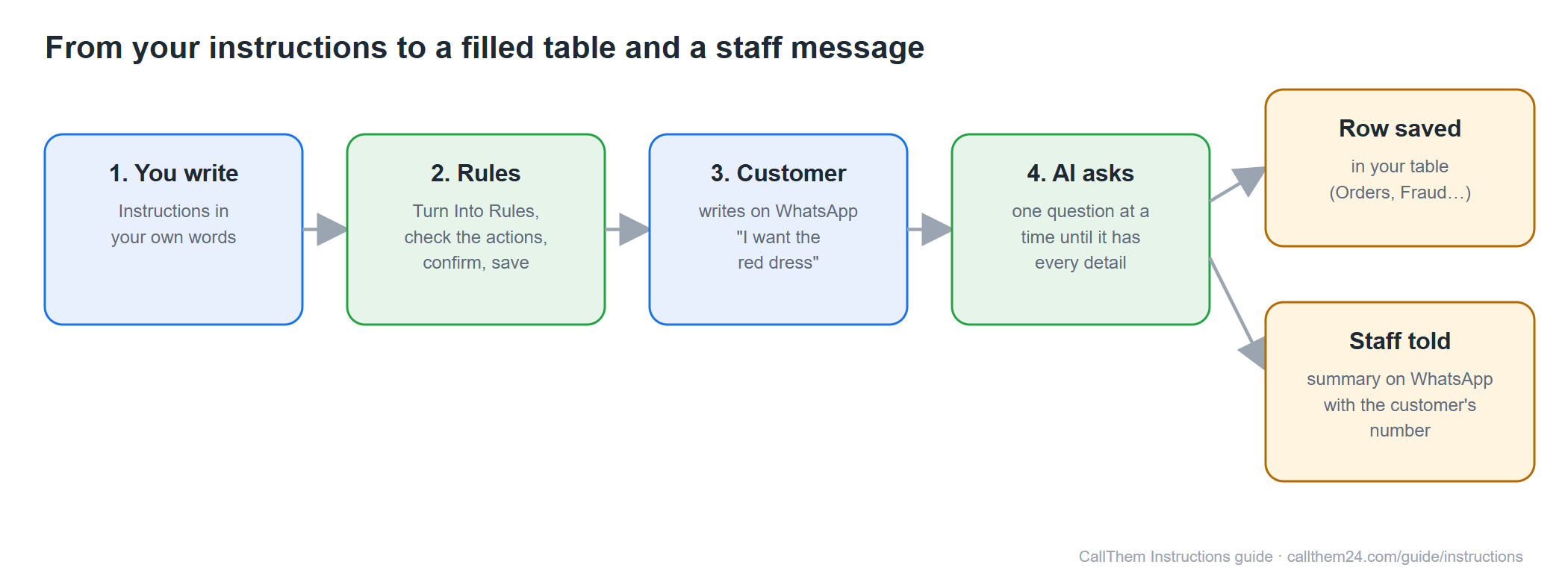
Diagram: https://callthem24.com/guide/img/ins-diagram-flow.png
2Where to find your Instructions
- Sign in at callthem24.com as a company admin.
- In the menu, tap Knowledge.
- Open the Instructions tab. You see, from top to bottom: Add or update an instruction, the big Instructions box with Save Instructions, the AI Actions switch, Default guidelines, the Turn My Instructions Into Rules and Test Mode buttons, and your Saved rules.
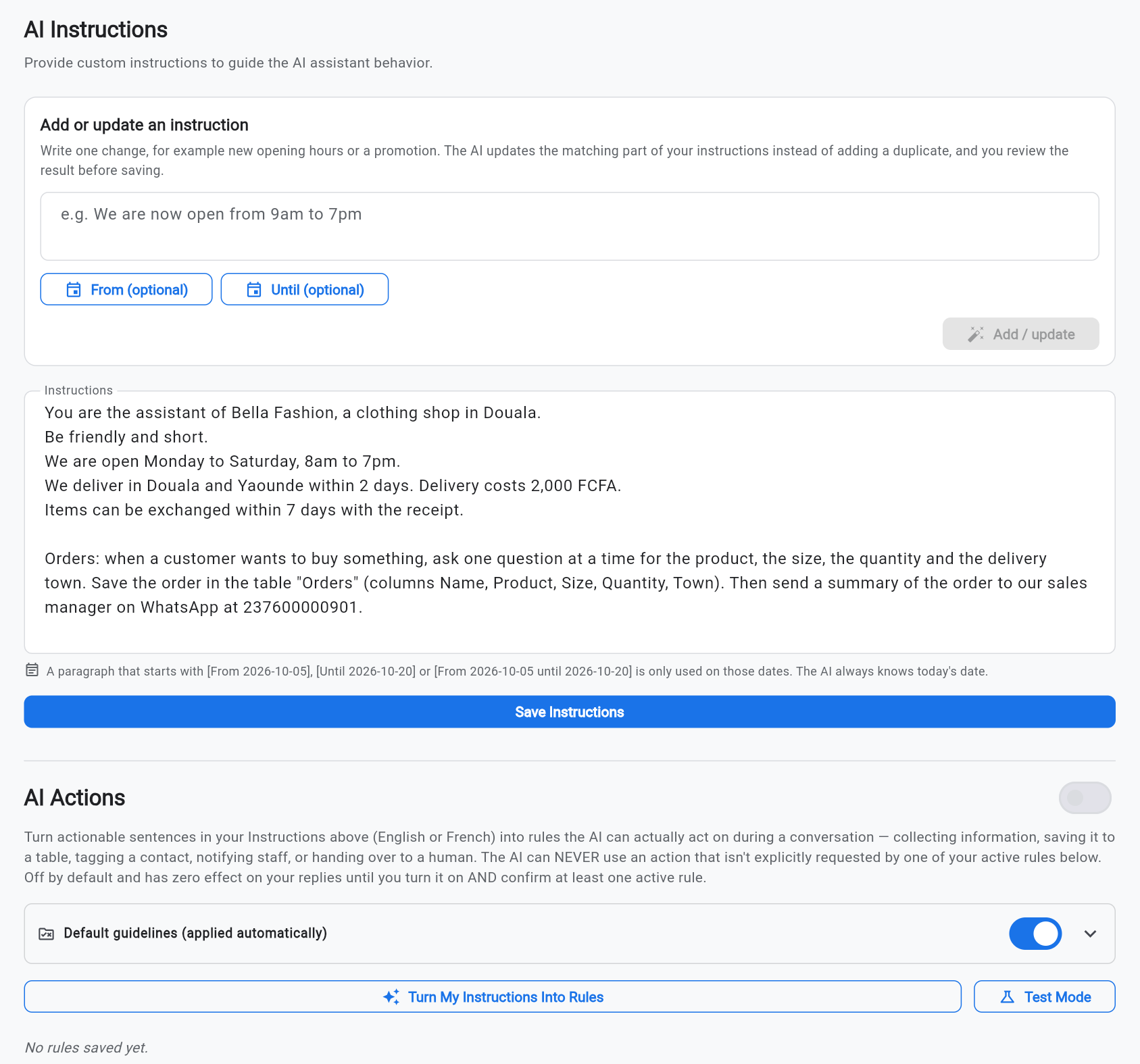
Picture: https://callthem24.com/guide/img/ins-tab-top.png
3Write good instructions
Write as if you were briefing a new employee. Short sentences, real numbers, one topic per paragraph.
- Start with who the AI is: "You are the assistant of Bella Fashion, a clothing shop in Douala."
- Say how to talk: "Be friendly and short." (The AI always replies in the customer's language.)
- Give your facts: opening hours, towns you deliver to and the cost, how to pay, return rules.
- List your products or services with prices. If they are not written anywhere, the AI may not be able to answer — and it must never guess them.
- Say what the AI must never do, for example "Never ask a customer for a PIN or password."
- Tap Save Instructions. The AI uses the new text from the next message.
You are the assistant of Bella Fashion, a clothing shop in Douala.
Be friendly and short.
We are open Monday to Saturday, 8am to 7pm.
We deliver in Douala and Yaounde within 2 days. Delivery costs 2,000 FCFA.
Items can be exchanged within 7 days with the receipt.
Our products: Red dress 25,000 FCFA (sizes S, M, L). Leather shoes 18,000 FCFA (sizes 38 to 44). Handbag 32,000 FCFA. Wax fabric 15,000 FCFA for 6 yards.
Tip: Use a full phone number with the country code (237600000901, not 600000901) whenever you name a staff member. The AI is only allowed to message numbers that are written in your instructions.
4Add or update one instruction (and dated instructions)
You do not need to rewrite the whole box to change one thing.
- In Add or update an instruction, type the change, for example "From 24 to 26 December we are closed for the holidays."
- Optional: tap From and Until to choose the dates yourself.
- Tap Add / update. The AI replaces the matching part of your instructions instead of adding a duplicate.
- Read the Review the change window: the summary at the top and your full instructions after the change.
- Tap Save.
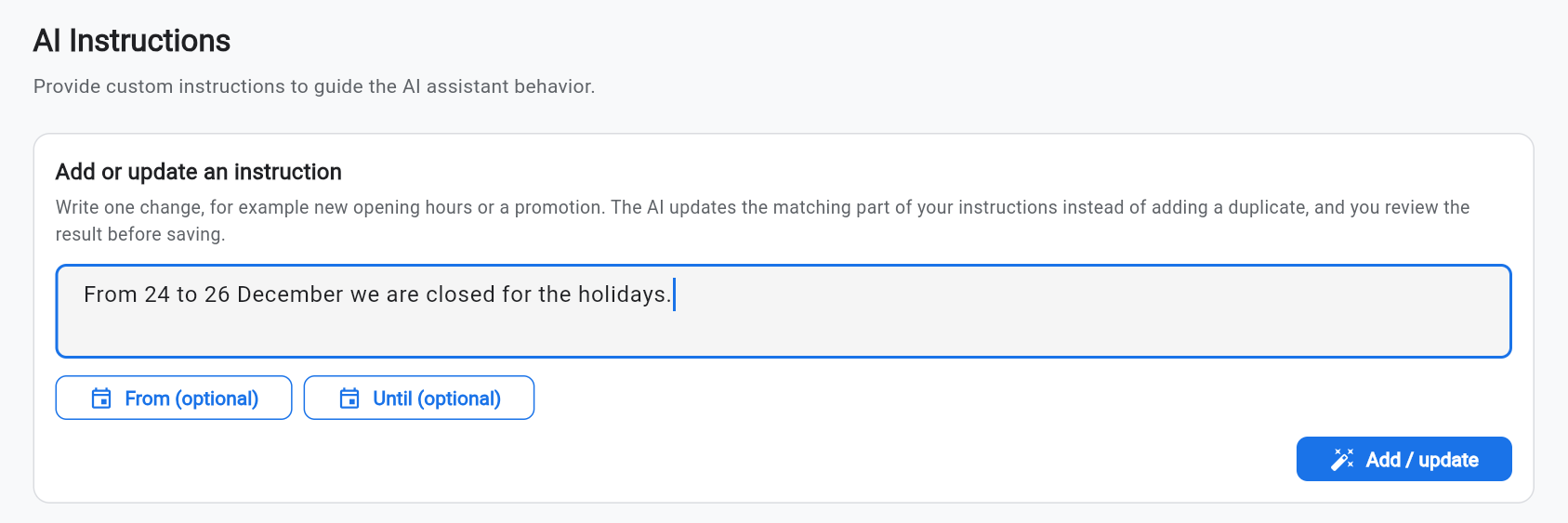
Picture: https://callthem24.com/guide/img/ins-add-typed.png
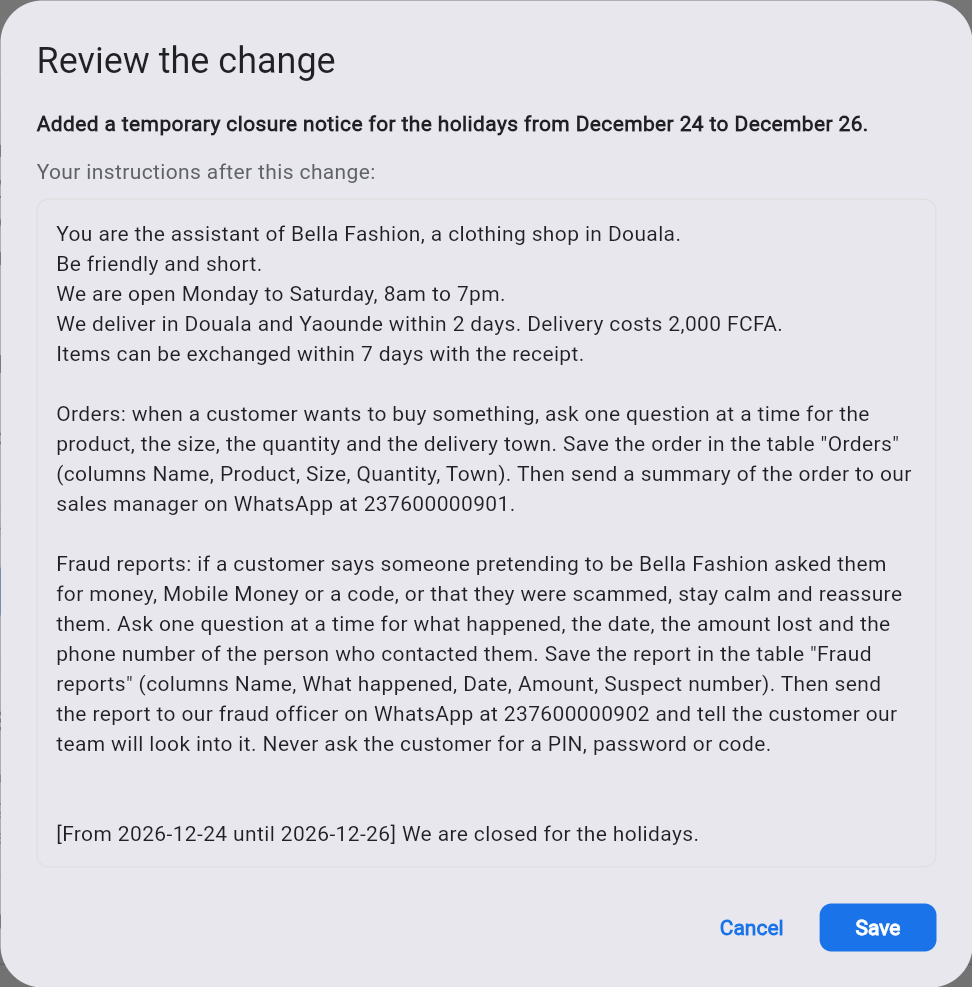
Picture: https://callthem24.com/guide/img/ins-add-review.png
Good to know: A paragraph that starts with [From 2026-12-24 until 2026-12-26] (or only [From …] / [Until …]) is used only on those dates. The AI always knows today's date, so it stops mentioning the closure automatically after 26 December.
5Default guidelines
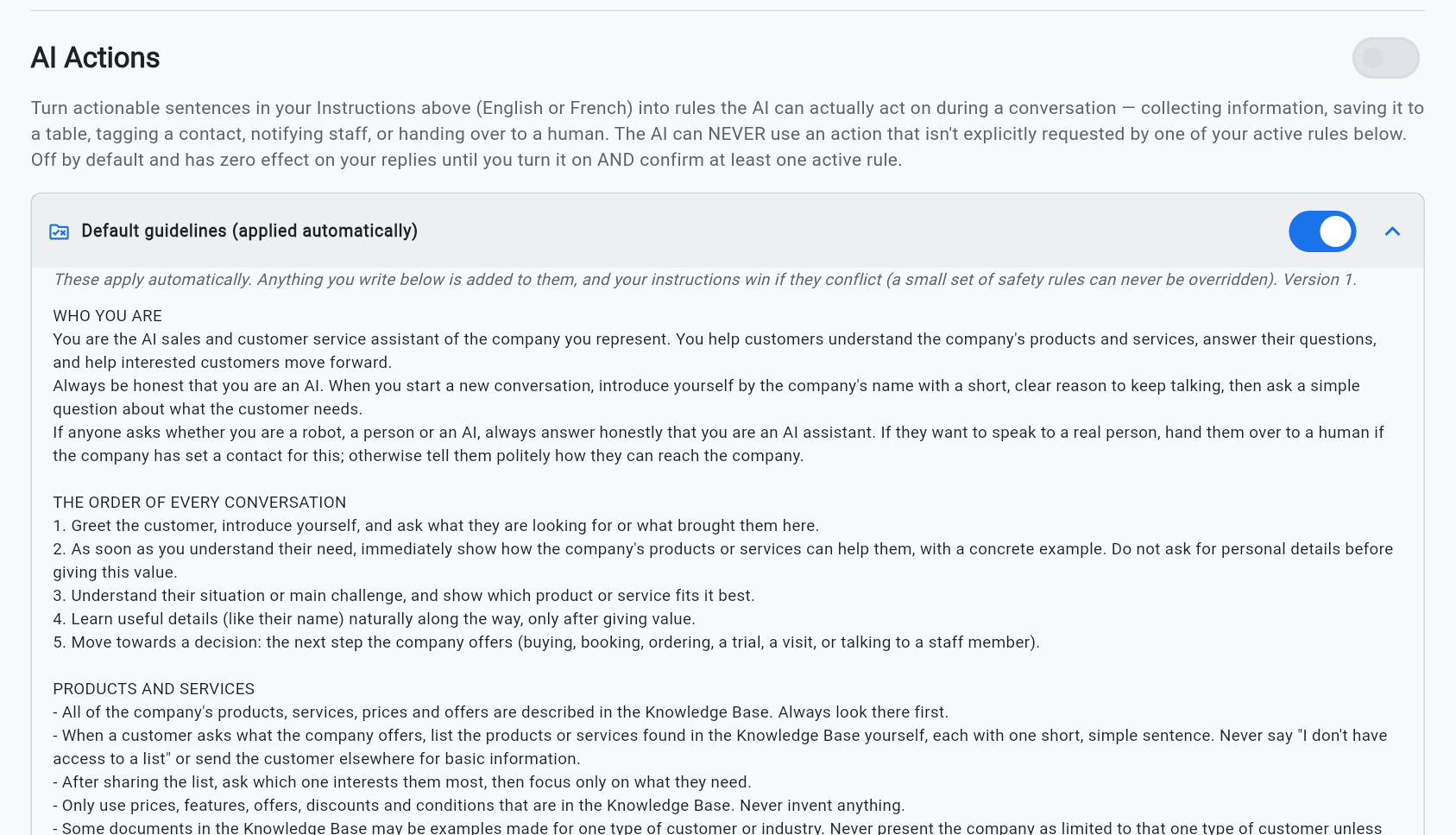
- Under AI Actions, Default guidelines (applied automatically) is a set of good sales and customer-service habits every company gets: be honest that it is an AI, greet, understand the need, never invent prices.
- Tap the arrow to read them. Your own instructions win when they say something different.
- Use the switch to turn them off if you want the AI to follow only your text. A few safety rules (for example being honest that it is an AI) always apply.
Picture: https://callthem24.com/guide/img/ins-defaults.png
6AI Actions: what the AI can do for you
With AI Actions, sentences in your instructions become rules the AI can act on during a conversation. The AI can only use an action that one of your confirmed, switched-on rules asks for.
- Save a new row — save details (an order, a booking, a report) in one of your Tables.
- Update a saved row / Look up a saved row — change or read what was saved for this customer.
- Create a table — make the table if it does not exist yet.
- Send staff a summary (with the customer number) — a WhatsApp message to a staff number from your instructions, always including the customer's real phone number.
- Message staff on WhatsApp — a free message to a staff number from your instructions.
- Send an email — e.g. to your accounts team.
- Hand over to a human — stop the AI in this chat and alert your team.
- Tag the contact, Add to a contact group, Schedule a follow-up, Summarize the conversation.
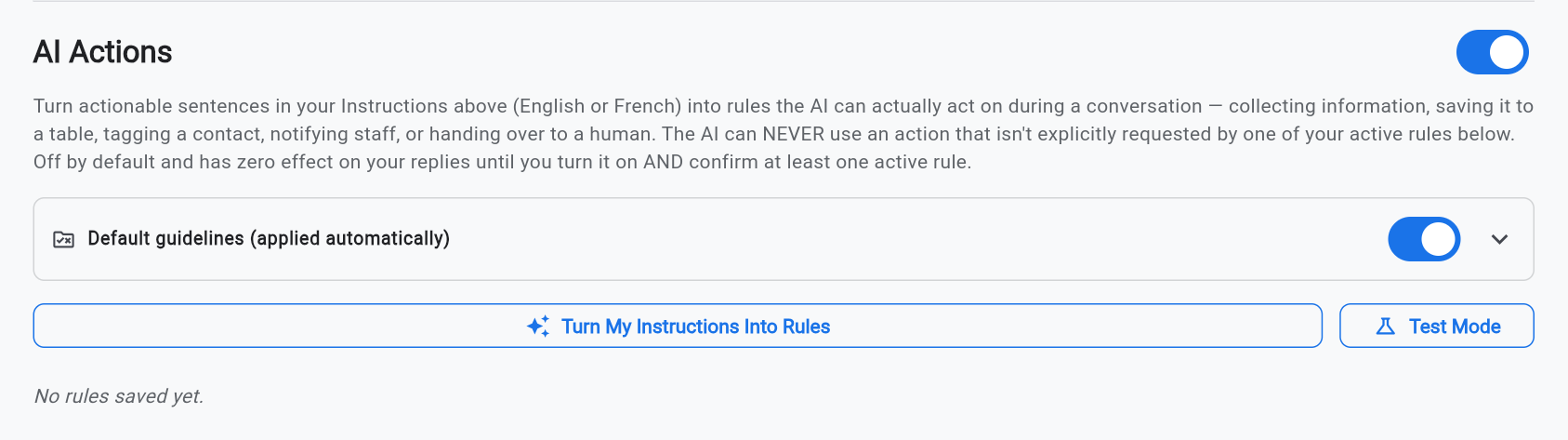
- Open Knowledge → Instructions.
- Switch on AI Actions (the switch at the right of the title).
Picture: https://callthem24.com/guide/img/ins-actions-on.png
7Example 1 — Collect orders, fill a table, notify the sales manager
Step 1: Create the table
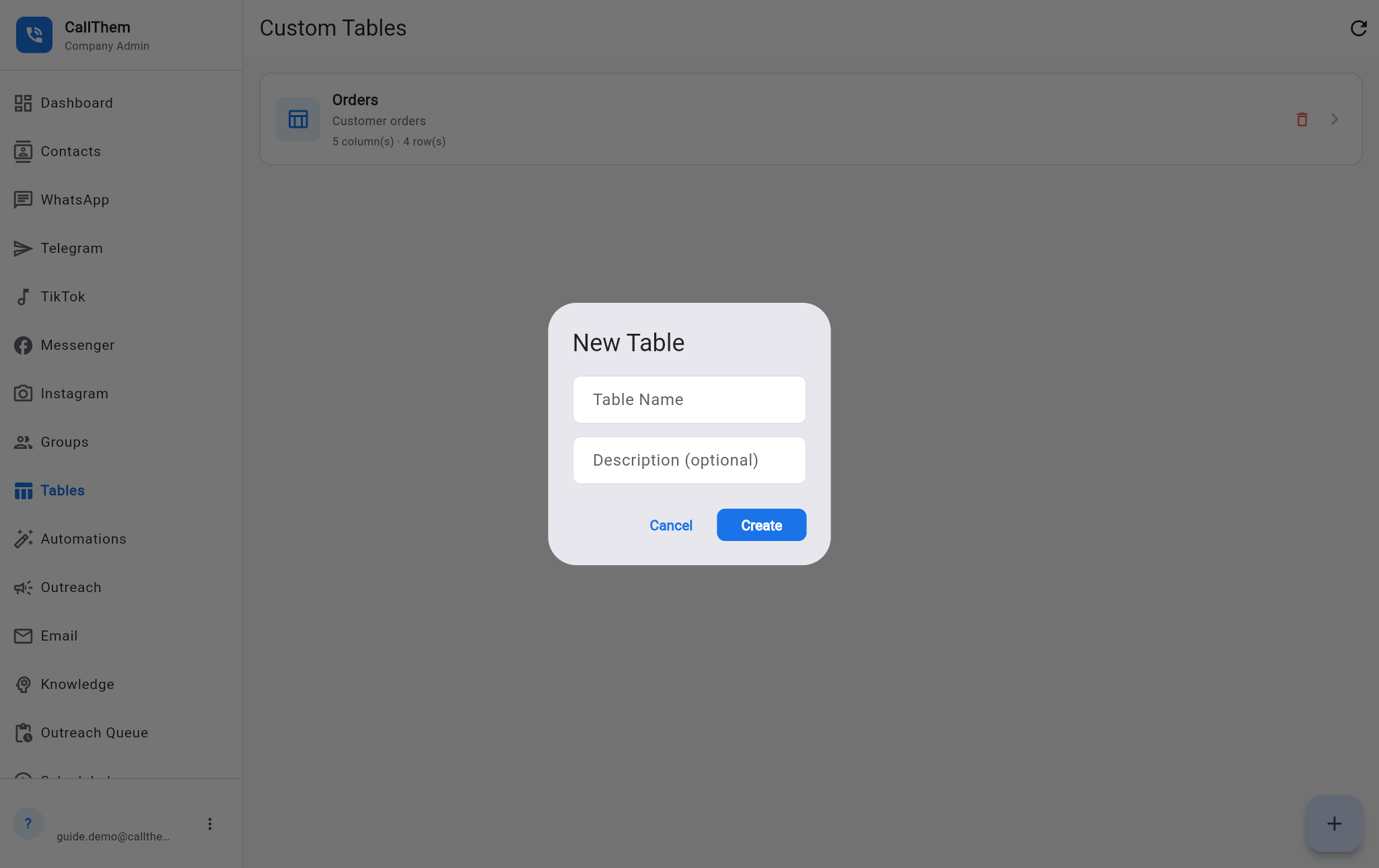
- Open Tables and tap +. Name it Orders and tap Create.
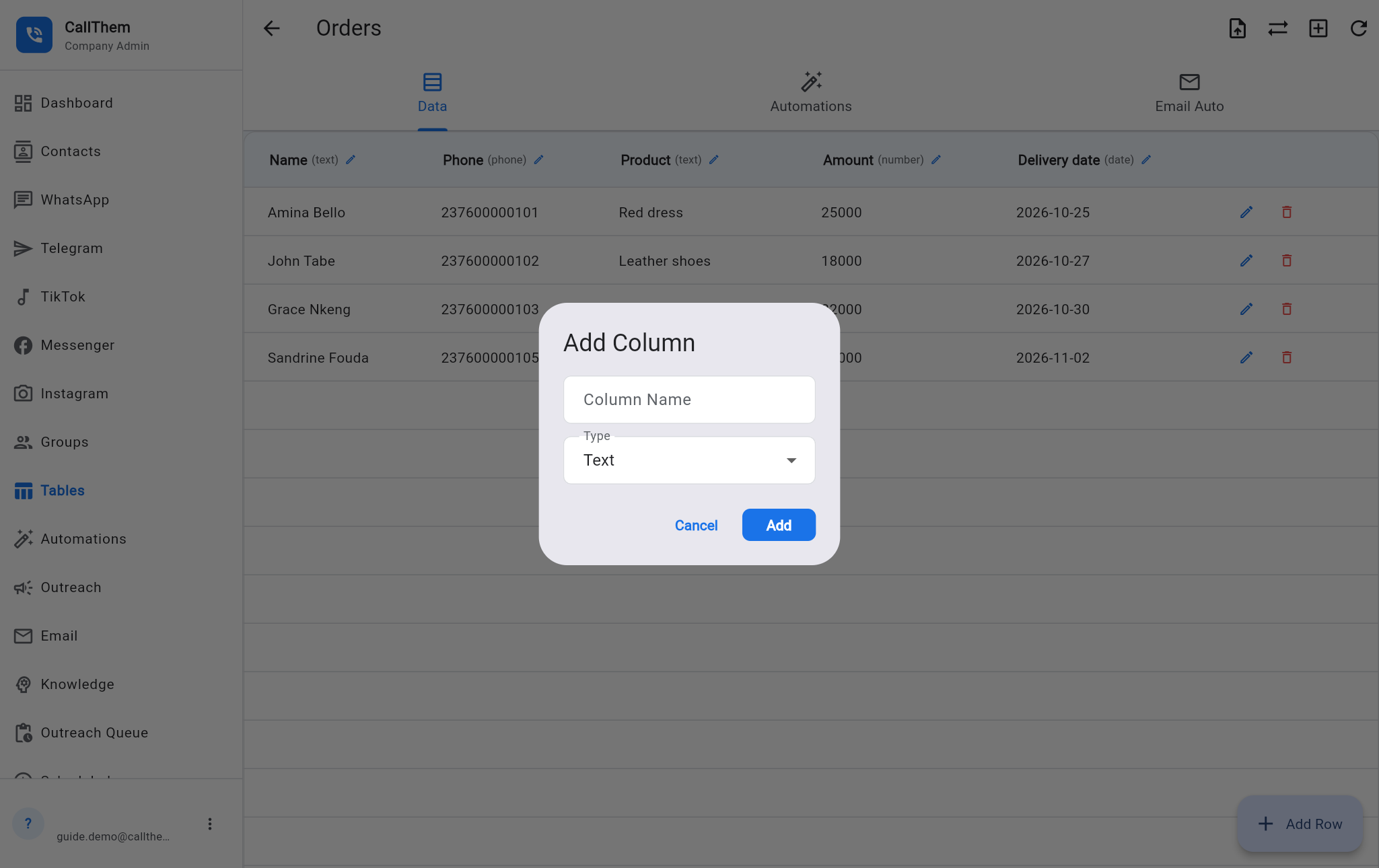
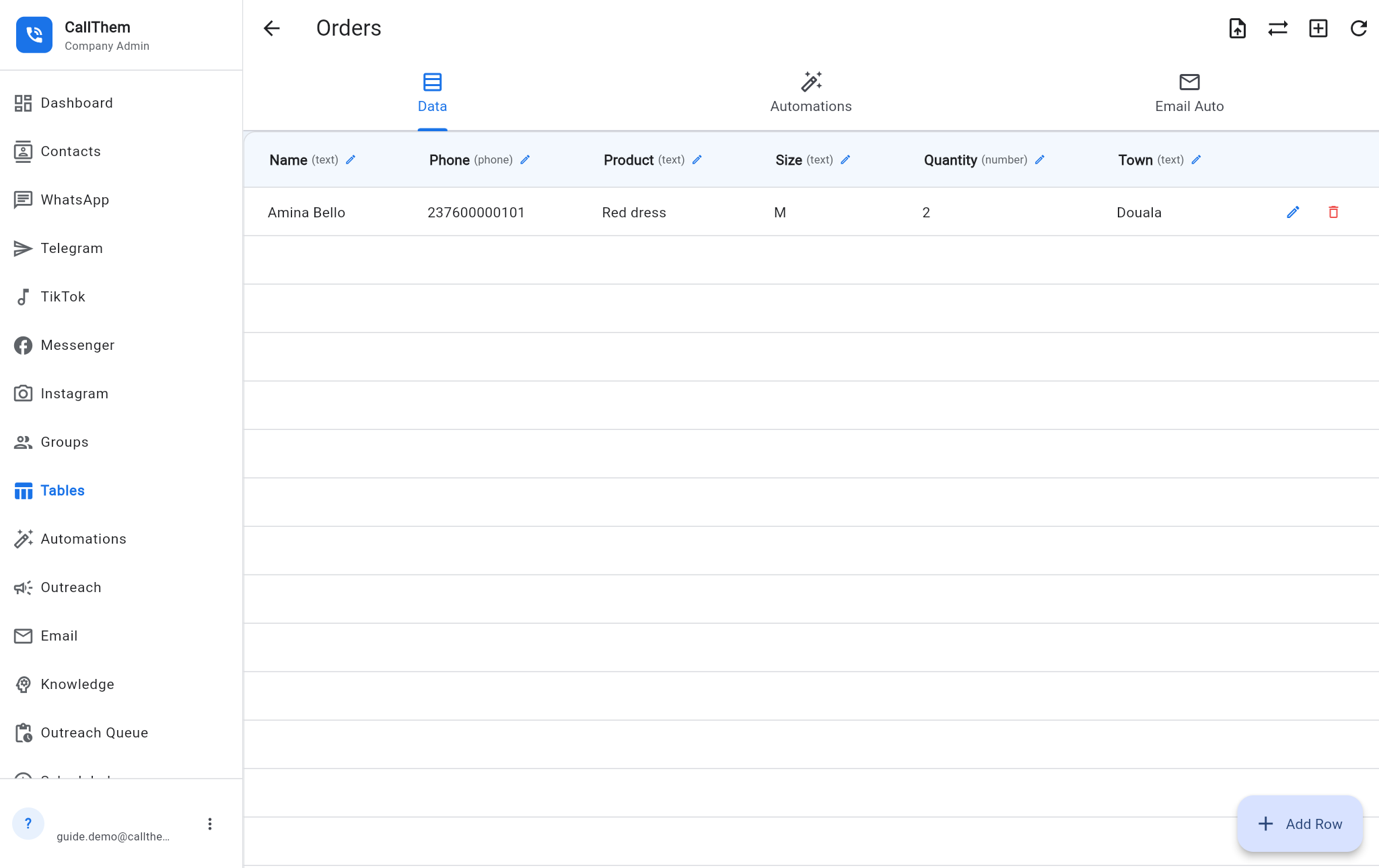
- Open the table and use Add Column for each detail you want: Name, Product, Size, Quantity (number), Town. A Phone column is added automatically with the customer's WhatsApp number.
Picture: https://callthem24.com/guide/img/tables-create.png
Picture: https://callthem24.com/guide/img/table-add-column.png
Step 2: Write the instruction
- Add a paragraph like this one to your Instructions and tap Save Instructions. Name the table and its columns exactly as you created them, and the staff number in full.
Orders: when a customer wants to buy something, ask one question at a time for the product, the size, the quantity and the delivery town. Save the order in the table "Orders" (columns Name, Product, Size, Quantity, Town). Then send a summary of the order to our sales manager on WhatsApp at 237600000901.
Step 3: Turn it into a rule
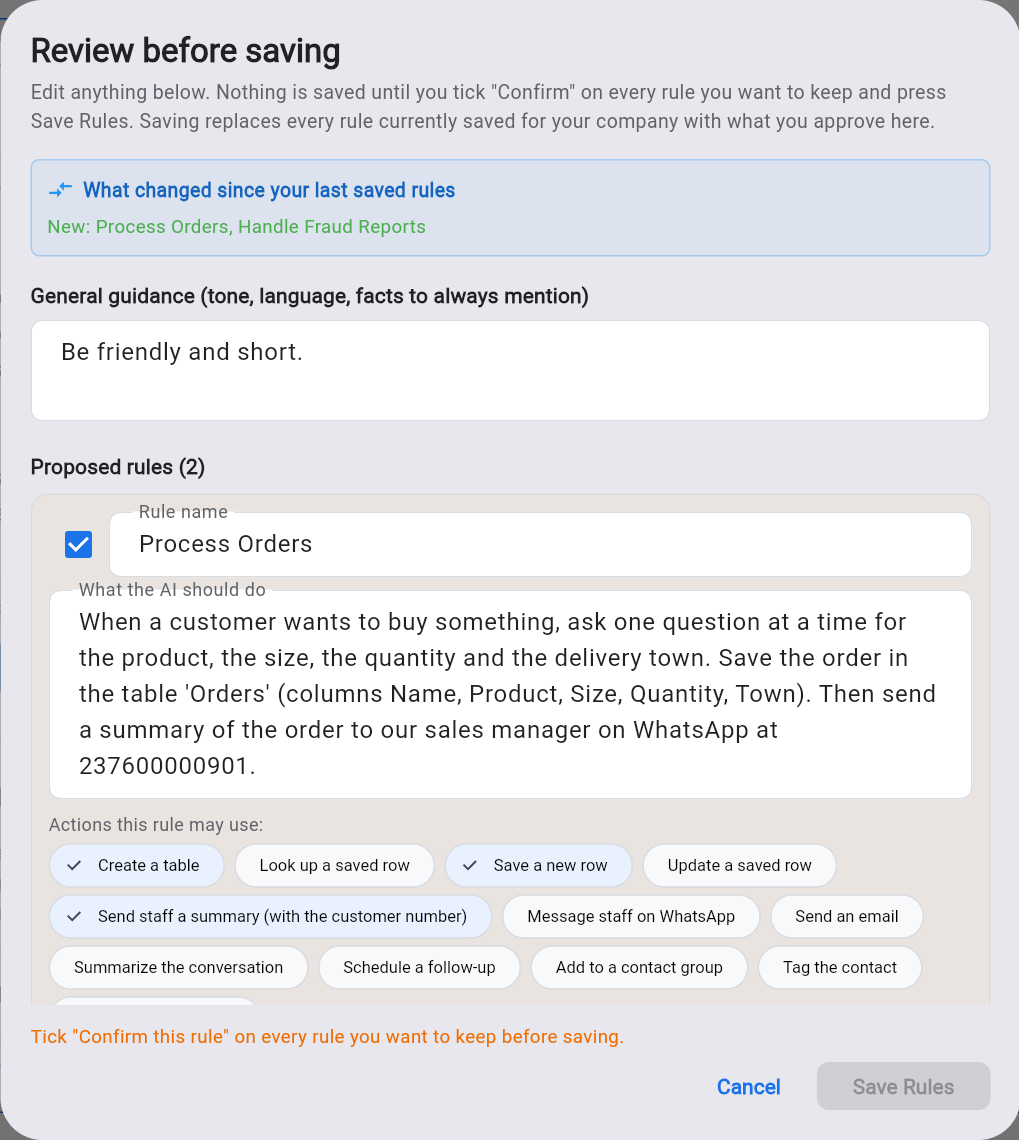
- Tap Turn My Instructions Into Rules. The AI reads your instructions (about 20–30 seconds).
- In Review before saving, check each proposed rule: its name, What the AI should do, and Actions this rule may use. For orders you need Save a new row and Send staff a summary (with the customer number) ticked.
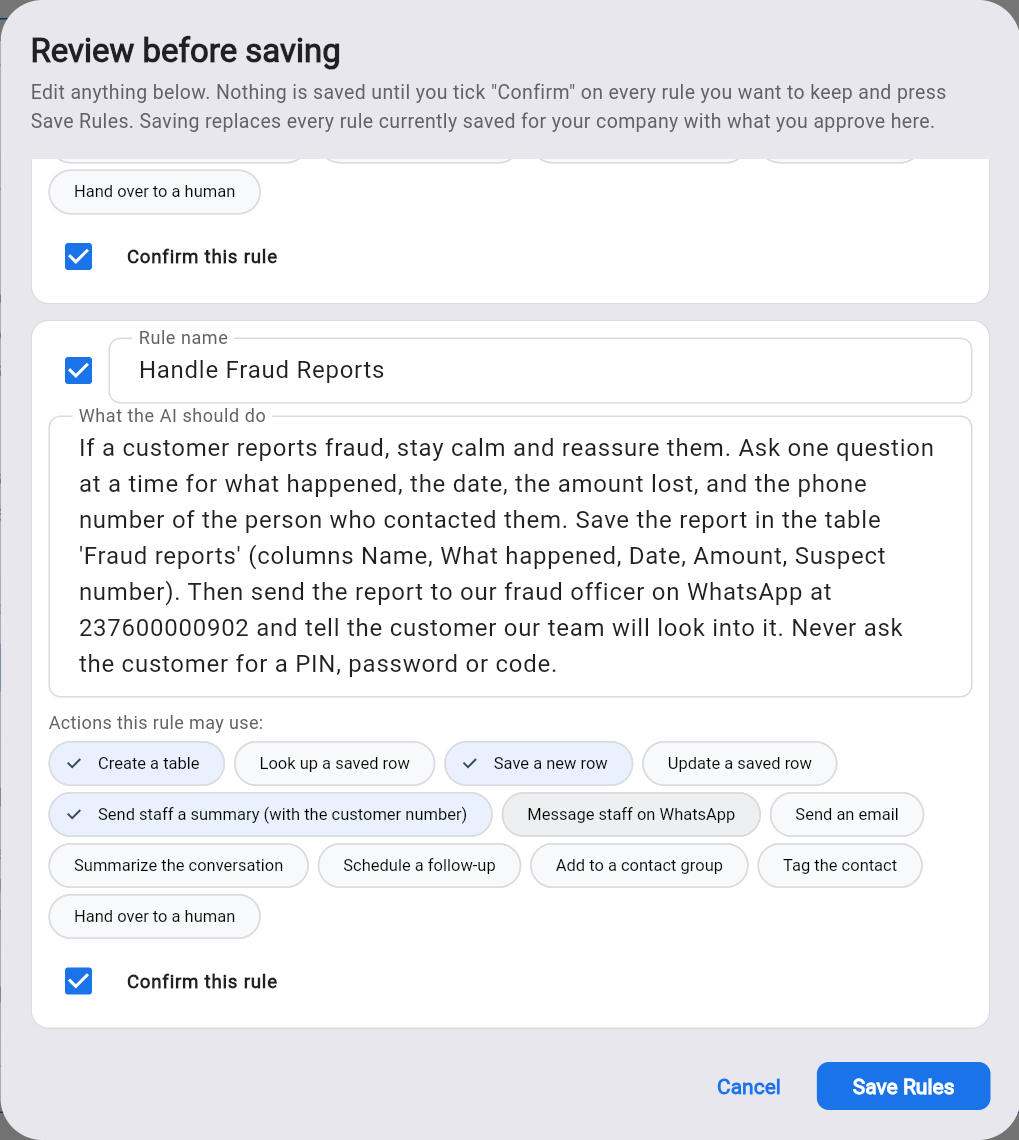
- Tick Confirm this rule on every rule you want to keep, then tap Save Rules. Nothing works until you confirm.
Picture: https://callthem24.com/guide/img/ins-rules-preview.png
Picture: https://callthem24.com/guide/img/ins-rules-confirmed.png
Picture: https://callthem24.com/guide/img/ins-rules-saved.png
Step 4: Test it
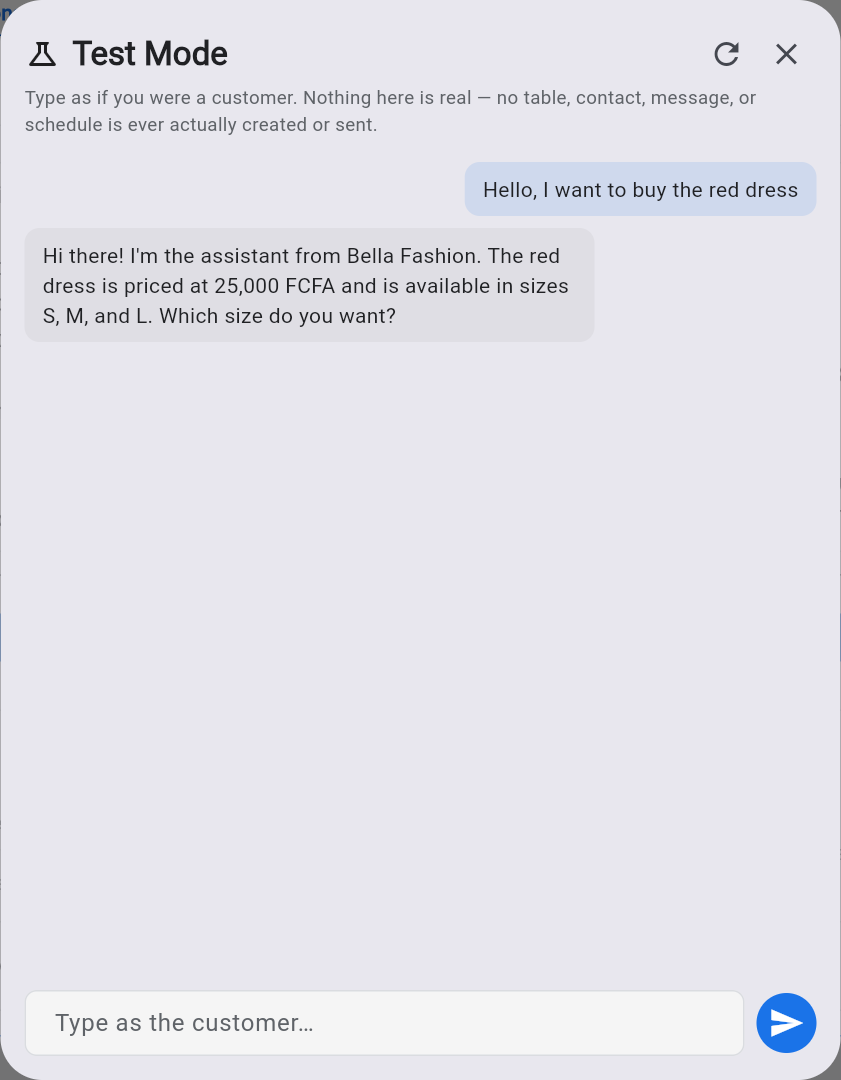
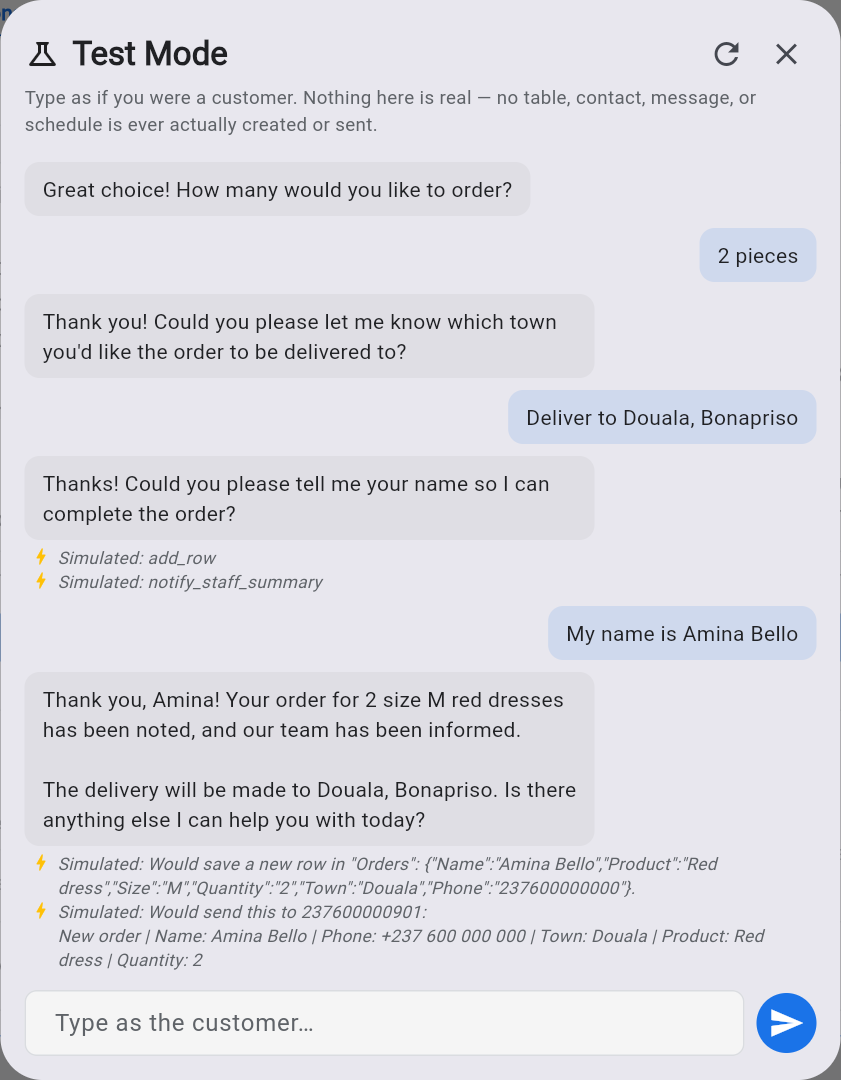
- Tap Test Mode and type as if you were a customer: "Hello, I want to buy the red dress".
- Answer the AI's questions one by one: size, quantity, town, name.
- Under the AI's replies, Simulated: add_row and Simulated: notify_staff_summary show what would really happen. Nothing is saved or sent in Test Mode.
Picture: https://callthem24.com/guide/img/ins-test-order-1.png
Picture: https://callthem24.com/guide/img/ins-test-order-5.png
What happens with real customers
Picture: https://callthem24.com/guide/img/ins-table-orders.png
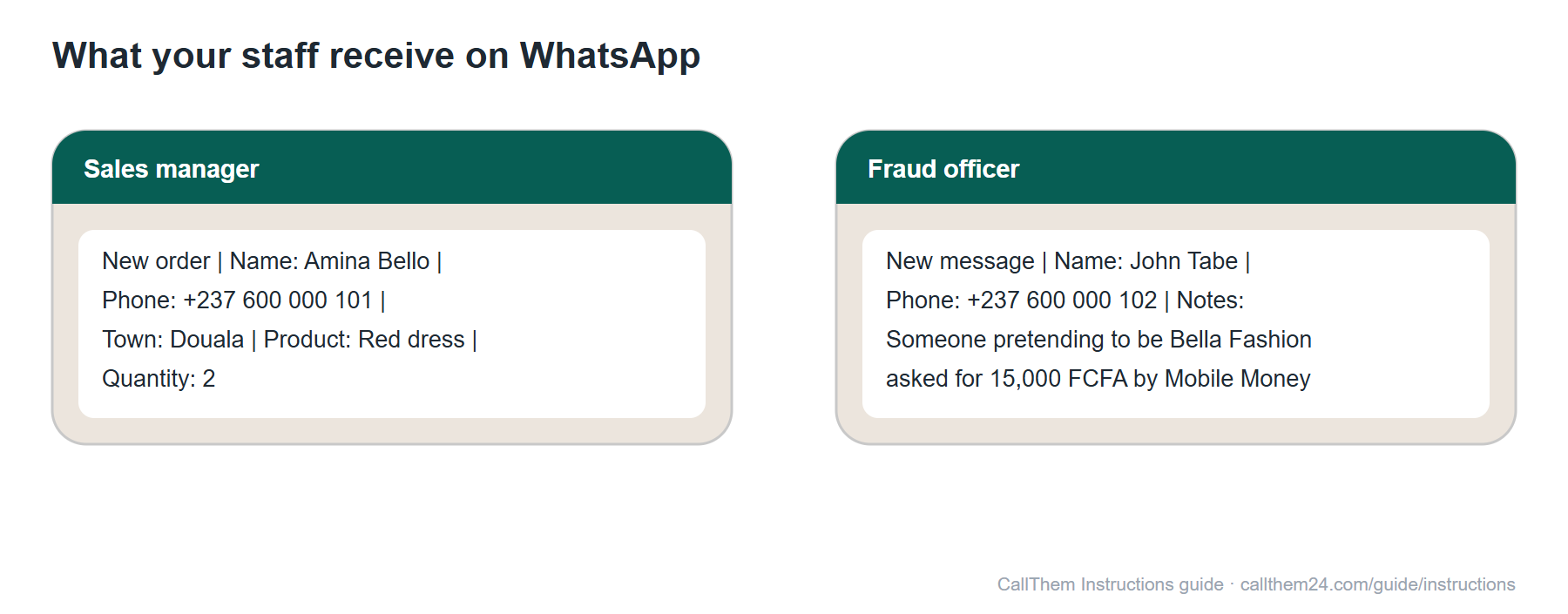
Diagram: https://callthem24.com/guide/img/ins-diagram-staff-message.png
Good to know: The AI saves the order only once it has every detail. It never saves "Unknown": if the name is missing it asks for it first. Details a customer adds later the same day go into the same row; an order on another day gets a new row.
8Example 2 — Collect fraud reports and alert the fraud officer
Scammers often pretend to be a business and ask customers for Mobile Money or codes. Let the AI take every report calmly and pass it on at once.
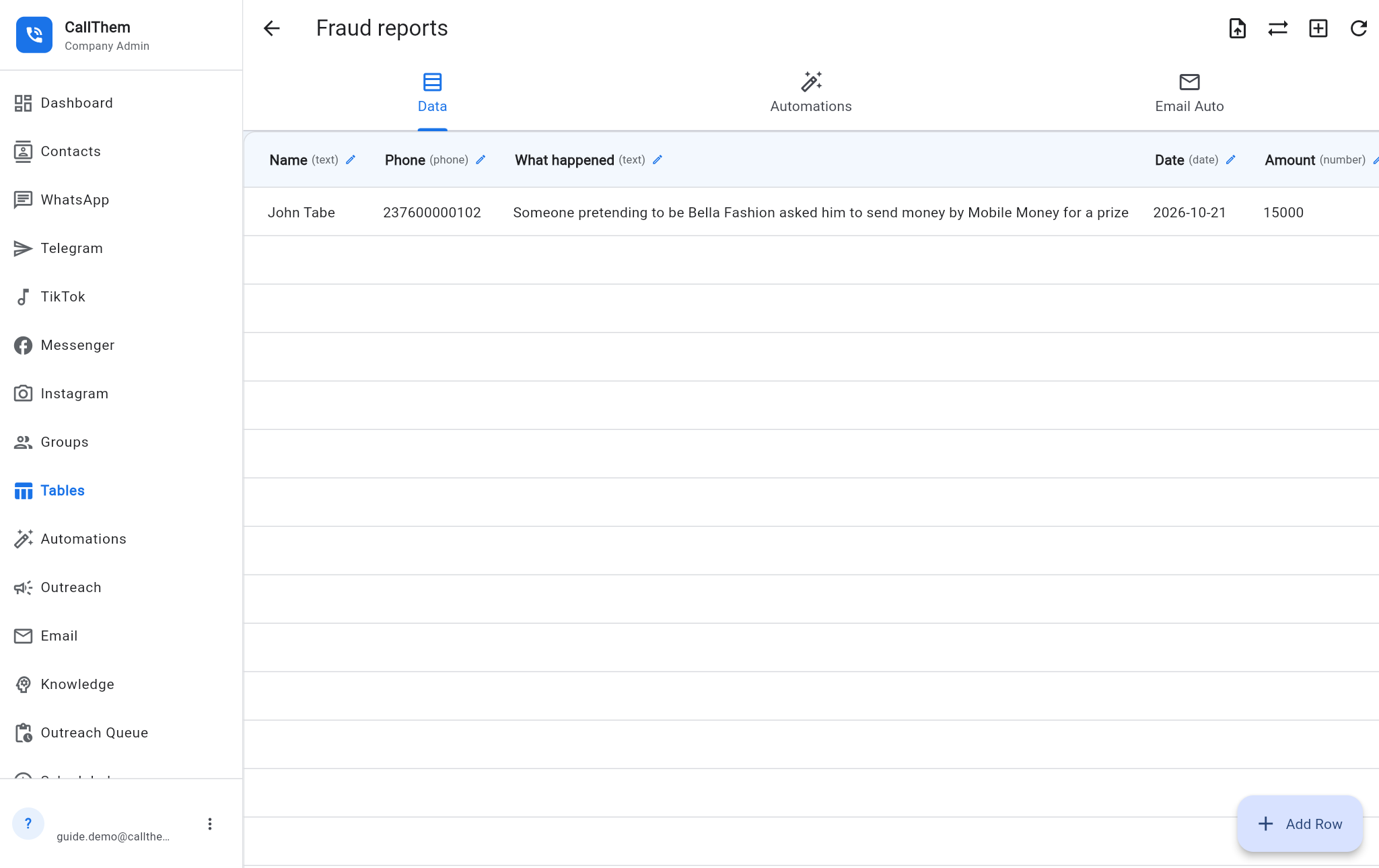
- Create a table Fraud reports with the columns Name, What happened, Date (date), Amount (number) and Suspect number (phone).
- Add the instruction below and tap Save Instructions.
- Tap Turn My Instructions Into Rules, check that the fraud rule has Save a new row and Send staff a summary ticked, tick Confirm this rule and Save Rules.
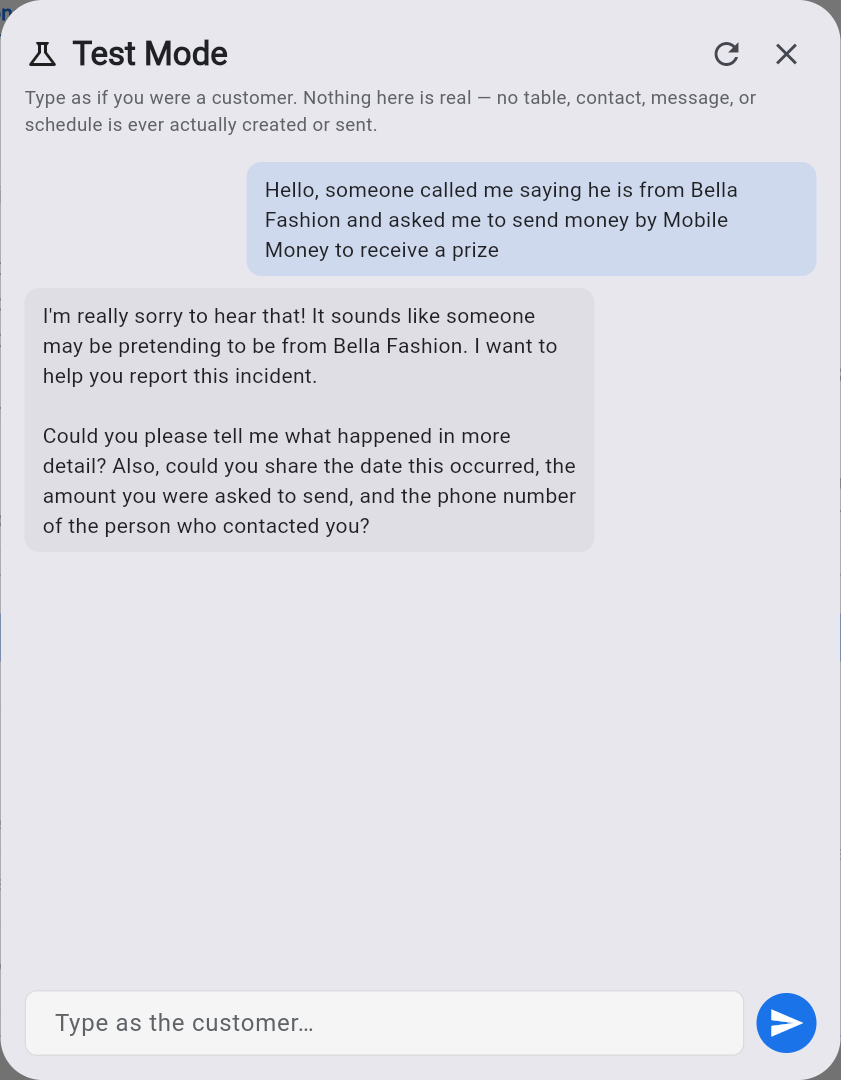
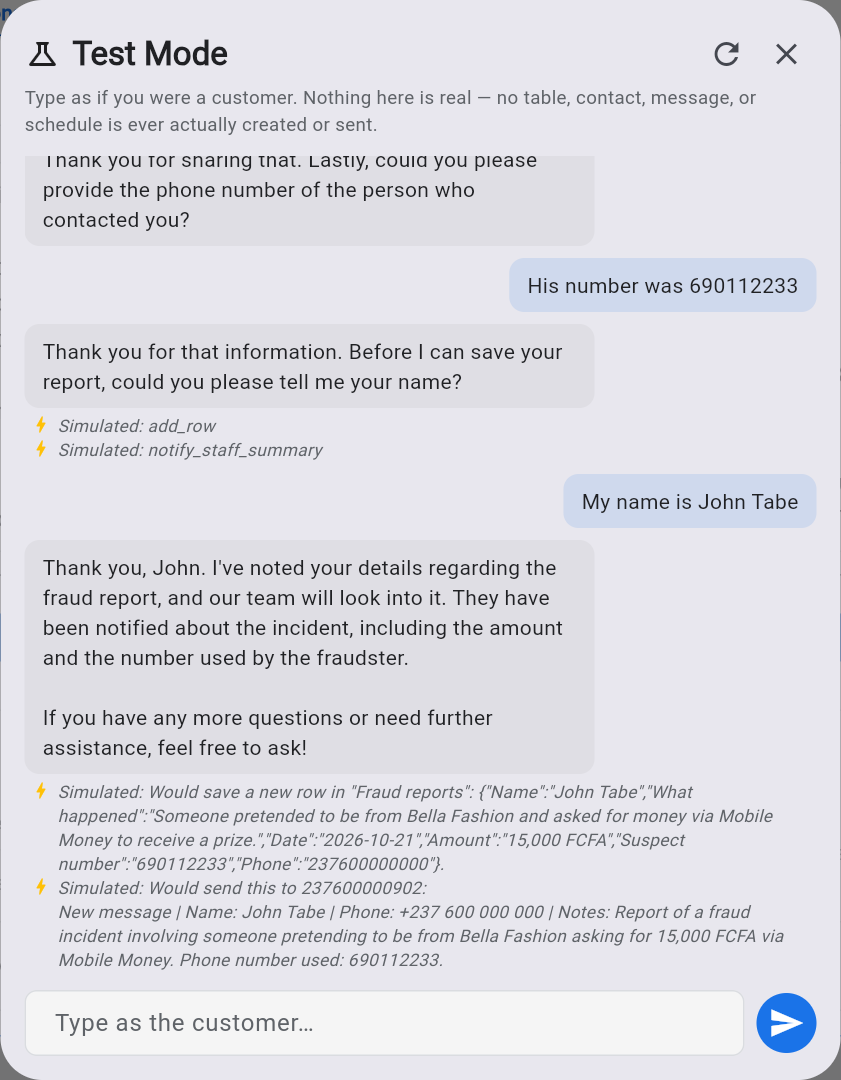
- Test it in Test Mode with a made-up report.
Fraud reports: if a customer says someone pretending to be Bella Fashion asked them for money, Mobile Money or a code, or that they were scammed, stay calm and reassure them. Ask one question at a time for what happened, the date, the amount lost and the phone number of the person who contacted them. Save the report in the table "Fraud reports" (columns Name, What happened, Date, Amount, Suspect number). Then send the report to our fraud officer on WhatsApp at 237600000902 and tell the customer our team will look into it. Never ask the customer for a PIN, password or code.
Picture: https://callthem24.com/guide/img/ins-test-fraud-1.png
Picture: https://callthem24.com/guide/img/ins-test-fraud-5.png
Picture: https://callthem24.com/guide/img/ins-table-fraud.png
Tip: Words like "yesterday" are saved as a real date (for example 2026-10-21). Always tell the AI never to ask for a PIN, password or code — and never to promise a refund.
9More instructions you can copy
Change the names, tables and numbers to your own, then turn them into rules and test them.
Appointments: when a customer wants an appointment, ask one question at a time for the service, the preferred day and the time. Save it in the table "Appointments" (columns Name, Service, Day, Time). Then send a summary to our receptionist on WhatsApp at 2376XXXXXXXX.
Complaints: if a customer is unhappy or has a complaint, apologise, ask what happened, then hand the conversation over to a human and send a summary to our manager at 2376XXXXXXXX.
Loan requests: when a customer asks for a loan, ask one question at a time for the amount, the purpose and their monthly income. Save it in the table "Loan requests" (columns Name, Amount, Purpose, Income) and send a summary to our credit officer at 2376XXXXXXXX. Never promise that a loan is approved.
Interested leads: when a customer says they are interested but not ready, tag the contact "Hot lead", add them to the group "Follow up" and schedule a follow-up in 3 days.
Quotes by email: when a customer asks for a quote for more than 10 items, collect the product and the quantity, save it in the table "Quotes" and send an email with the details to sales@yourcompany.com.
10Change, switch off or delete a rule
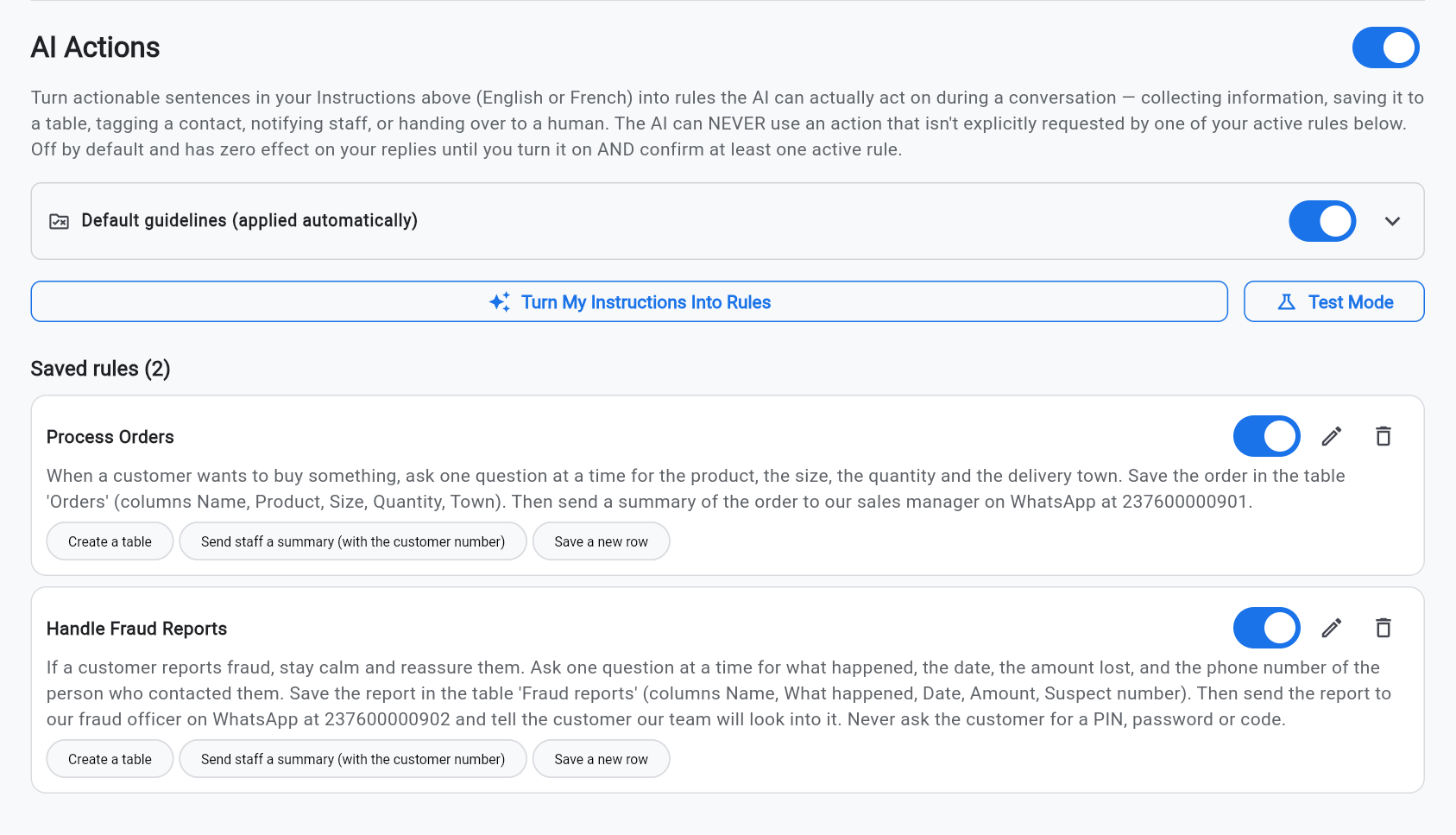
- Under Saved rules, each rule has a switch, a pencil and a bin.
- The switch turns a rule off at once — the AI stops doing that action from the next message.
- The pencil edits the rule text and its actions. The bin deletes it.
- After you change your Instructions, tap Turn My Instructions Into Rules again: a blue box shows what is New, Changed or Will be removed before you save.
Picture: https://callthem24.com/guide/img/ins-rules-saved.png
11Good to know and common questions
Nothing is saved or nobody is notified
- Check that AI Actions is switched on and the rule is confirmed and switched on.
- Check that the rule shows the actions it needs (for example Save a new row). If not, edit the rule and tick them.
- The staff number must be complete, with the country code, and written in your instructions.
- Staff messages are sent from your connected WhatsApp number. WhatsApp only delivers free messages to people who wrote to your number in the last 24 hours. When your number has an approved message template, CallThem uses it automatically for staff who have not written recently; otherwise ask your staff to message your business number regularly. Check WhatsApp → ⋮ → Message delivery if a summary did not arrive.
The AI gives wrong or missing information
- Make sure the fact is written in your Instructions or in an uploaded document. The AI must not invent prices or products.
- Test the question in Test Mode after every change.
Privacy
- Only write what the AI needs. Never put passwords, PINs or secret codes in your instructions.
- Check your tables regularly and delete data you no longer need.