CallThem User Guide
Step-by-step instructions with screenshots
callthem24.com · Version of 21 October 2026
1What CallThem does
CallThem is an AI assistant for your business. It answers your customers on WhatsApp (and Telegram and email) using what you teach it, keeps every conversation in one inbox, and sends personal messages, reminders and follow-ups for you. You can always read every chat, reply yourself, or switch the AI off for one chat.
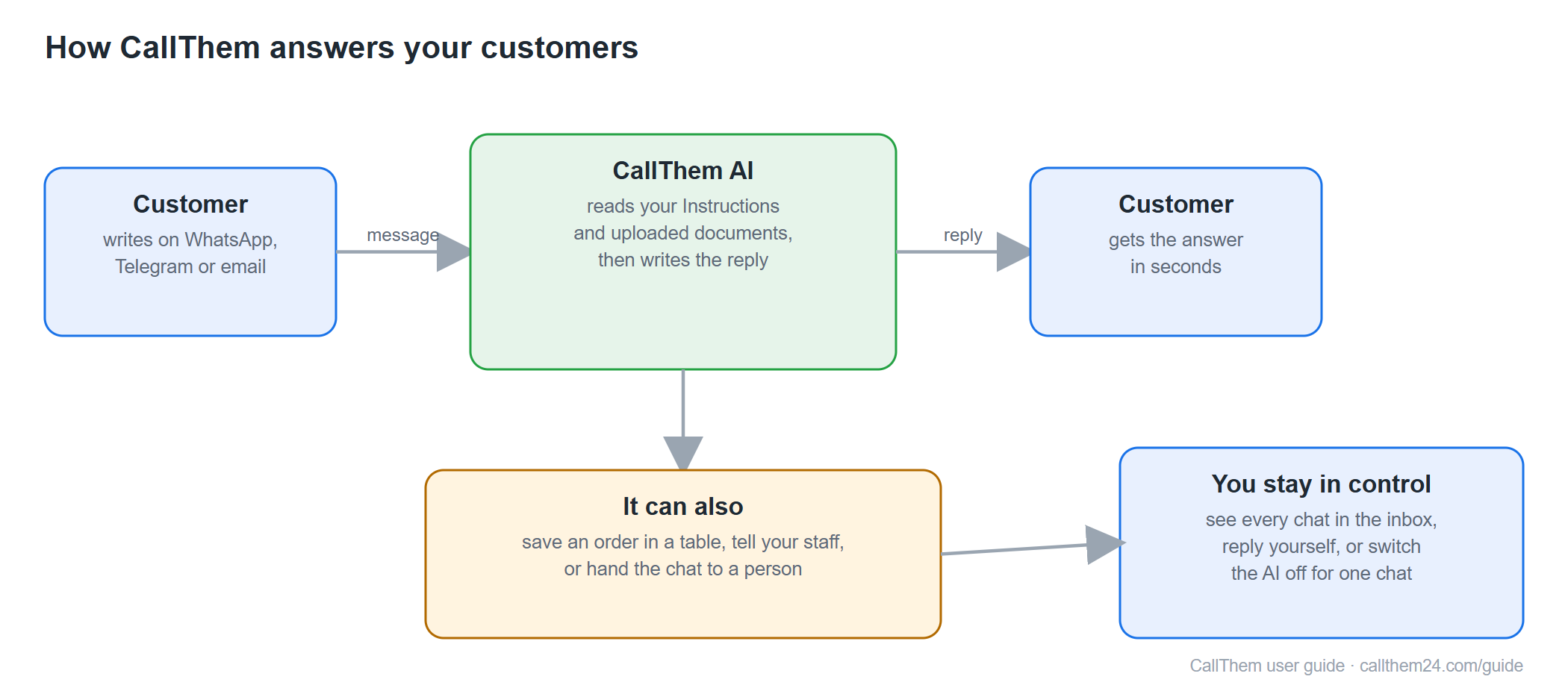
Diagram: https://callthem24.com/guide/img/diagram-how-it-works.png
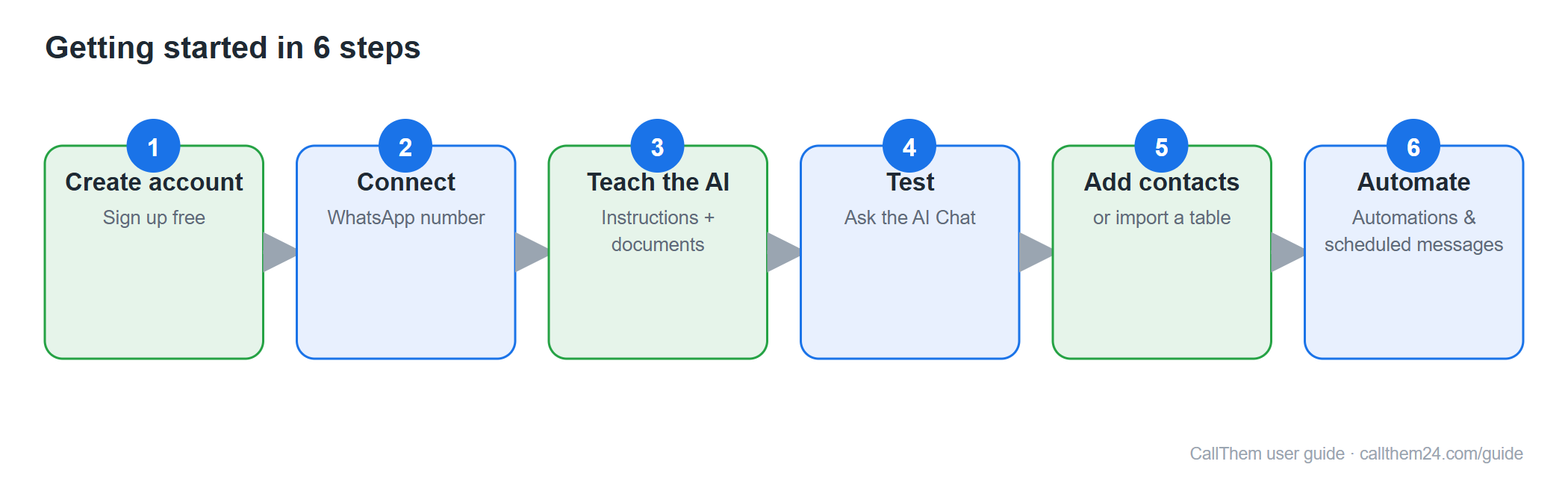
Diagram: https://callthem24.com/guide/img/diagram-getting-started.png
Tip: CallThem works on a computer and on a phone browser. Open https://callthem24.com — there is nothing to install.
2Create your account and sign in
Create a new account
- Open callthem24.com in your browser.
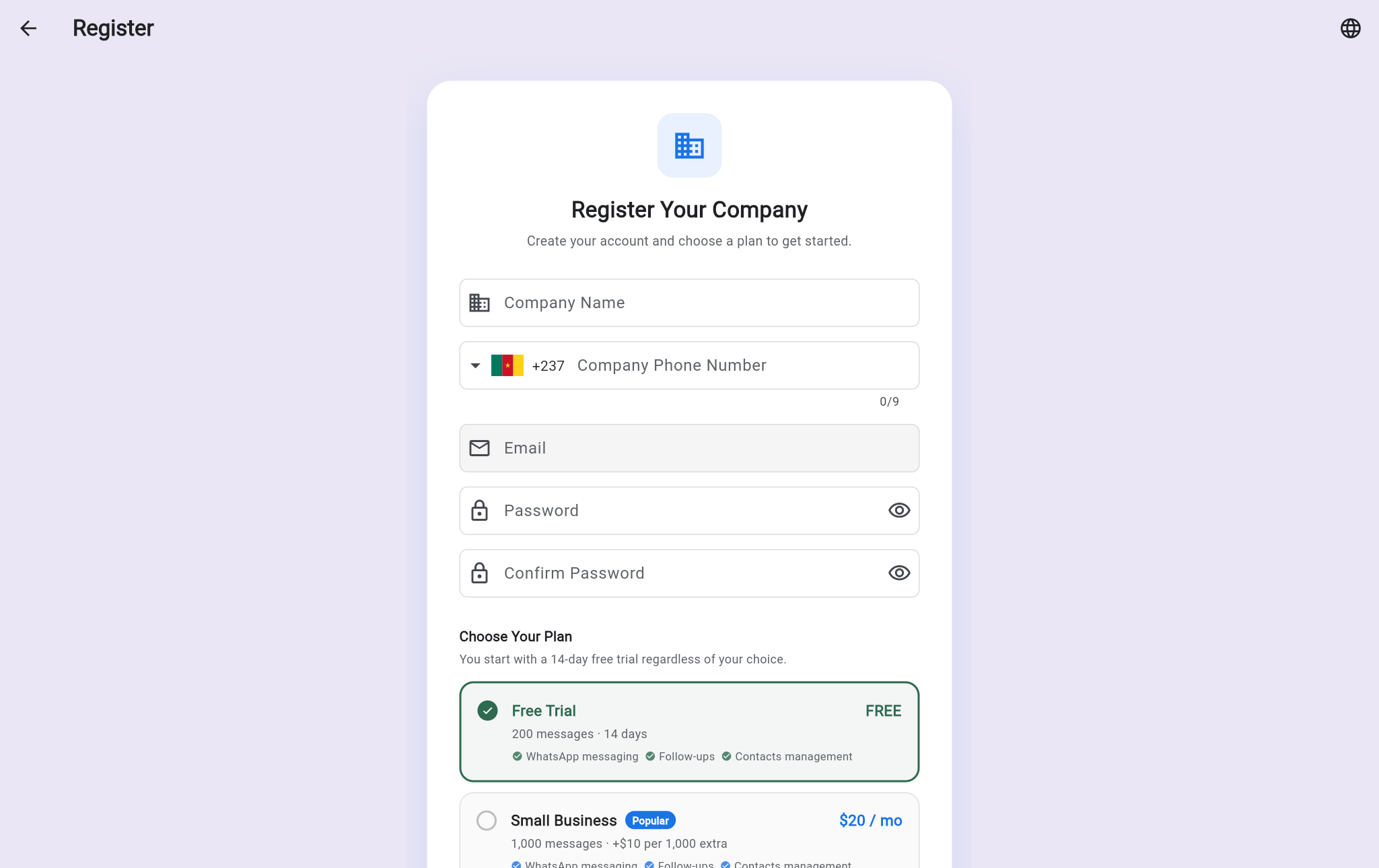
- Tap Start Your Free Trial (or Create one under the sign-in form).
- Type your Company Name and your Company Phone Number (choose the country code first, then the number without the country code).
- Type your Email, a Password, and the same password again in Confirm Password.
- Under Choose Your Plan, keep Free Trial (14 days, no card needed) or pick a paid plan.
- Tap Start Free Trial. Your dashboard opens.
Picture: https://callthem24.com/guide/img/signup.png
Sign in next time
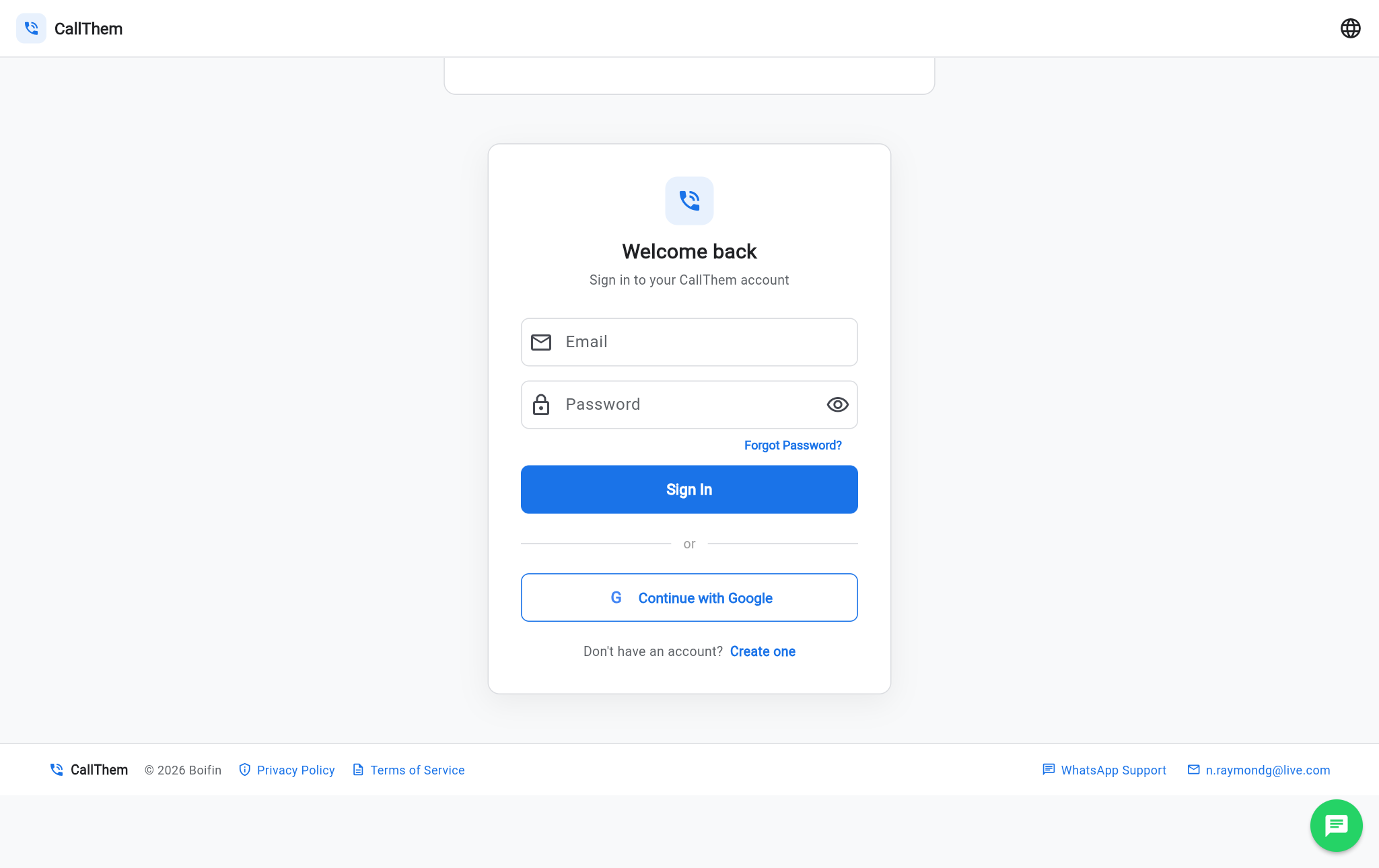
- Open callthem24.com and scroll to the Welcome back form.
- Type your Email and Password and tap Sign In — or tap Continue with Google.
- Forgot your password? Tap Forgot Password? and follow the email you receive.
Picture: https://callthem24.com/guide/img/login-form.png
Tip: To change the app language, tap the globe icon at the top right of any screen.
3Your dashboard
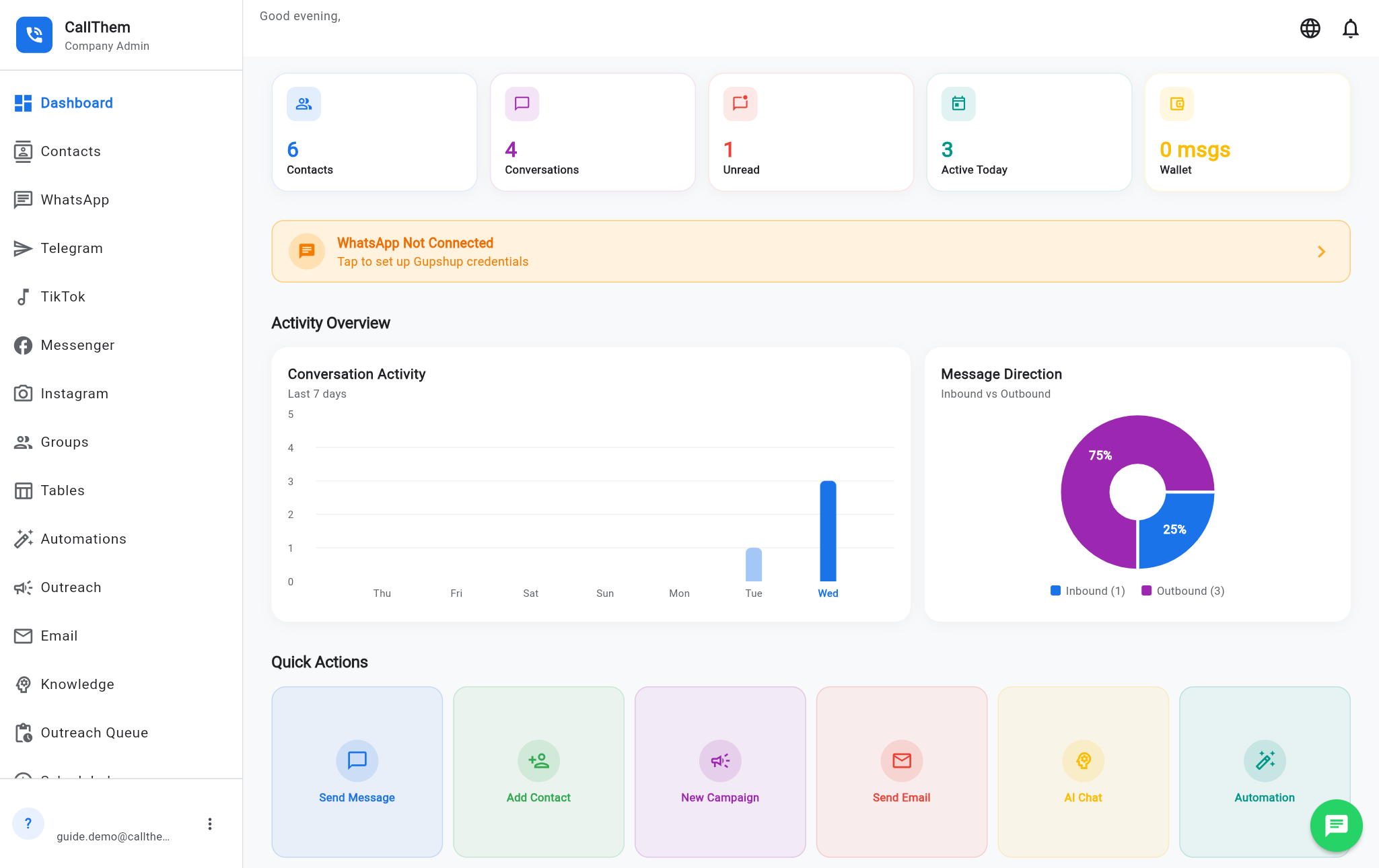
The dashboard is the first screen after you sign in. The menu on the left (on a phone: the menu button) takes you to every part of the app.
Picture: https://callthem24.com/guide/img/dashboard.png
- The top cards show your number of Contacts, Conversations, Unread chats and Active Today.
- An orange WhatsApp Not Connected bar means you still need to connect your number — tap it (see chapter 4).
- Activity Overview shows how many messages came in and went out in the last 7 days.
- Quick Actions open the most used tasks: Send Message, Add Contact, New Campaign, Send Email, AI Chat and Automation.
- Recent Conversations lists your latest chats — tap one to open it.
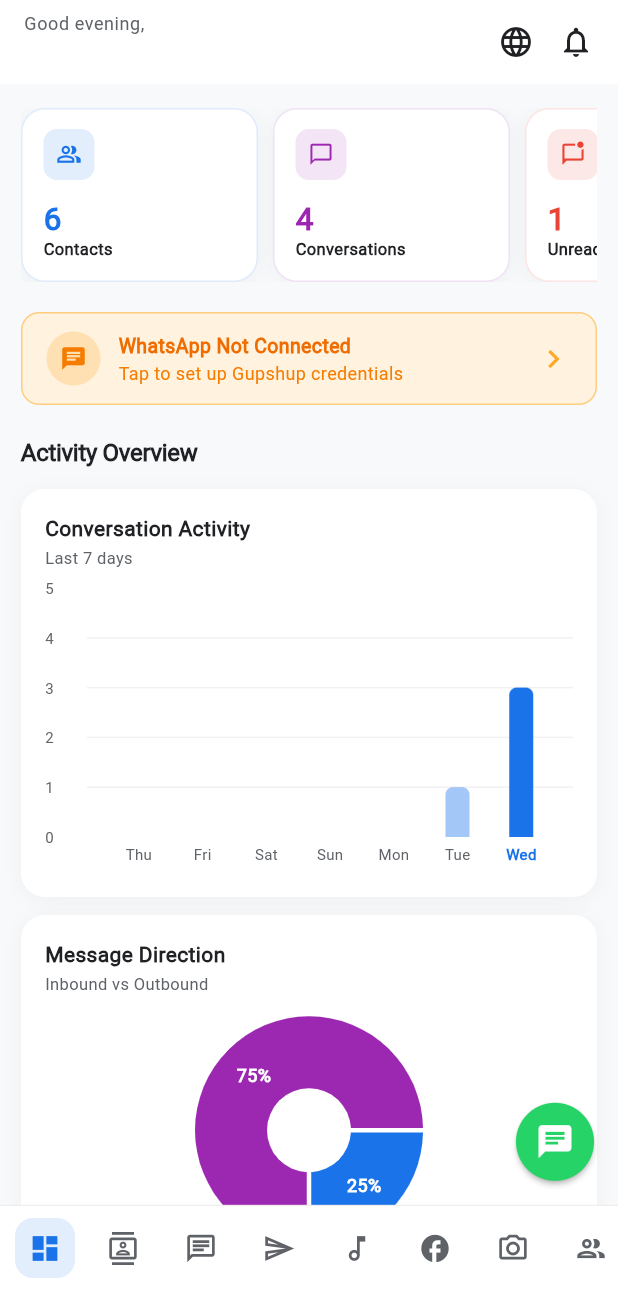
Picture: https://callthem24.com/guide/img/mobile-dashboard.png
4Connect your WhatsApp number
To let the AI answer your customers on WhatsApp, connect your business WhatsApp number once. You need: the phone with that number (to receive a code), and a Facebook account.
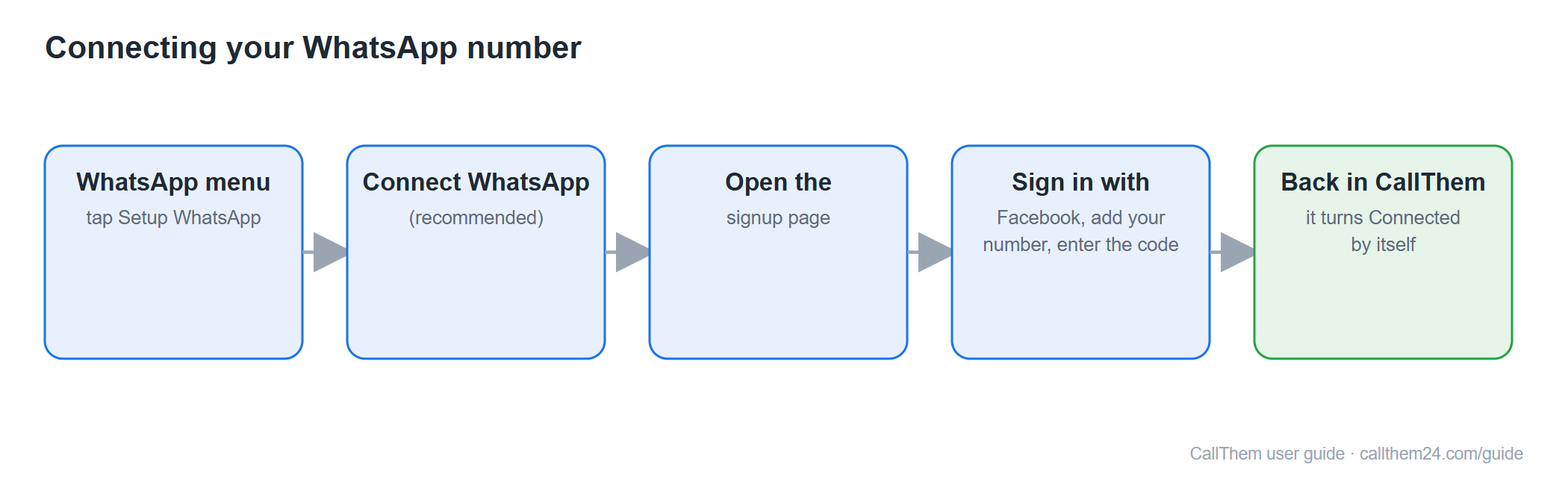
Diagram: https://callthem24.com/guide/img/diagram-connect-whatsapp.png
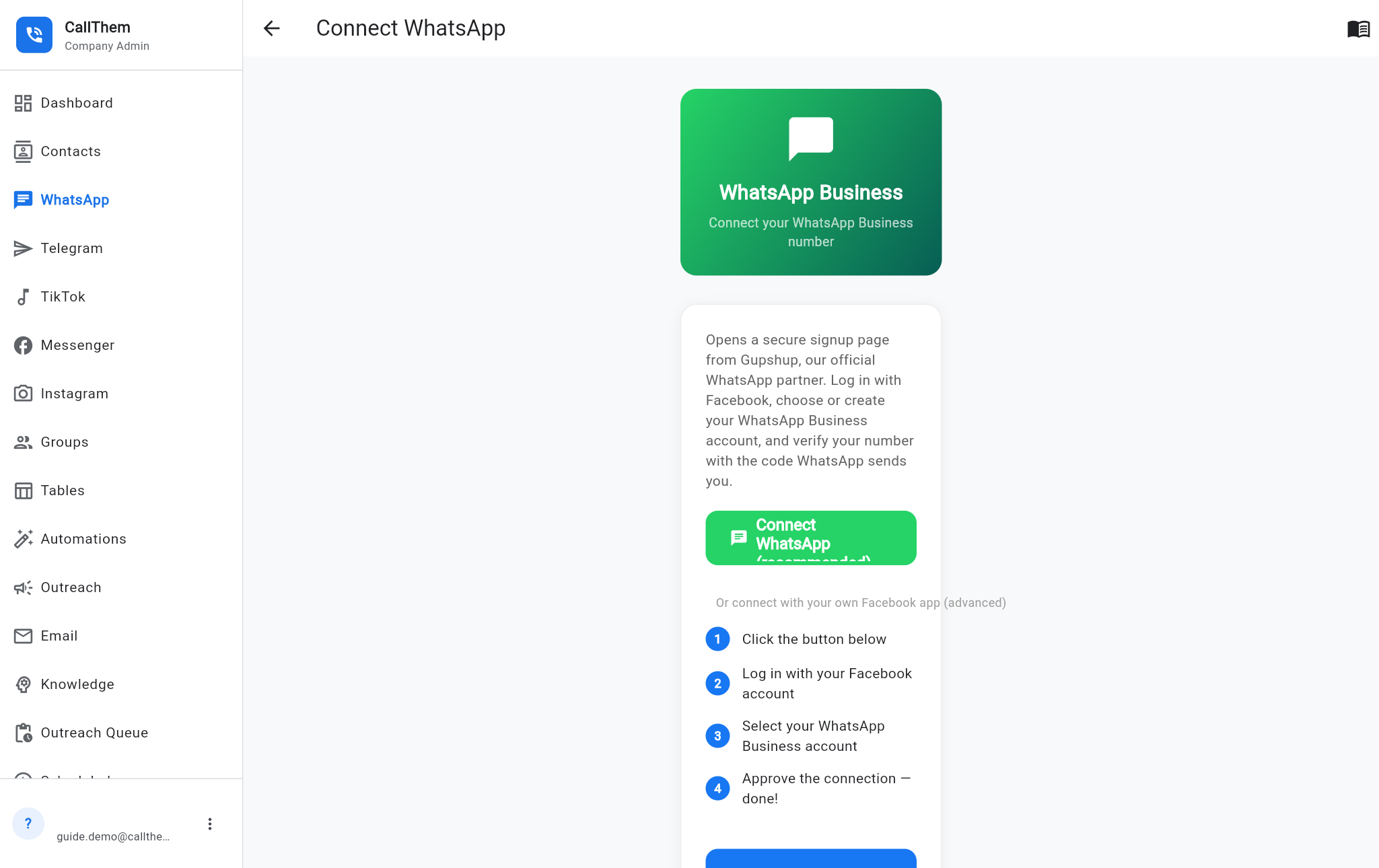
- In the menu, tap WhatsApp, then the ⋮ button at the top right, then Setup WhatsApp. (Or tap the orange "WhatsApp Not Connected" bar on the dashboard.)
- Tap the green Connect WhatsApp (recommended) button.
- Tap Open the signup page. A secure page from our WhatsApp partner opens in a new tab.
- Sign in with Facebook, choose or create your WhatsApp Business account, type your phone number and enter the code WhatsApp sends to that phone.
- Come back to CallThem. The screen checks by itself every few seconds; when it shows Connected, you are ready. If nothing happens, tap Check now.
Picture: https://callthem24.com/guide/img/whatsapp-setup.png
Good to know: A number that is already used in the normal WhatsApp or WhatsApp Business app must be removed from that app first, or you can use a new number. If the signup page stays blank, try another network (for example mobile data) and tap Get a new link.
5Teach the AI about your business
The AI only says what you teach it. It reads two things: your Instructions (short rules and facts) and your Uploaded Files (documents such as price lists, menus, brochures). Open Knowledge in the menu.
Write your Instructions
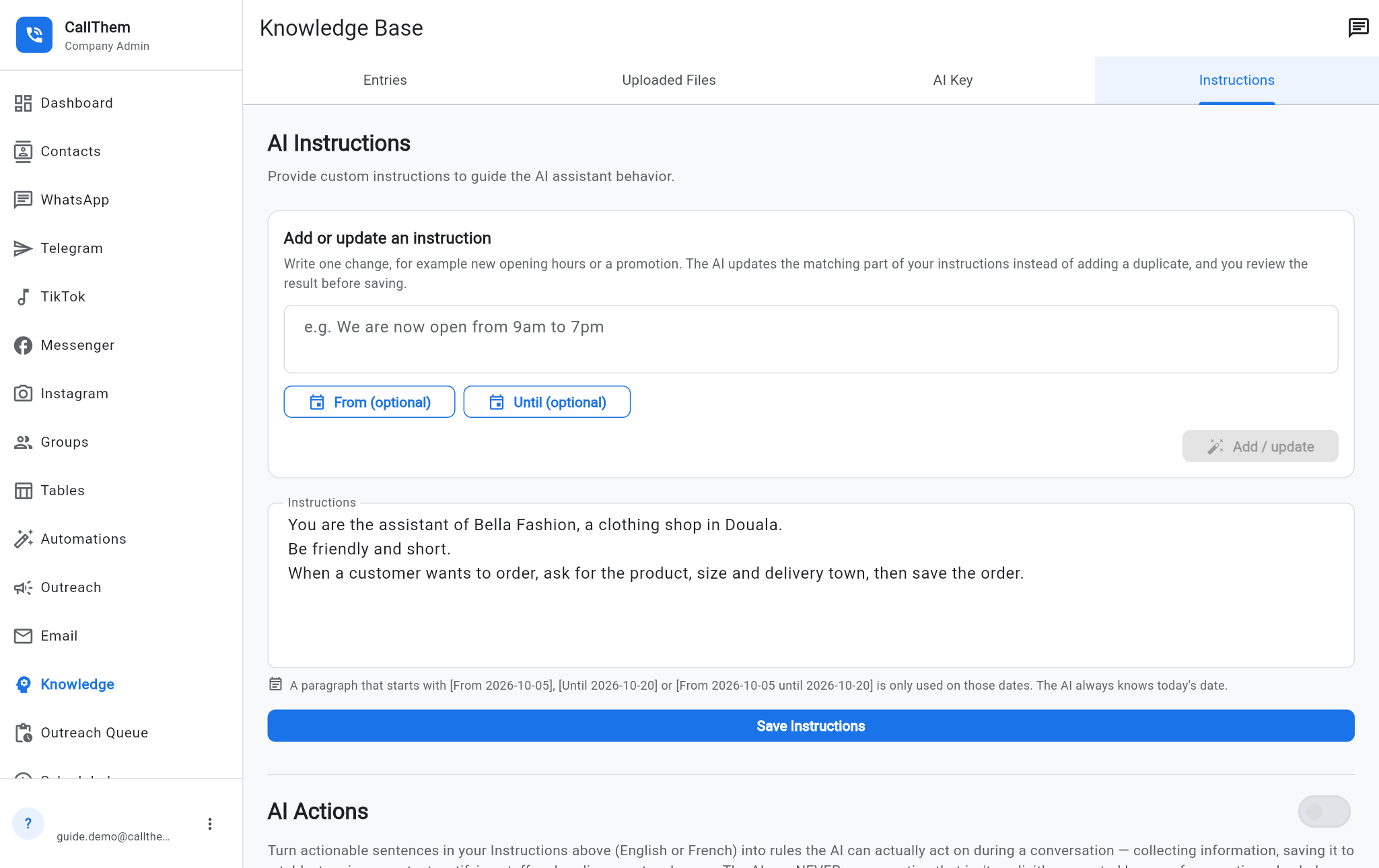
- Open Knowledge and tap the Instructions tab.
- In the big box, write who you are and how the AI should behave, for example: "You are the assistant of Bella Fashion, a clothing shop in Douala. Be friendly and short. We are open Monday to Saturday, 8am to 7pm."
- Add your important facts: prices, delivery towns and costs, opening hours, how to pay.
- Save. The AI uses the new text from the next message.
- To add or change one fact later, use Add or update an instruction: type it (for example "We are now open from 9am to 7pm"), optionally pick From / Until dates for a temporary rule, tap Add / update, check the result, then save.
Picture: https://callthem24.com/guide/img/knowledge-instructions.png
Upload documents
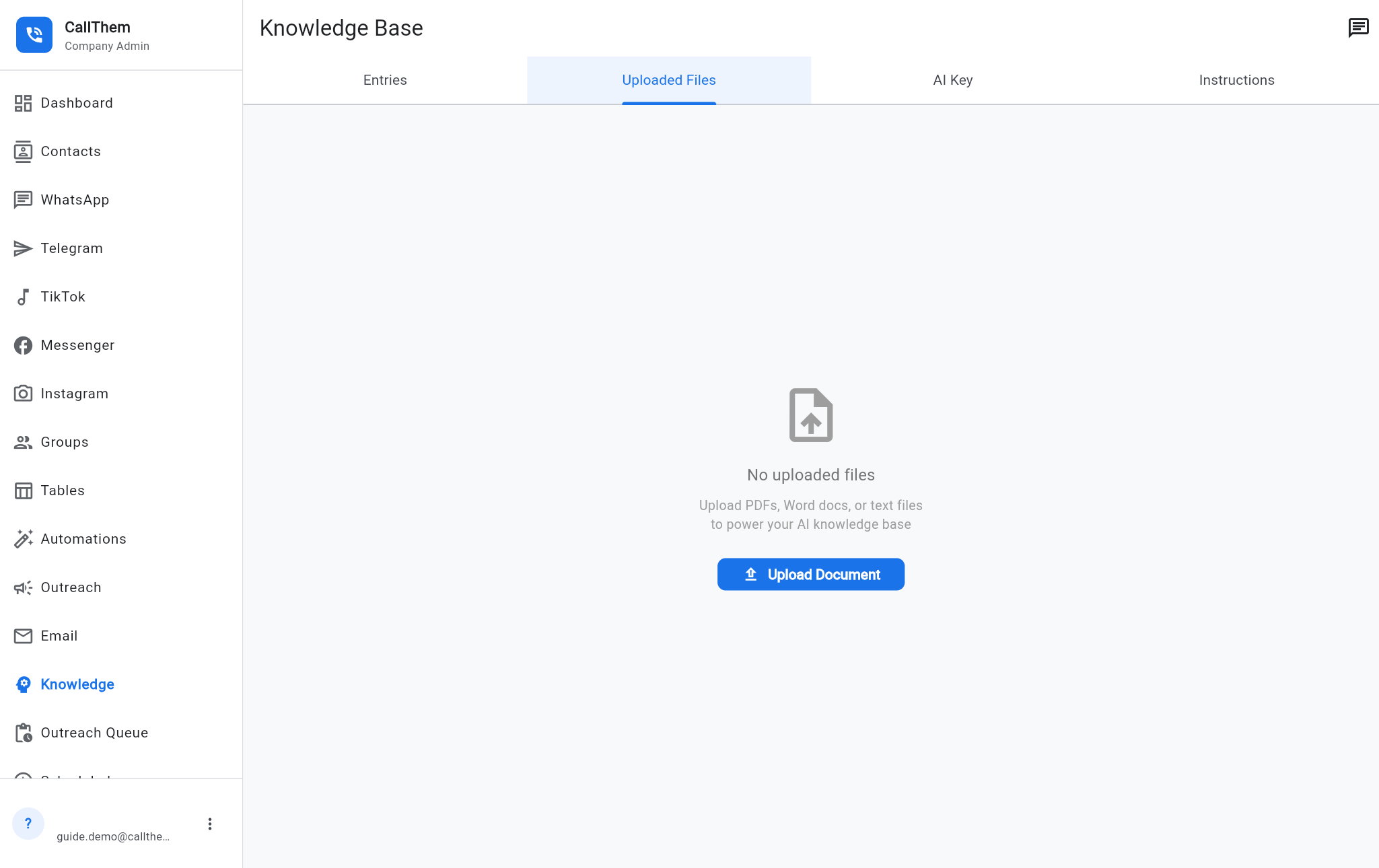
- Open Knowledge → Uploaded Files.
- Tap Upload Document and choose a PDF, Word, Excel or text file (price list, product catalogue, FAQ…).
- Give it a title and confirm. The file shows processing, then processed — from then on the AI can answer from it.
Picture: https://callthem24.com/guide/img/knowledge-files.png
Test the AI before customers do
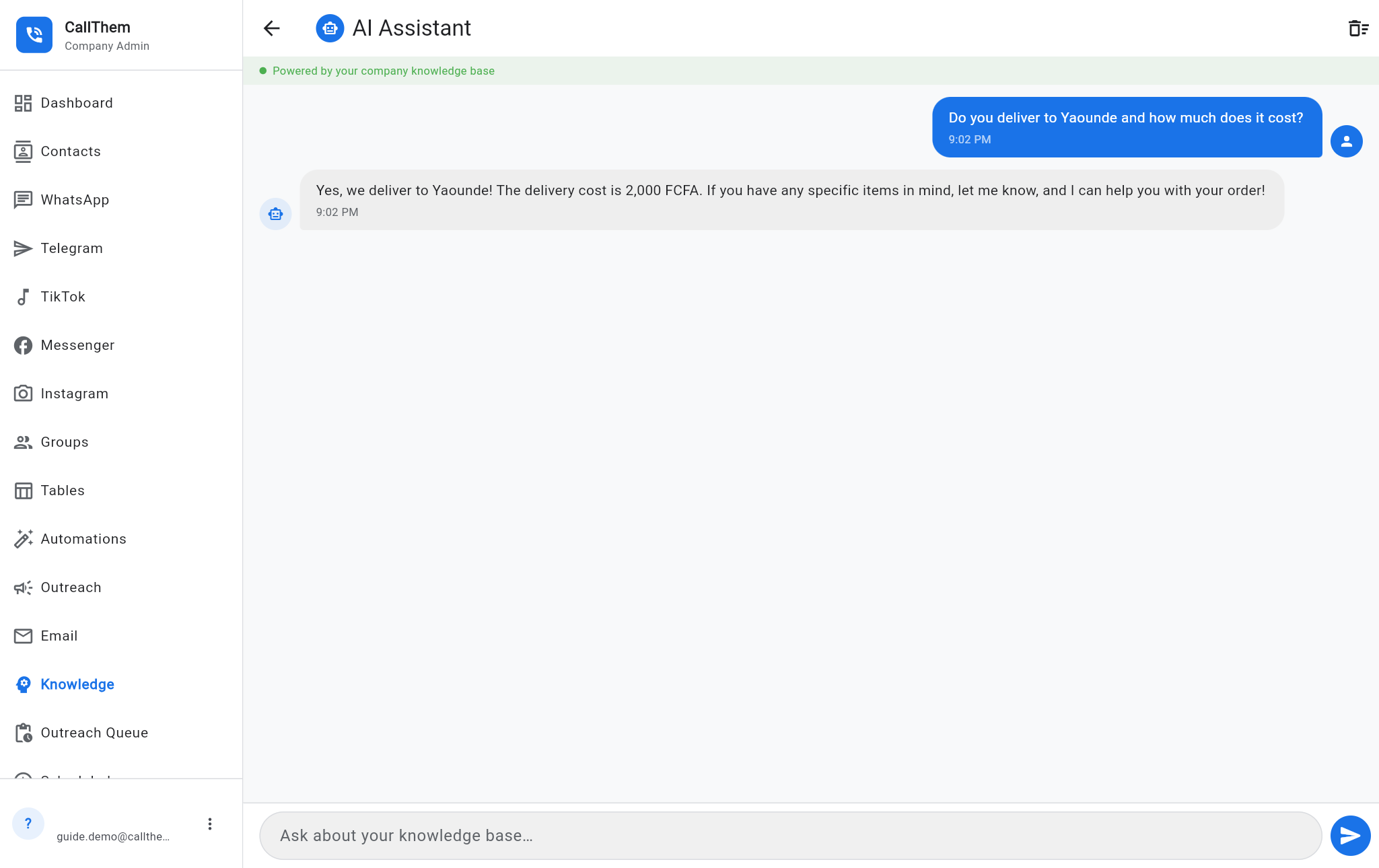
- Tap AI Chat (the speech-bubble icon at the top right of Knowledge).
- Ask a question like a customer would, for example "Do you deliver to Yaounde and how much does it cost?"
- Check the answer. If something is missing or wrong, fix your Instructions or upload a document, then ask again.
Picture: https://callthem24.com/guide/img/knowledge-chat-answer.png
Good to know: The Entries tab keeps short notes, but the AI does not read Entries at the moment. Put everything the AI must know in Instructions or in an uploaded document.
6Your WhatsApp inbox and chats
See your conversations
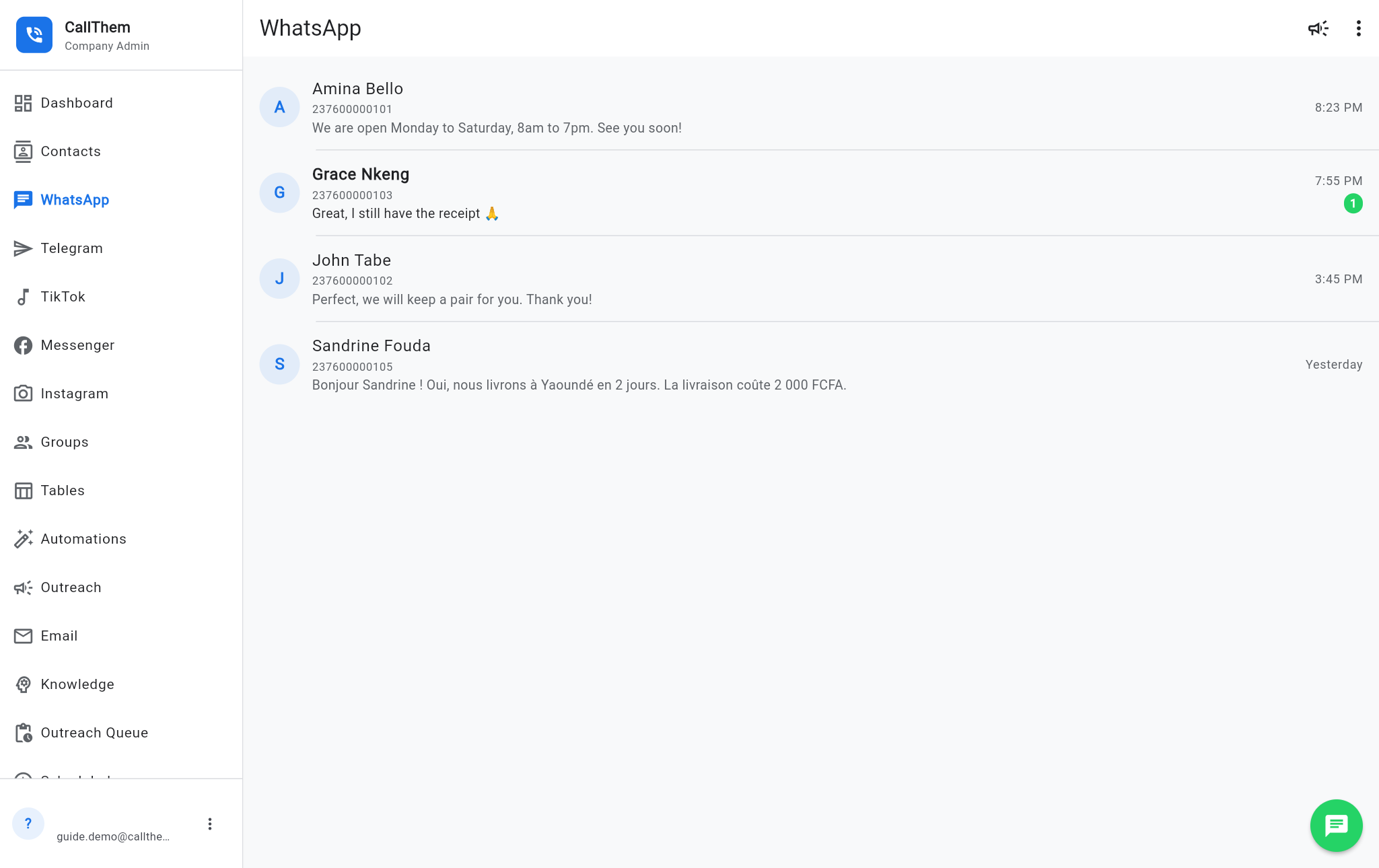
- Tap WhatsApp in the menu. Every customer who wrote to you is listed, newest first.
- A green number shows unread messages. Tap a conversation to open it.
Picture: https://callthem24.com/guide/img/whatsapp-inbox.png
Read and reply
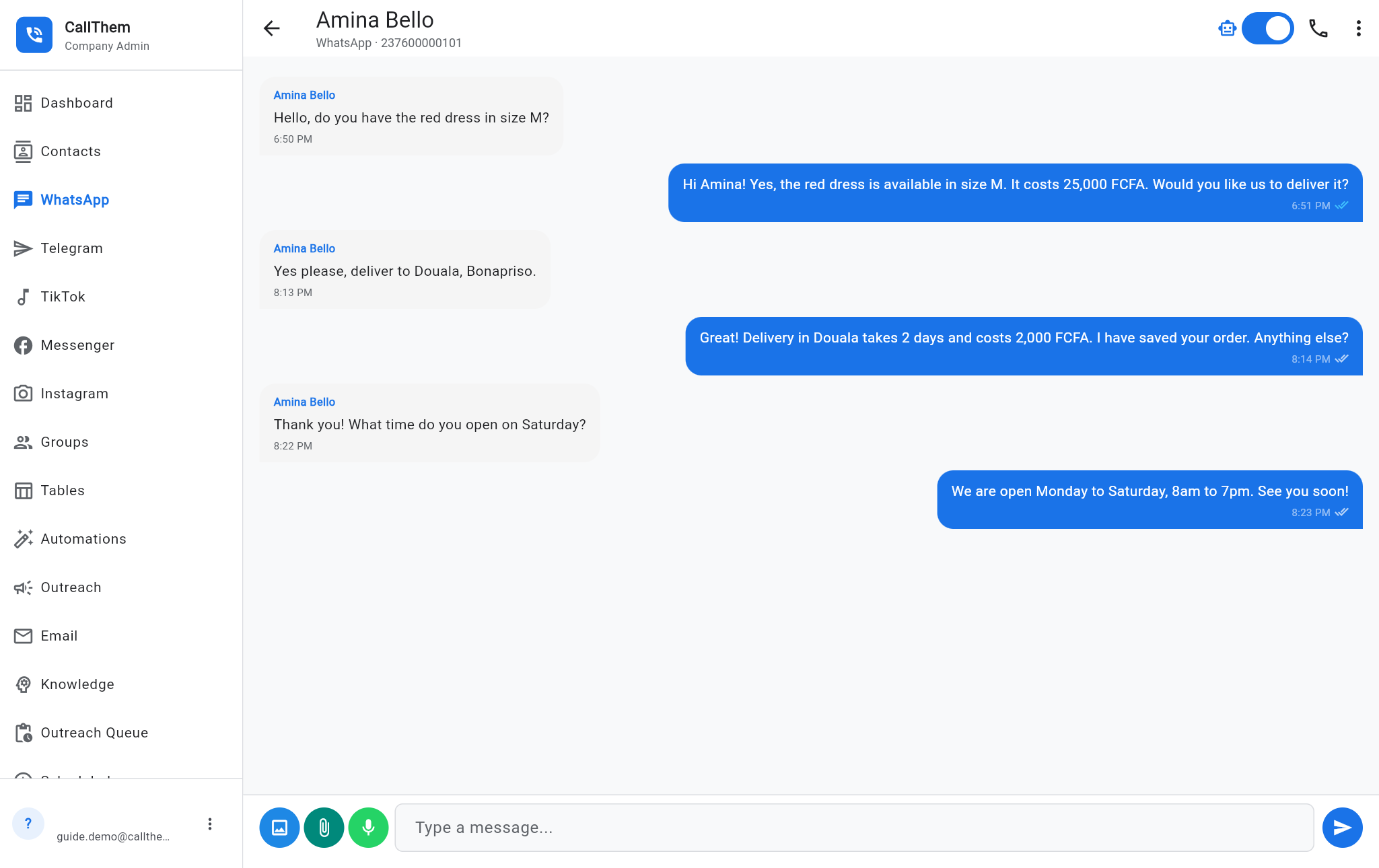
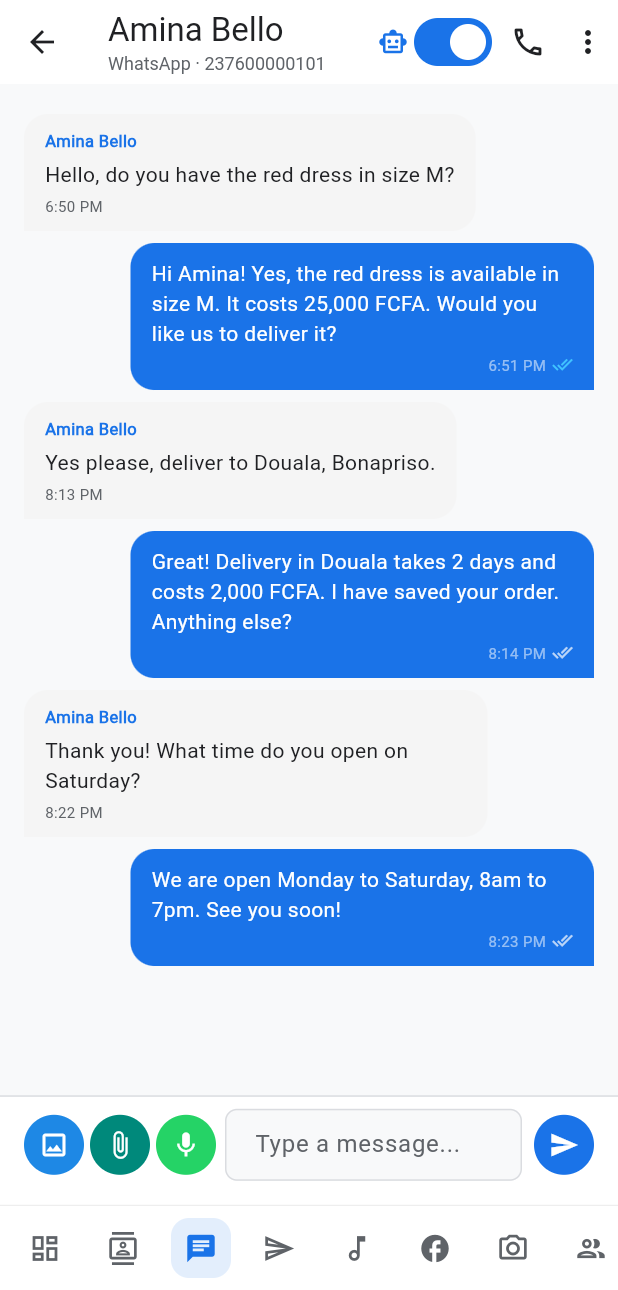
- Customer messages are on the left, your replies (AI or staff) on the right, with ticks: one grey tick = sent, two grey ticks = delivered, two blue ticks = read.
- To answer yourself, type in Type a message... and tap the send arrow. After you reply, the AI waits 2 hours before answering this customer again, so you are not interrupted.
- To stop the AI completely in one chat, switch off the robot switch (AI replies in this chat) at the top. It stays off until you switch it back on.
- The three round buttons send: a photo (paste a direct link to a JPG or PNG picture), a document (PDF, Word, Excel… up to 16 MB), or a voice note (type the text — the AI voice reads it).
Picture: https://callthem24.com/guide/img/whatsapp-chat.png
Picture: https://callthem24.com/guide/img/mobile-chat.png
Good to know: WhatsApp rule: photos, documents, voice notes and free text can only be sent to someone who wrote to you in the last 24 hours. For older contacts CallThem sends your text through an approved WhatsApp template automatically when one is set up for your number.
More options
- In a chat, the ⋮ button → Download this conversation saves the chat as a file.
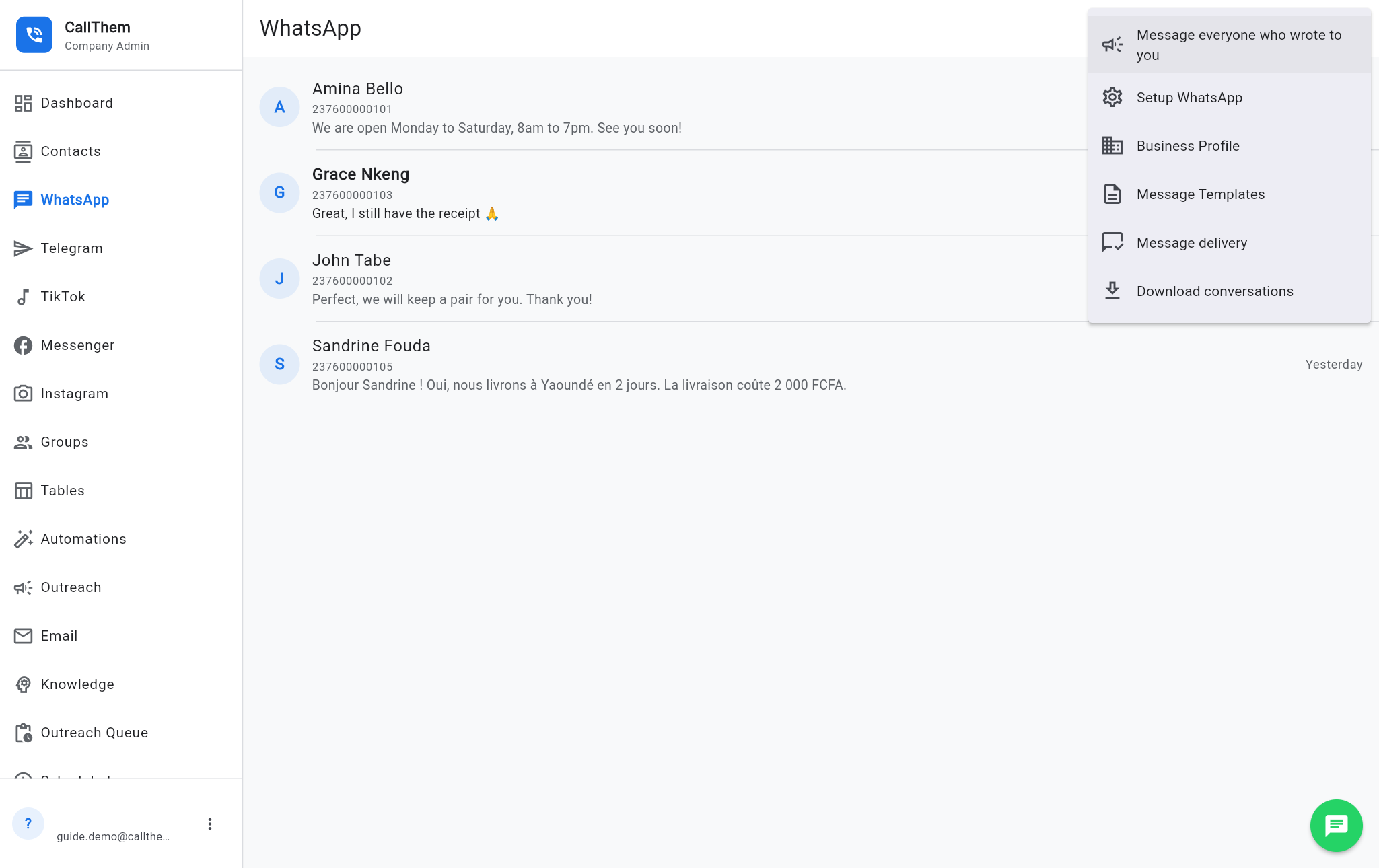
- In the inbox, the ⋮ button opens: Message everyone who wrote to you, Setup WhatsApp, Business Profile, Message Templates, Message delivery and Download conversations.
Picture: https://callthem24.com/guide/img/whatsapp-menu.png
7Contacts
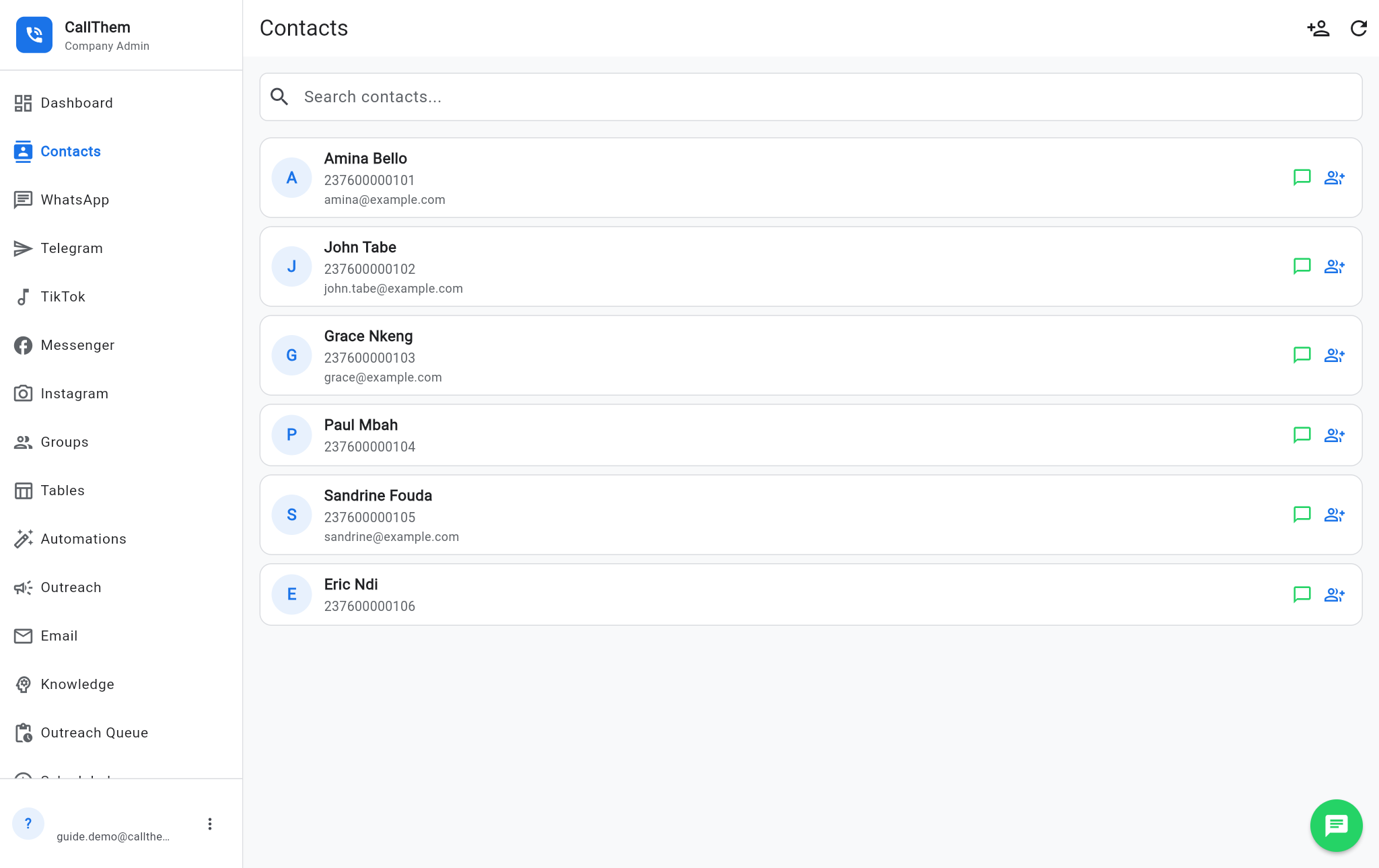
- Tap Contacts in the menu. Use Search contacts... to find someone.
- To add a person, tap the Add Contact icon at the top right.
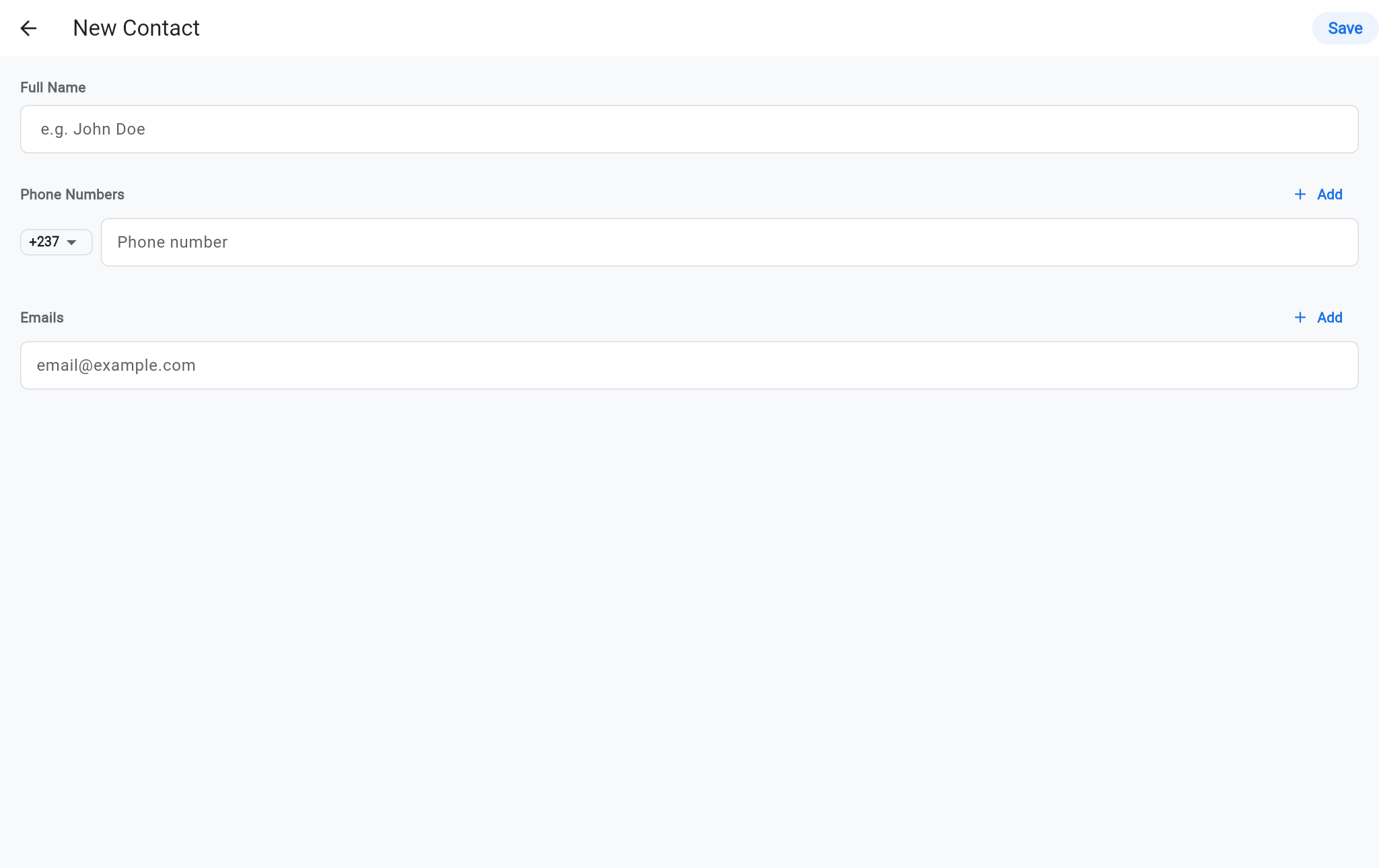
- Type the Full Name, choose the country code and type the Phone number; add an email if you have one. Tap Add to add another number or email.
- Tap Save.
- On each contact, the green chat icon sends a WhatsApp message and the people icon adds the contact to a group.
Picture: https://callthem24.com/guide/img/contacts.png
Picture: https://callthem24.com/guide/img/contacts-add.png
8Groups
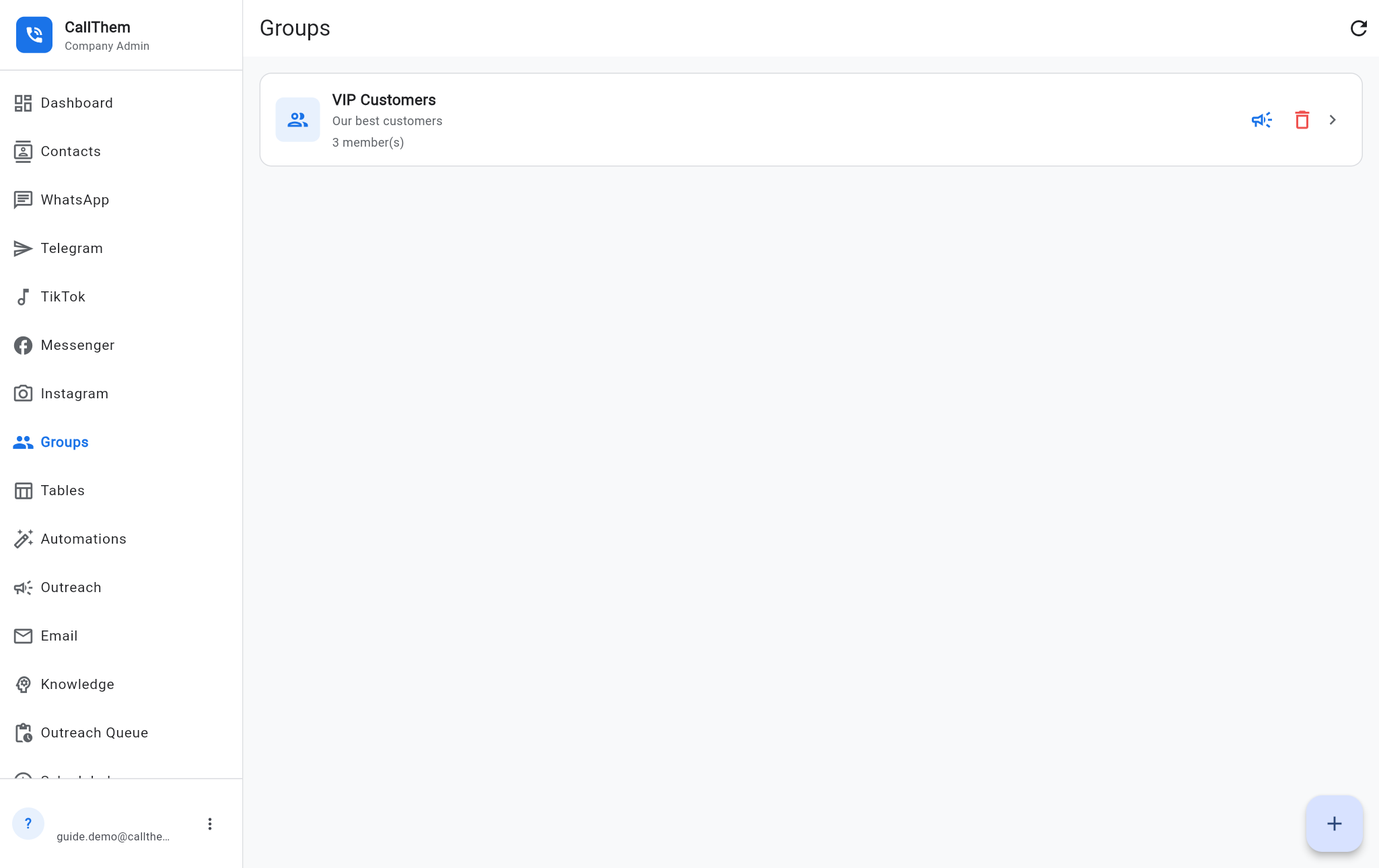
A group is a named list of contacts (for example "VIP Customers") so you can message them together.
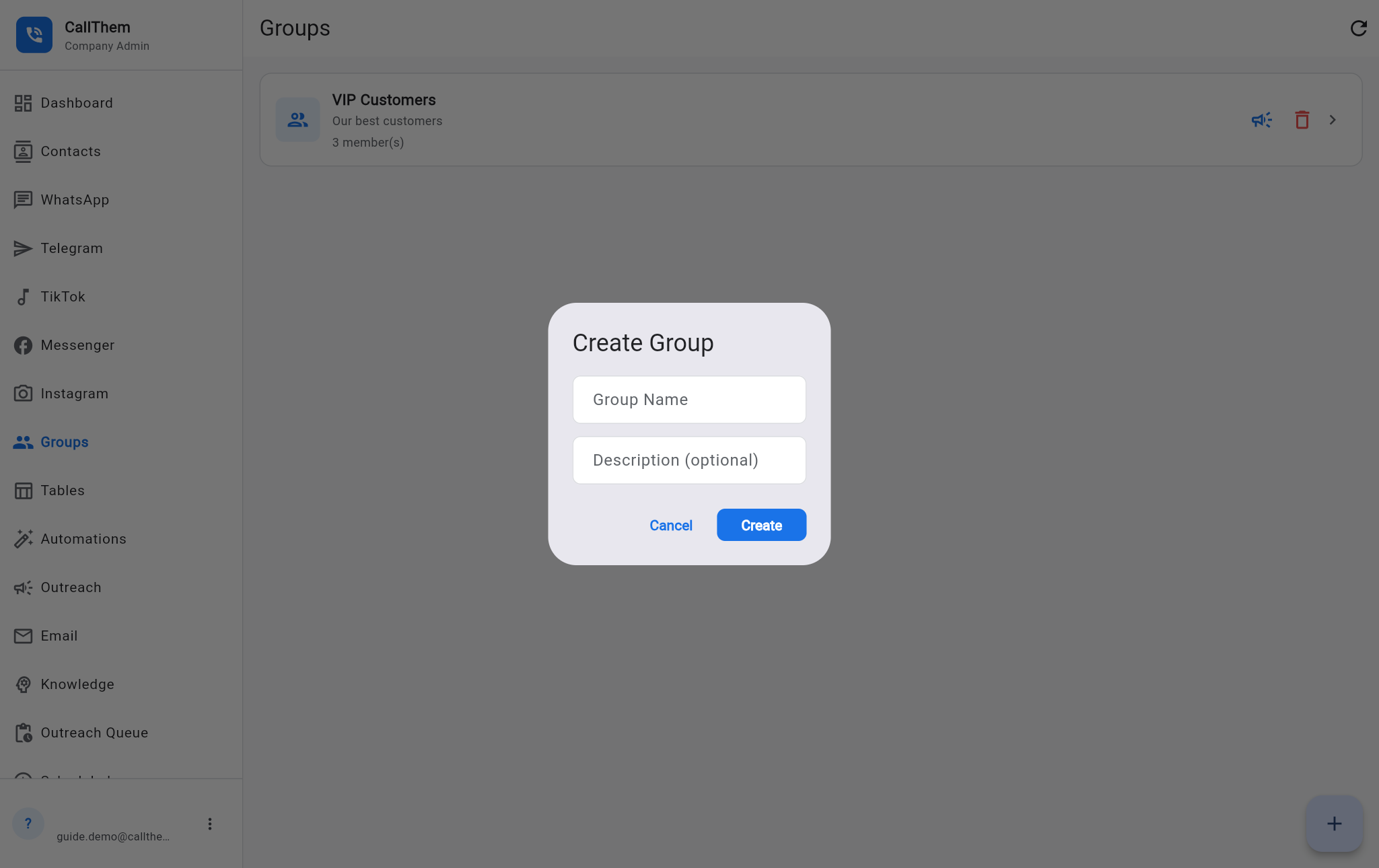
- Tap Groups in the menu, then the + button at the bottom right.
- Type a Group Name and an optional description, then tap Create.
- Add people from Contacts (people icon → choose the group) or from the group itself.
- On a group, the megaphone icon Send message to group sends one message to all its members; the red bin deletes the group.
Picture: https://callthem24.com/guide/img/groups.png
Picture: https://callthem24.com/guide/img/groups-create.png
9Send one message to many people
Broadcast to chosen contacts
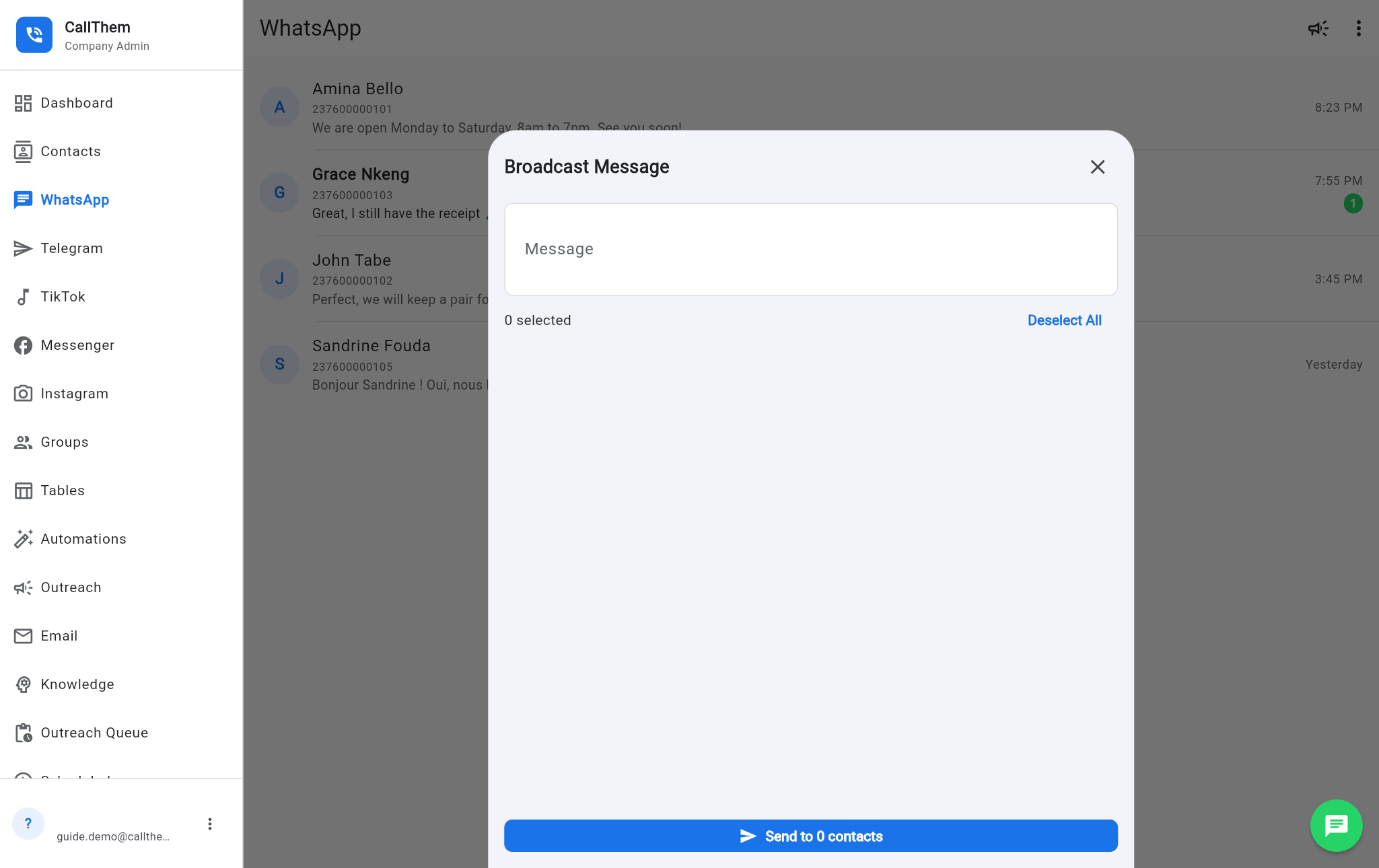
- Open WhatsApp and tap the megaphone (Broadcast) at the top.
- Type your Message, tick the contacts who should receive it, then tap Send to … contacts.
Picture: https://callthem24.com/guide/img/whatsapp-broadcast.png
Message everyone who ever wrote to you
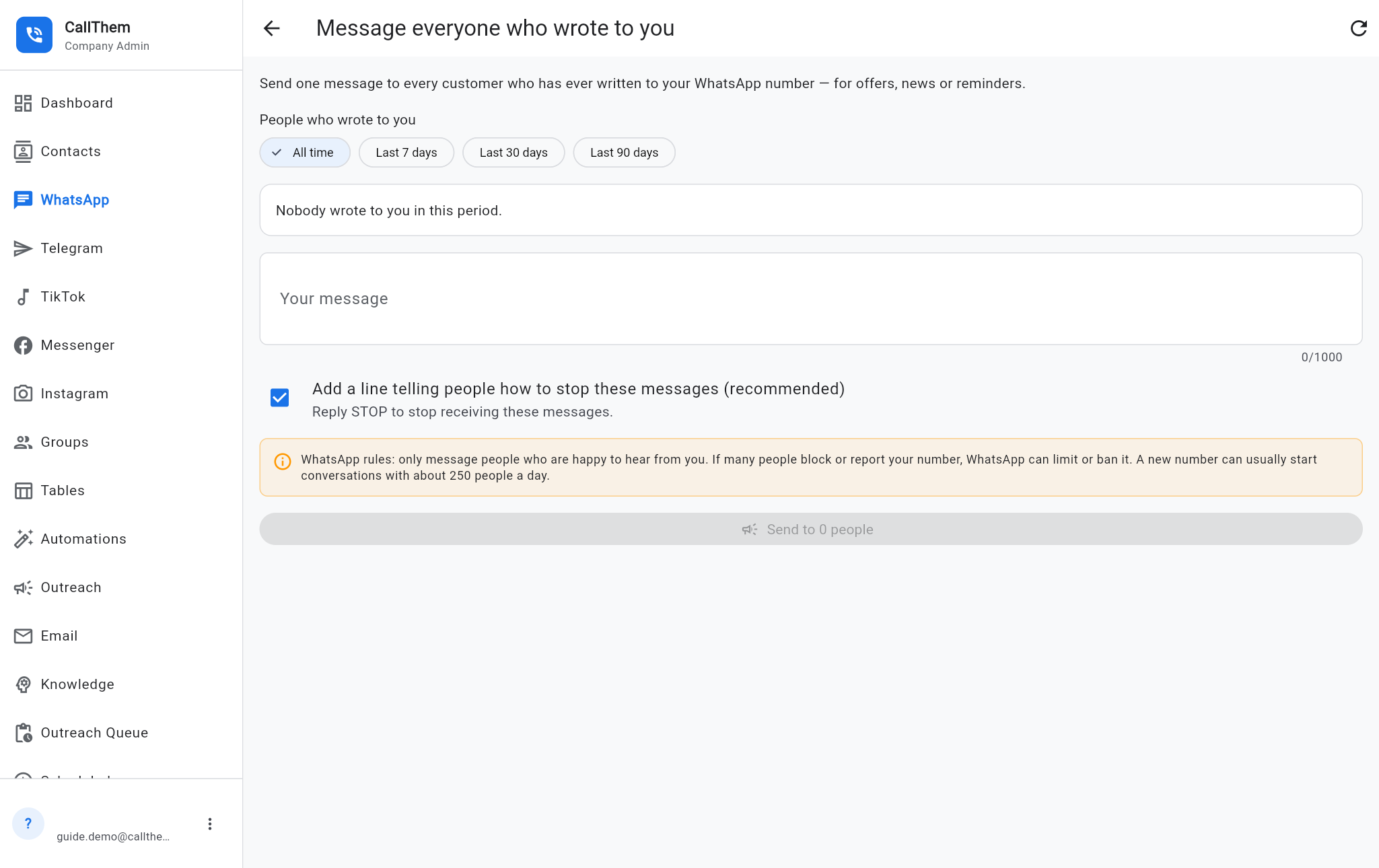
- Open WhatsApp → ⋮ → Message everyone who wrote to you (company admins only).
- Choose the period: All time, Last 7 days, Last 30 days or Last 90 days. The list shows who will receive it.
- Type Your message. Keep Add a line telling people how to stop these messages ticked.
- Tap Send to … people and confirm. A progress card shows how many were sent. People who reply STOP are never messaged again (START brings them back).
Picture: https://callthem24.com/guide/img/whatsapp-past-contacts.png
Check what was delivered
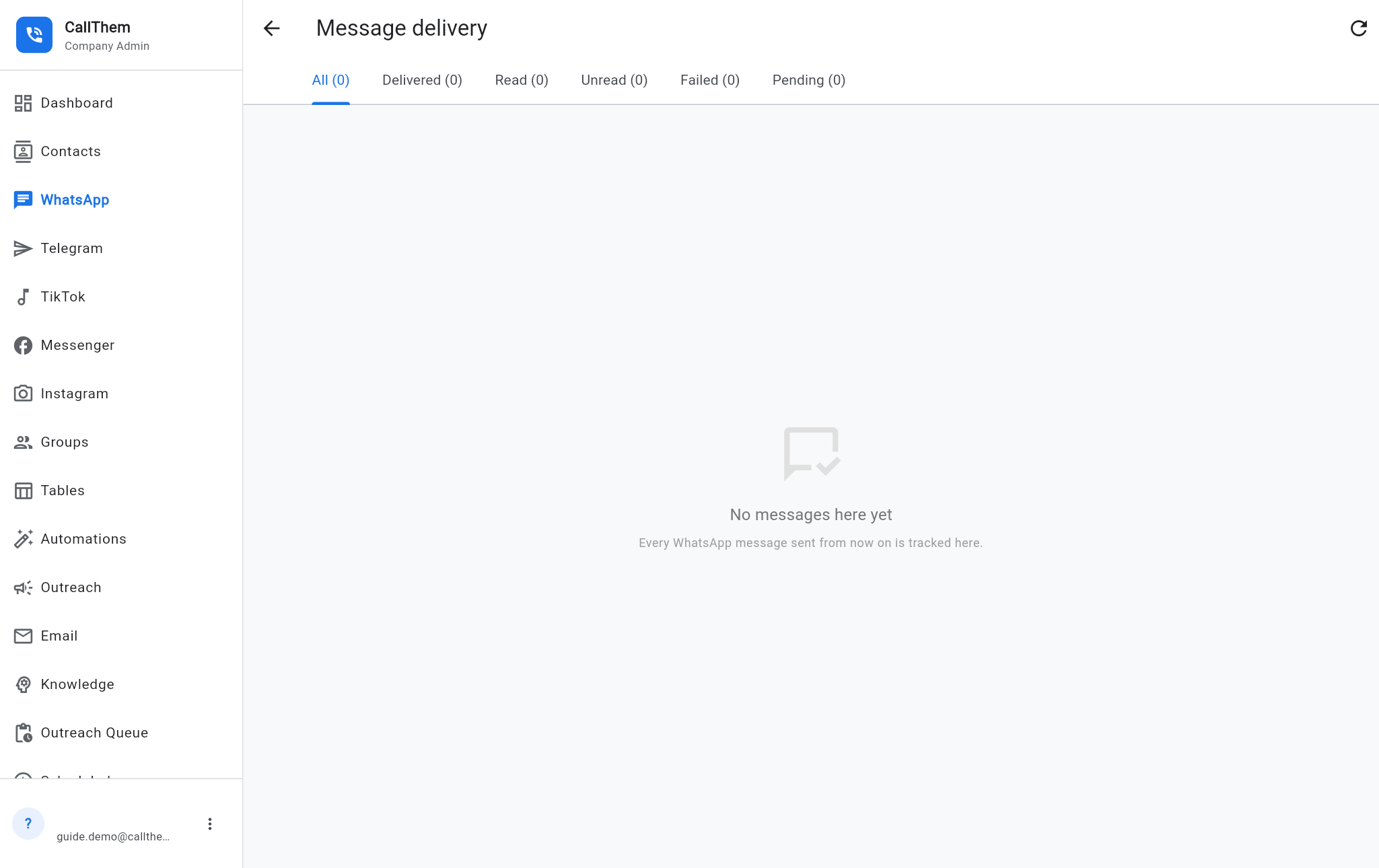
- Open WhatsApp → ⋮ → Message delivery.
- Use the tabs All, Delivered, Read, Unread, Failed and Pending. A failed message shows the reason in plain words (for example: the person is not on WhatsApp).
Picture: https://callthem24.com/guide/img/whatsapp-delivery.png
Good to know: Only message people who expect to hear from you. If many people block or report your number, WhatsApp limits it. A new number can usually reach about 250 new people per day.
10Business profile and message templates
Business profile
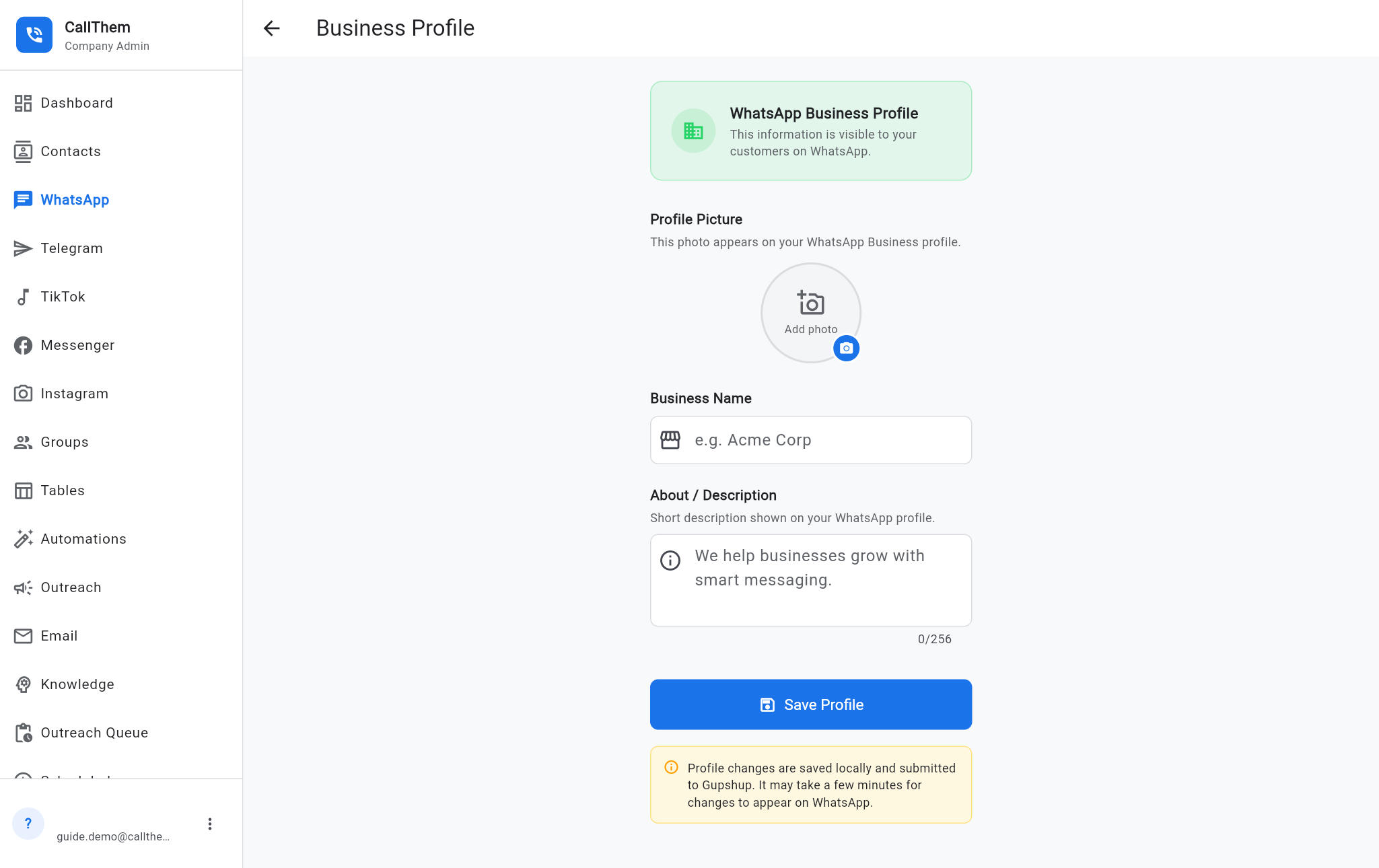
- Open WhatsApp → ⋮ → Business Profile.
- Add a Profile Picture, your Business Name and an About / Description. Save. Customers see this on WhatsApp.
Picture: https://callthem24.com/guide/img/whatsapp-profile.png
Message templates
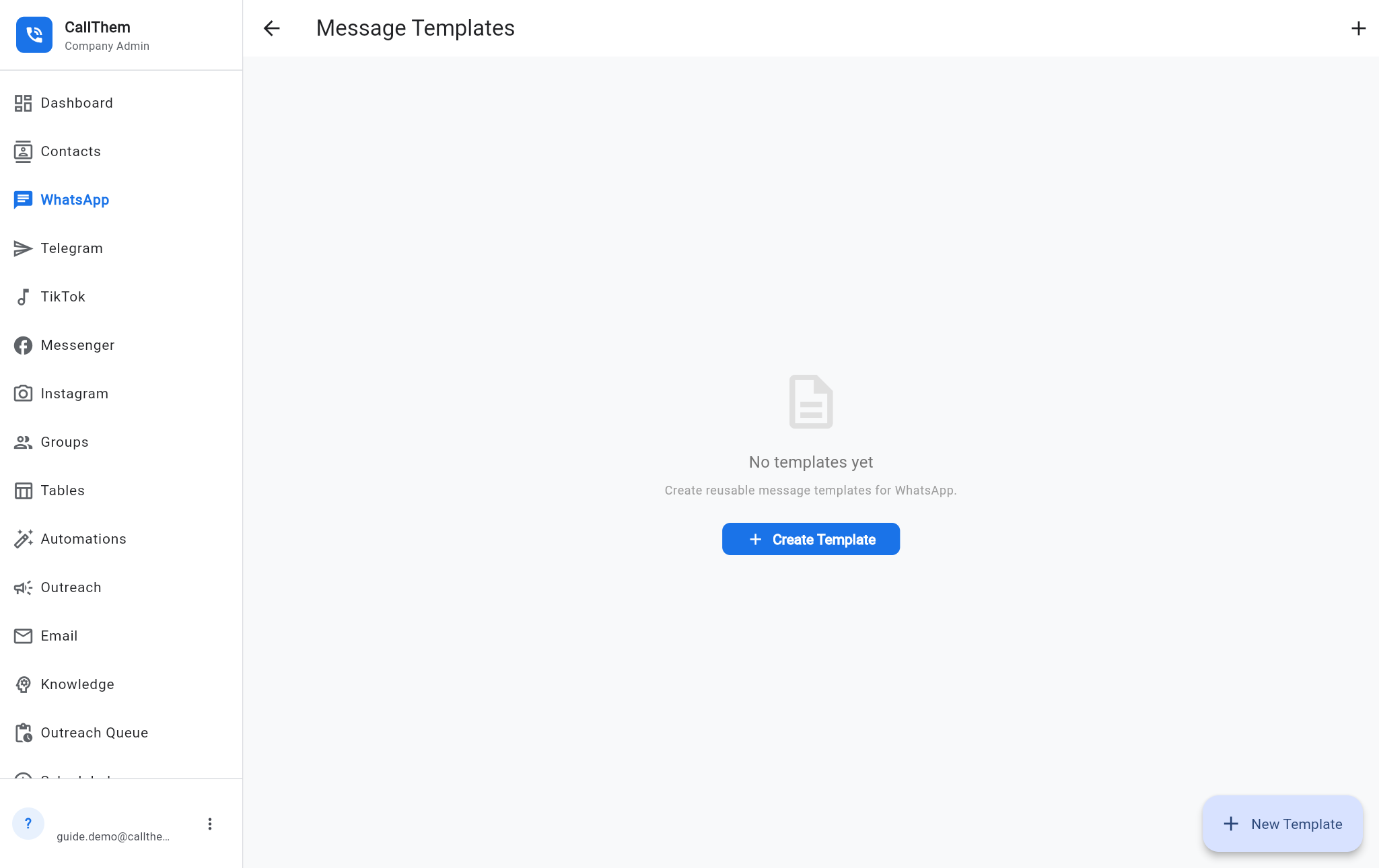
- Open WhatsApp → ⋮ → Message Templates and tap Create Template.
- Templates are pre-approved messages WhatsApp lets you send to anyone, even after 24 hours. After you submit one, WhatsApp reviews it (from minutes to a day).
Picture: https://callthem24.com/guide/img/whatsapp-templates.png
11Tables (your own lists: orders, clients, loans…)
A table is like a simple spreadsheet inside CallThem. The AI can save orders into it, and automations can message every row.
Create a table
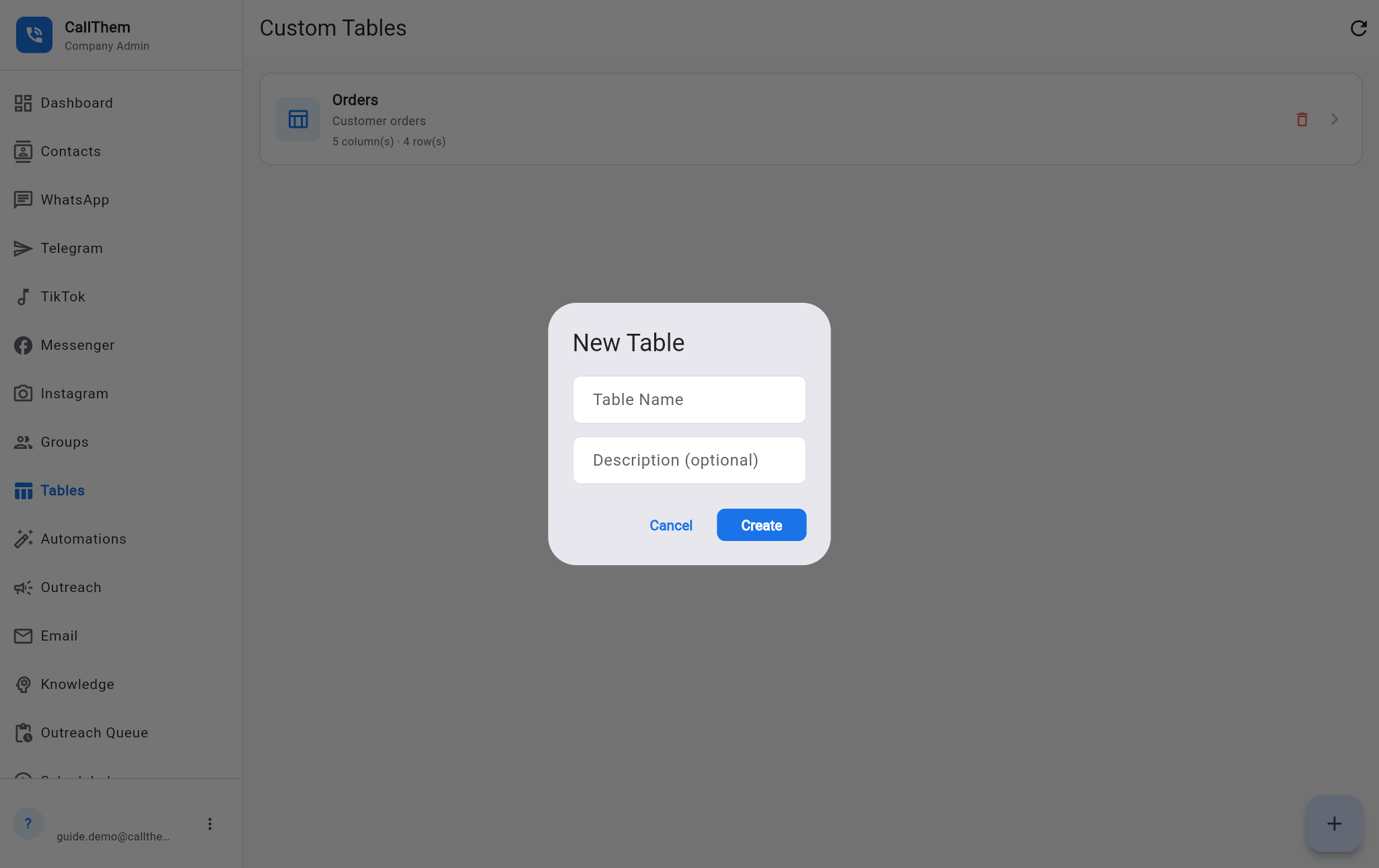
- Tap Tables in the menu, then + at the bottom right.
- Type a Table Name (for example "Orders") and tap Create. Open it from the list.
Picture: https://callthem24.com/guide/img/tables-create.png
Add columns and rows
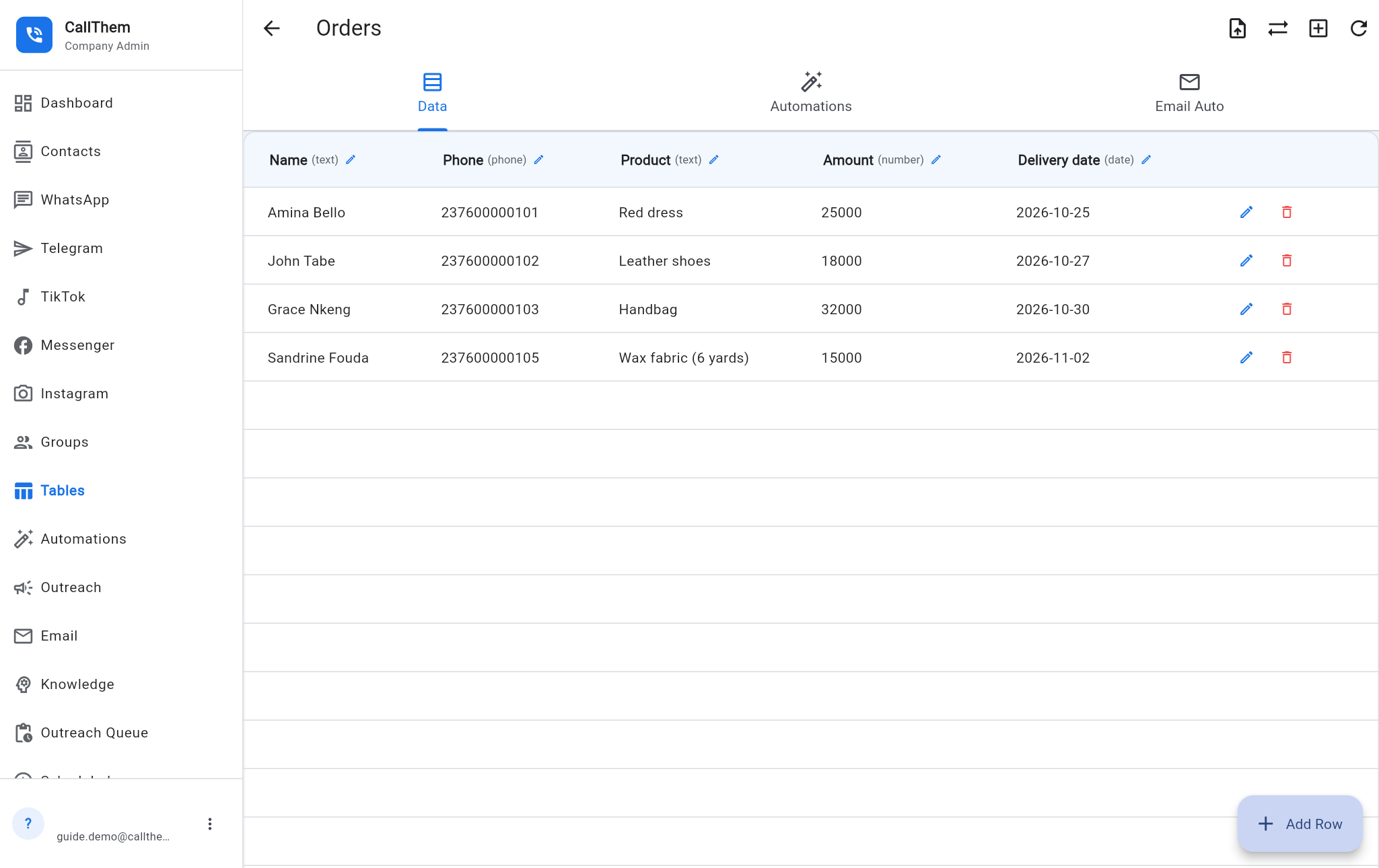
- Inside the table, tap Add Column (top right icons). Type the Column Name and choose its Type: text, number, date, phone, email…
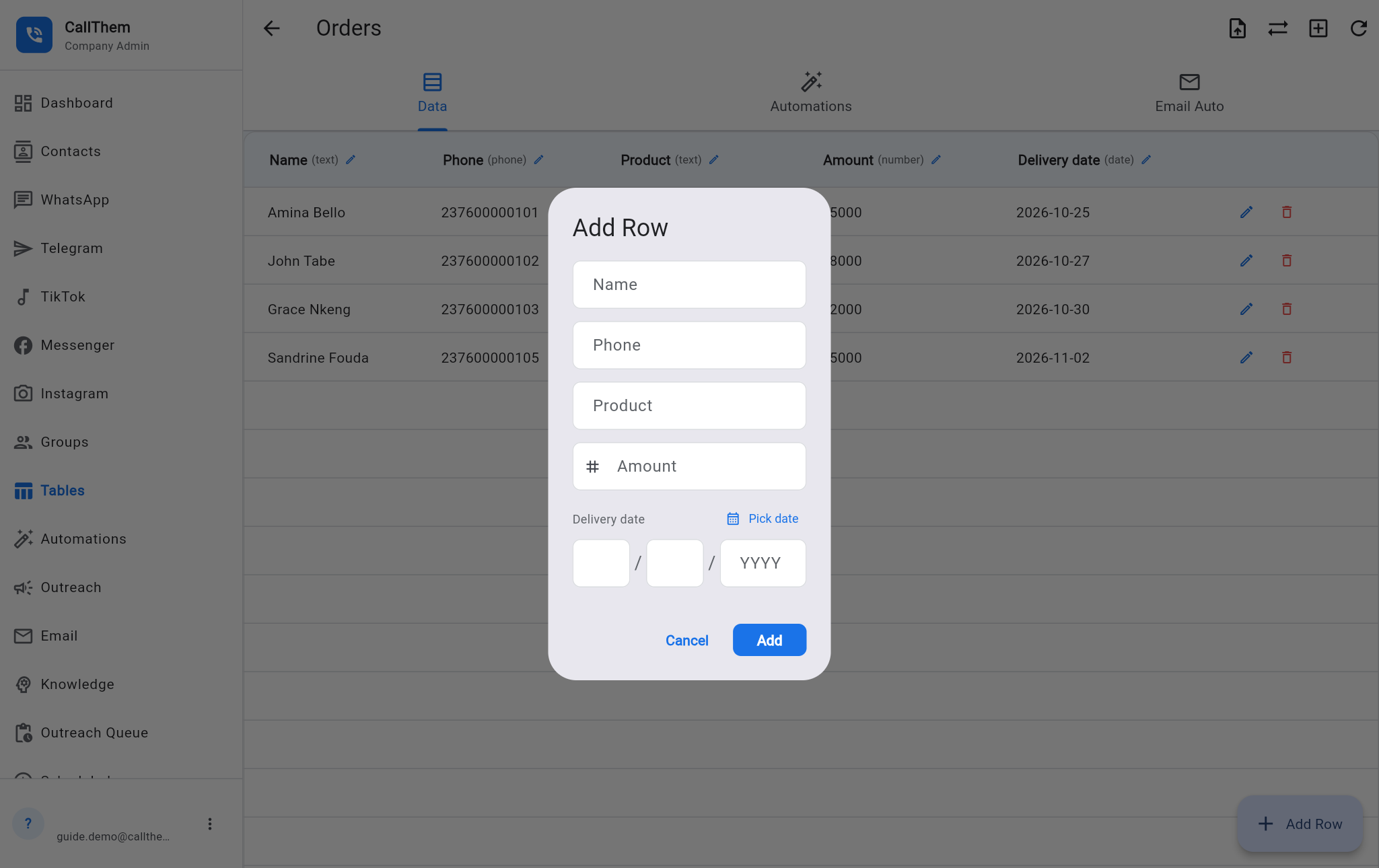
- Tap Add Row at the bottom and fill in the fields. Tap Add.
- Use the pencil to edit a row and the red bin to delete it.
Picture: https://callthem24.com/guide/img/table-detail.png
Picture: https://callthem24.com/guide/img/table-add-row.png
Import many rows at once
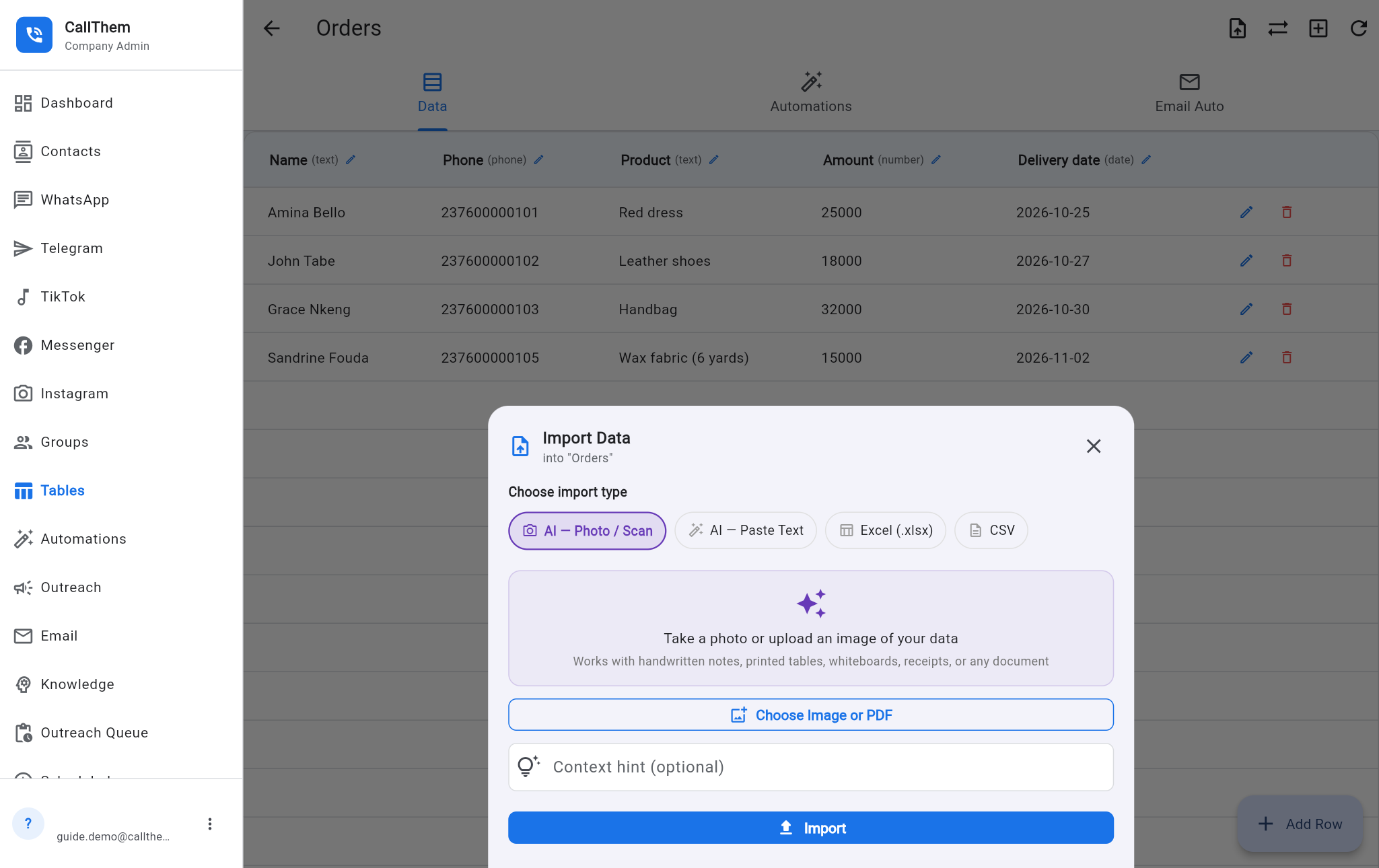
- Inside the table, tap Import Data.
- Choose how: AI — Photo / Scan (a photo of a paper list or a PDF), AI — Paste Text, Excel (.xlsx) or CSV.
- Choose the file or paste the text and tap Import. Check the rows that were added.
Picture: https://callthem24.com/guide/img/table-import.png
12Automations: personal messages to a whole list
A table automation writes one personal message for each row of a table (or each member of a group), following your instruction — for example a payment reminder with each person's own balance.
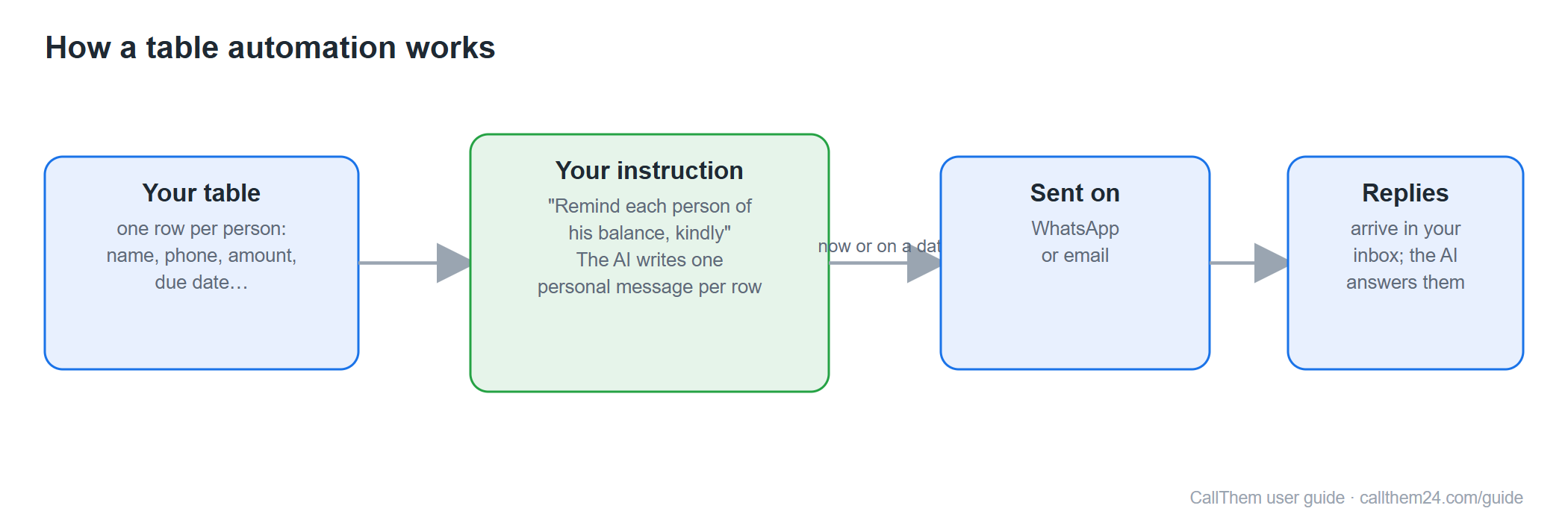
Diagram: https://callthem24.com/guide/img/diagram-automation.png
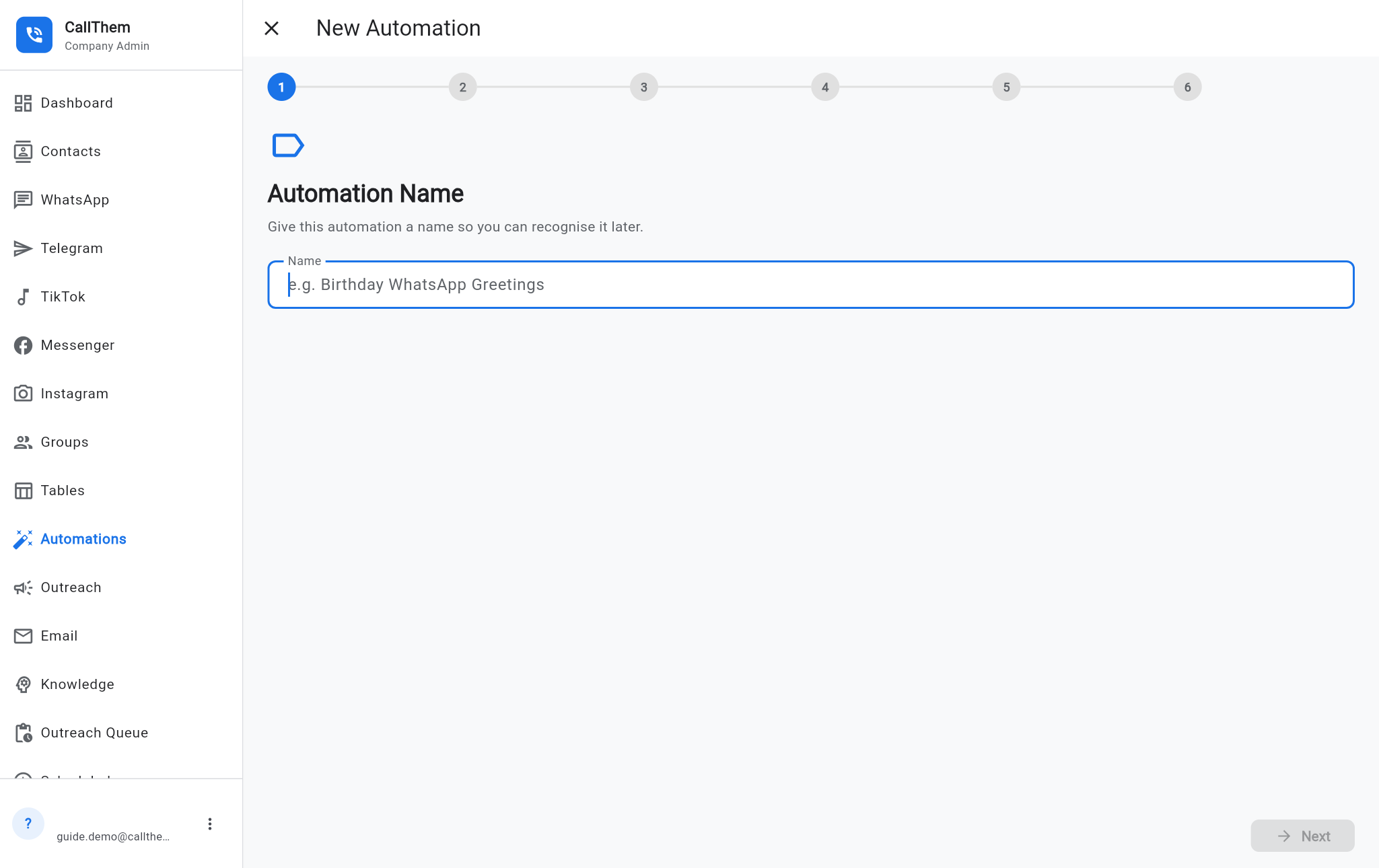
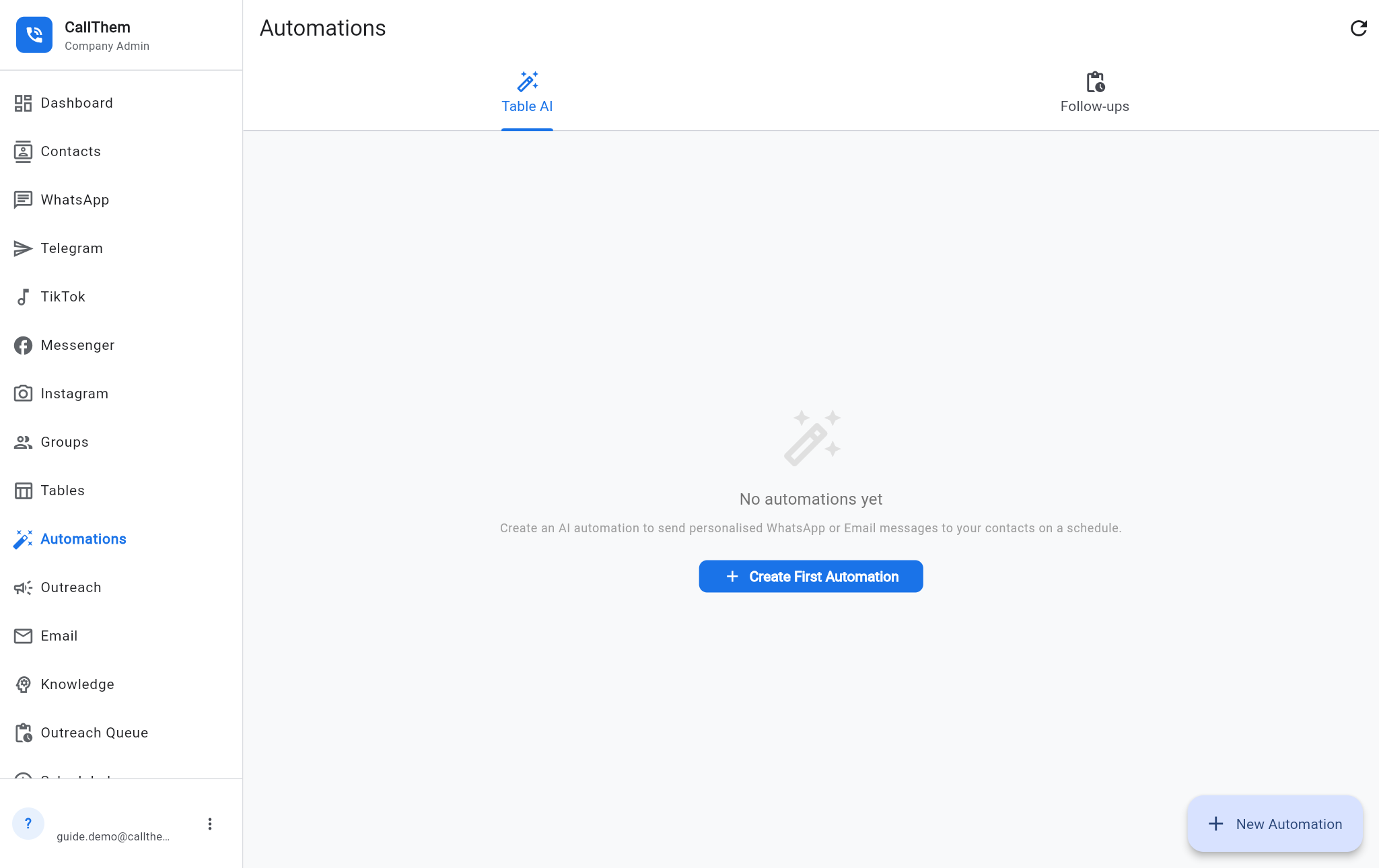
- Tap Automations in the menu (or the Automations tab inside a table), then New Automation / Create First Automation.
- Name the automation (for example "Payment reminders") and tap Next.
- Choose the source: a table (pick it and its phone or email column) or a group.
- Write the AI instructions: what the message should say (for example "Remind each person kindly of his balance and the due date"). Tap preview to see a real example.
- Choose the channel (WhatsApp or Email) and when: send now, or on a date from a date column. You can also choose to greet first (the AI says hello and gives the information after the person replies) and the message language.
- Check the final preview and create the automation.
Picture: https://callthem24.com/guide/img/automation-wizard.png
Picture: https://callthem24.com/guide/img/automations.png
Follow-up rules
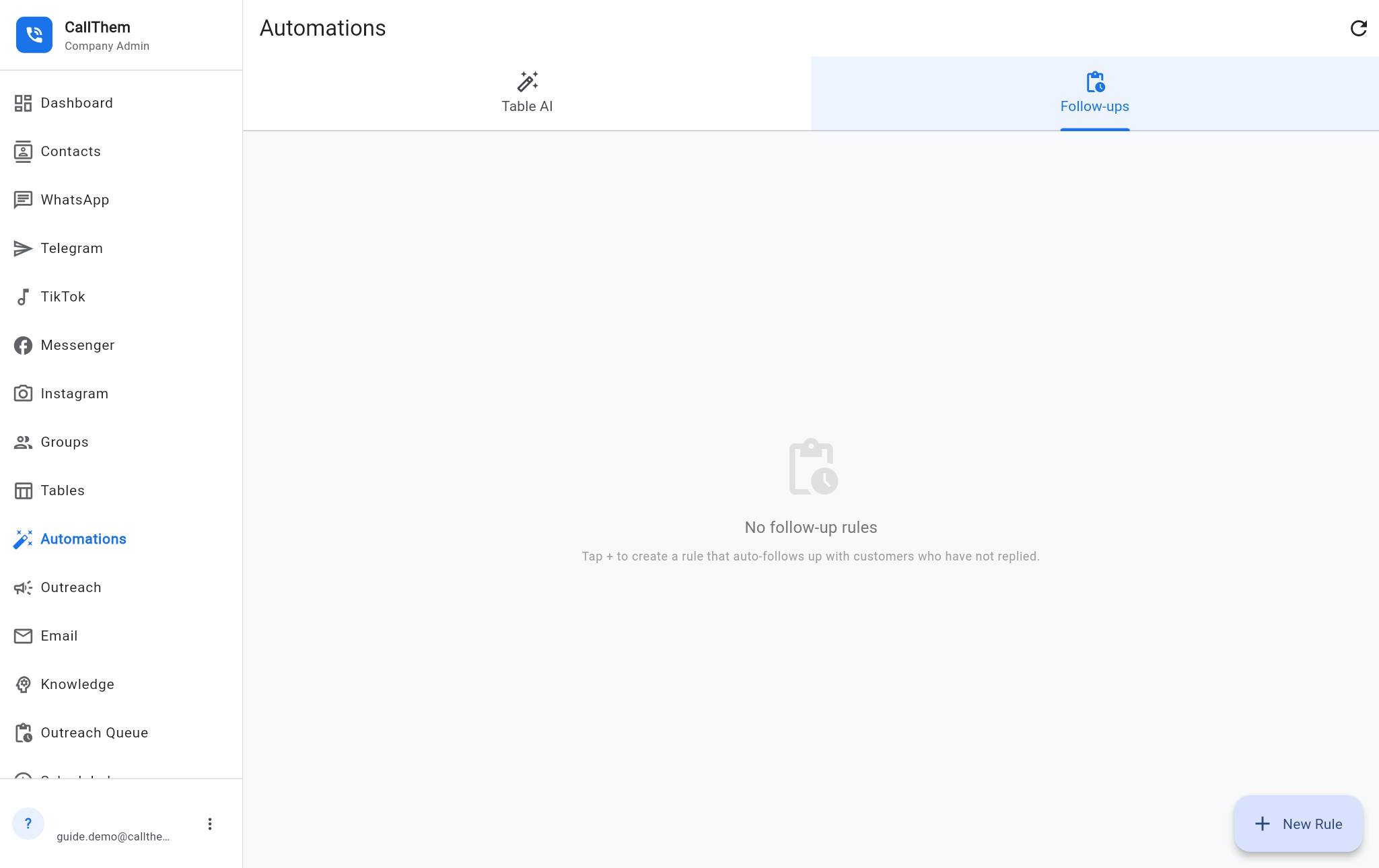
- On Automations, open the Follow-ups tab and tap +.
- Describe when it should start (for example "customer is interested in buying a car"), after how many days, and the message (use {{name}} for the customer's name).
- Choose whether a person must approve each follow-up before it is sent. Approvals appear in Outreach Queue.
Picture: https://callthem24.com/guide/img/automations-followups.png
13Scheduled messages
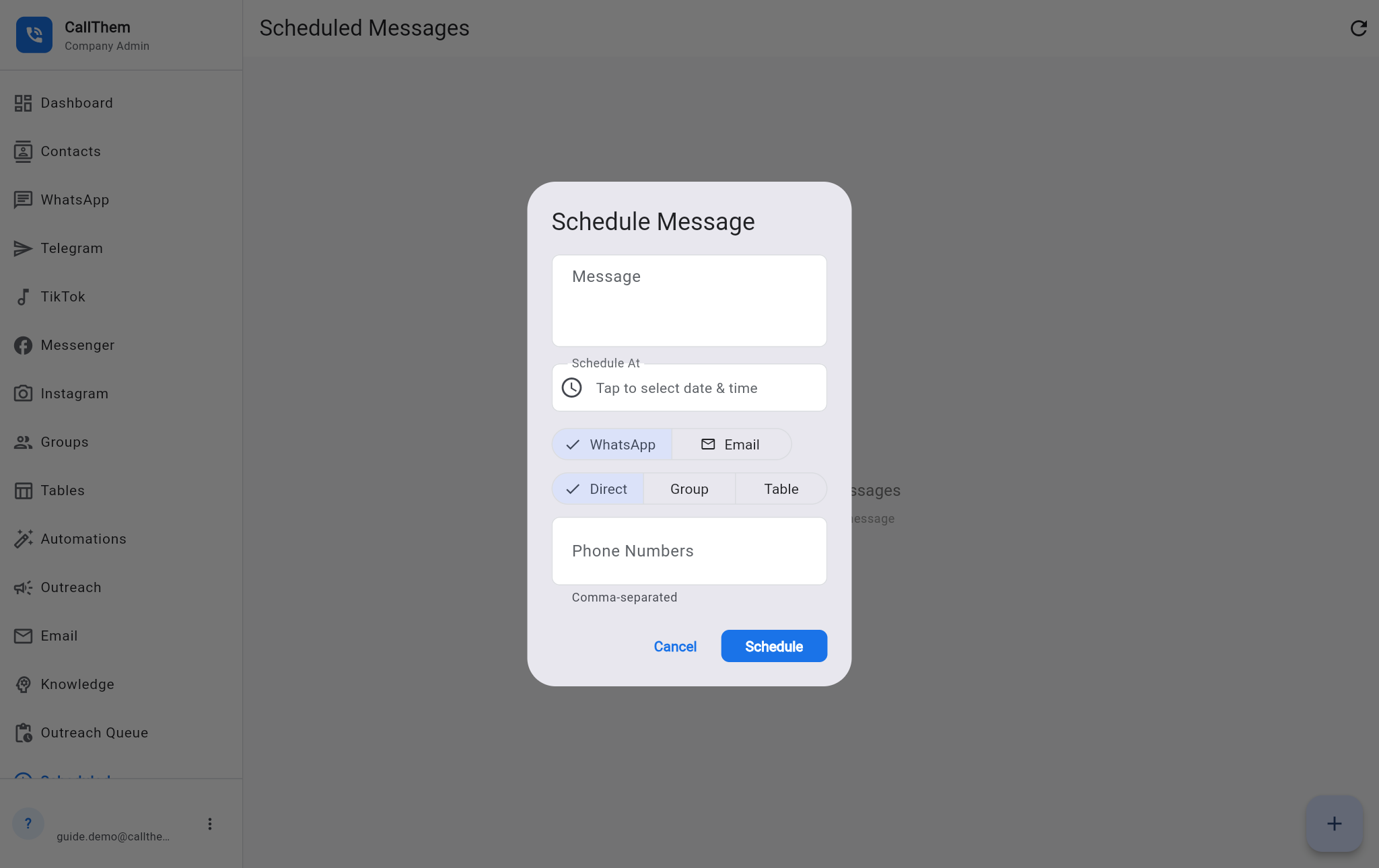
- Tap Scheduled in the menu, then + at the bottom right.
- Type the Message.
- Tap Schedule At and choose the date and time.
- Choose WhatsApp or Email, then who receives it: Direct (type numbers or emails separated by commas), Group or Table.
- Tap Schedule. The message appears in the list until it is sent.
Picture: https://callthem24.com/guide/img/scheduled-new.png
14Outreach campaigns and the Outreach Queue
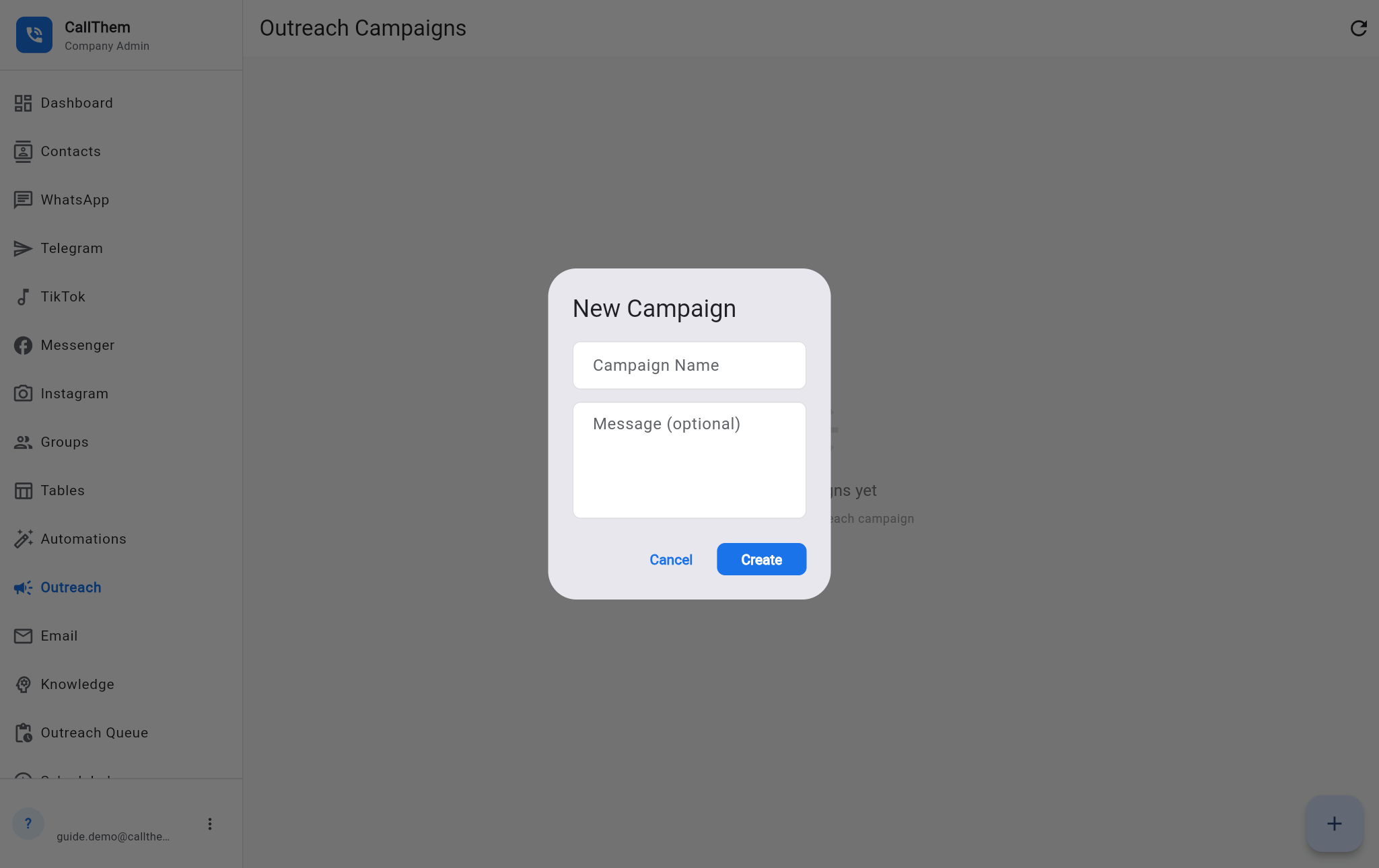
- Tap Outreach in the menu, then +.
- Type a Campaign Name and an optional message, then tap Create.
- Open the campaign to add leads and start or pause it.
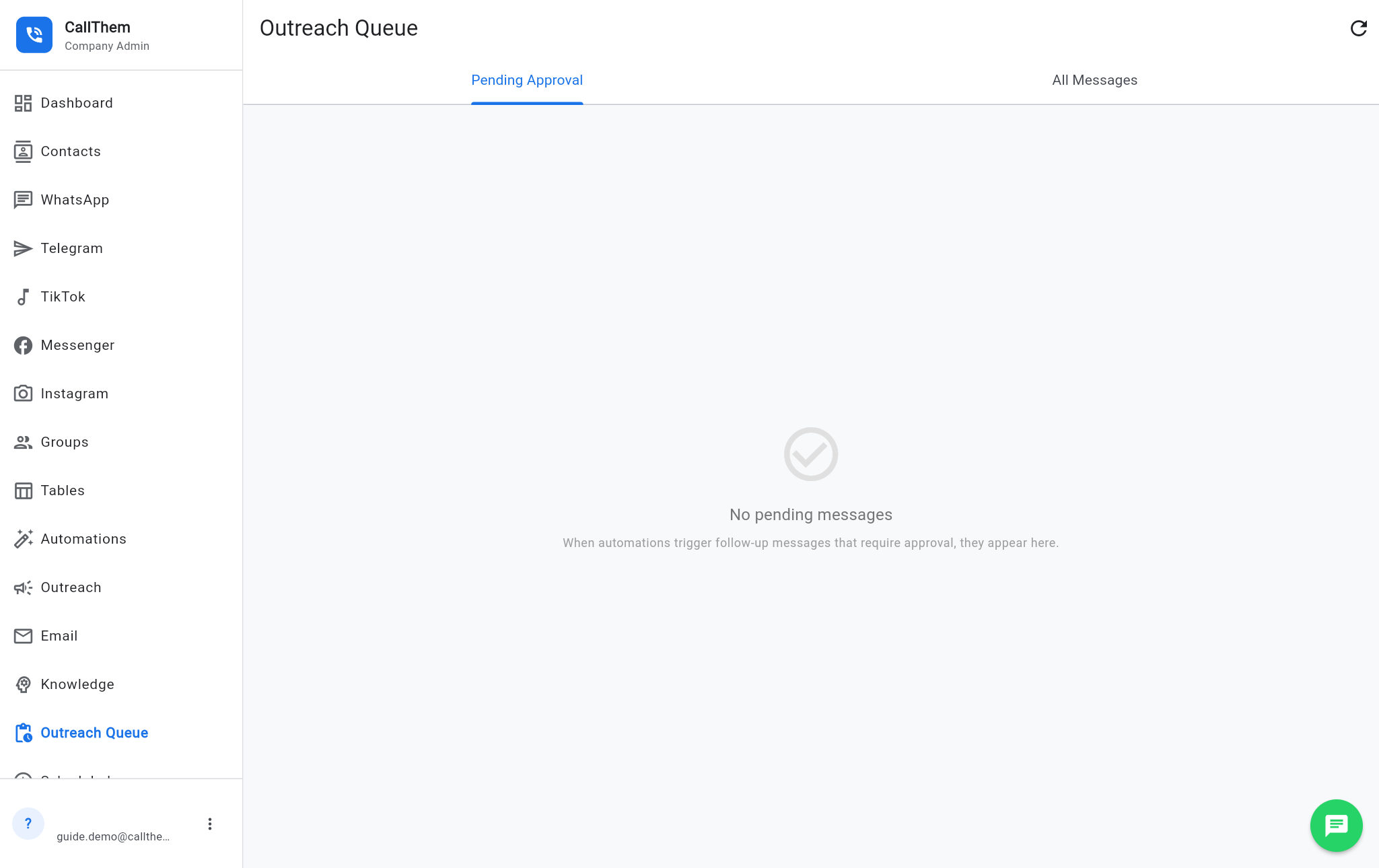
- Outreach Queue in the menu shows messages waiting for your approval: approve or reject each one.
Picture: https://callthem24.com/guide/img/outreach-new.png
Picture: https://callthem24.com/guide/img/followups.png
15Email
Connect your email
- Tap Email in the menu.
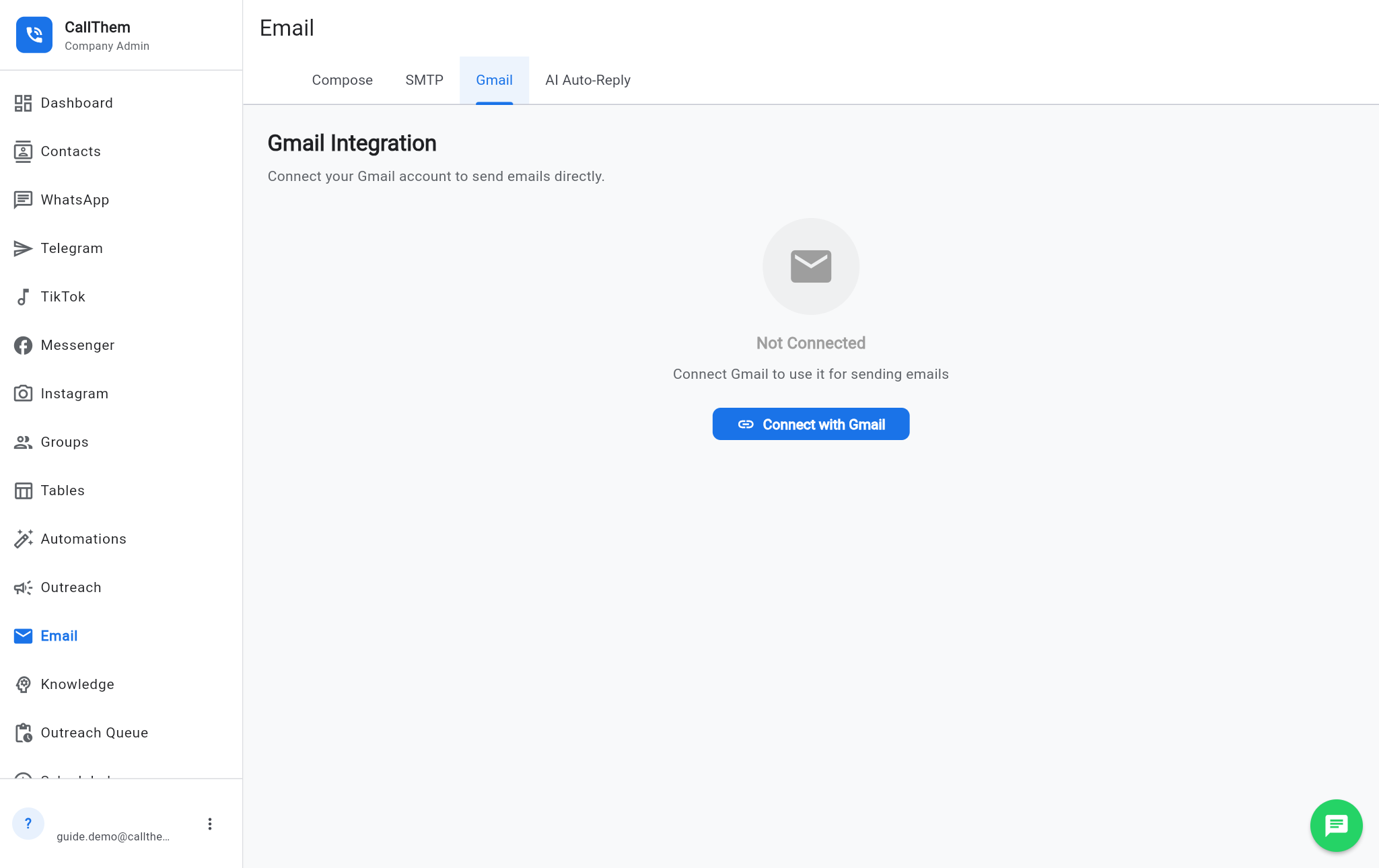
- Gmail: open the Gmail tab, tap Connect with Gmail, choose your account and tick the permission to send email.
- Other email: open the SMTP tab, type the SMTP Host, Port, Username / Email and Password / App Password from your email provider, then Save SMTP Settings.
Picture: https://callthem24.com/guide/img/email-gmail.png
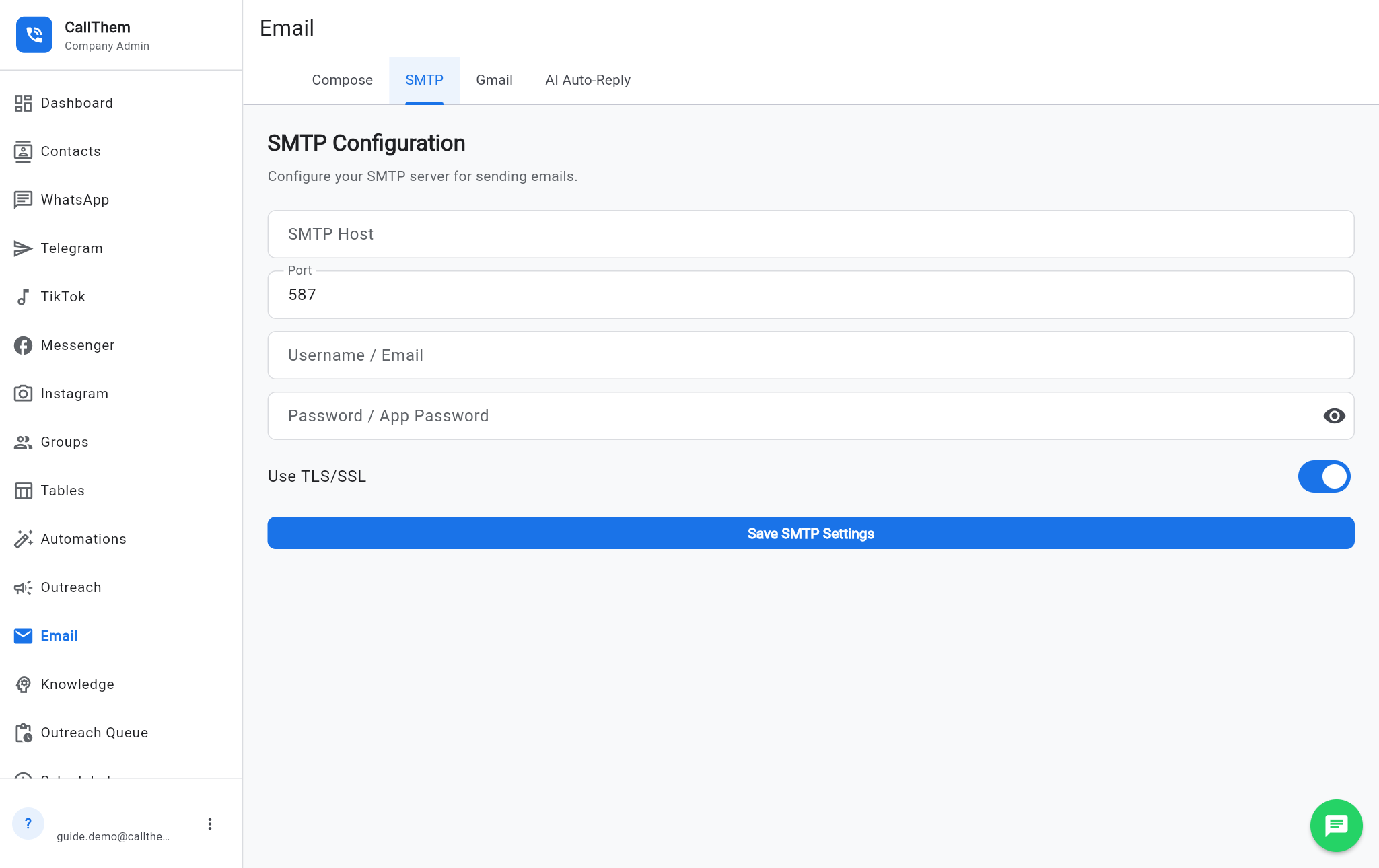
Picture: https://callthem24.com/guide/img/email-smtp.png
Send an email
- On the Compose tab, type To (or tap the contact icon), Subject and Message, then Send Email.
- Tap Broadcast to send one email to many contacts at once.
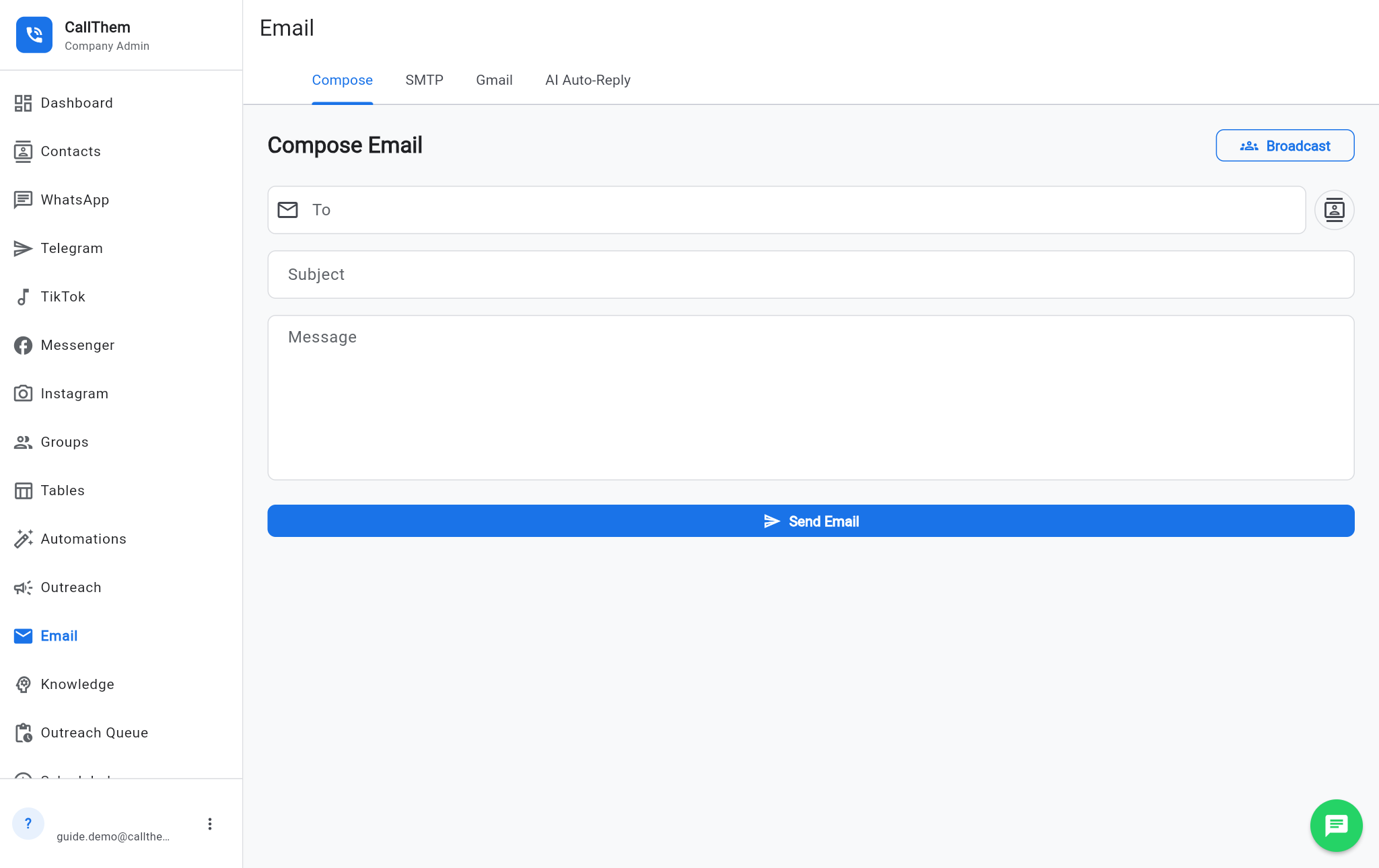
Picture: https://callthem24.com/guide/img/email-compose.png
Let the AI answer emails
- Open the AI Auto-Reply tab.
- With SMTP: add your incoming-mail (IMAP) host and switch auto-reply on. With Gmail: switch on AI auto-reply to incoming emails on the Gmail tab and accept the extra permission.
- The AI answers new emails within about 2 minutes, using the same Instructions and documents.
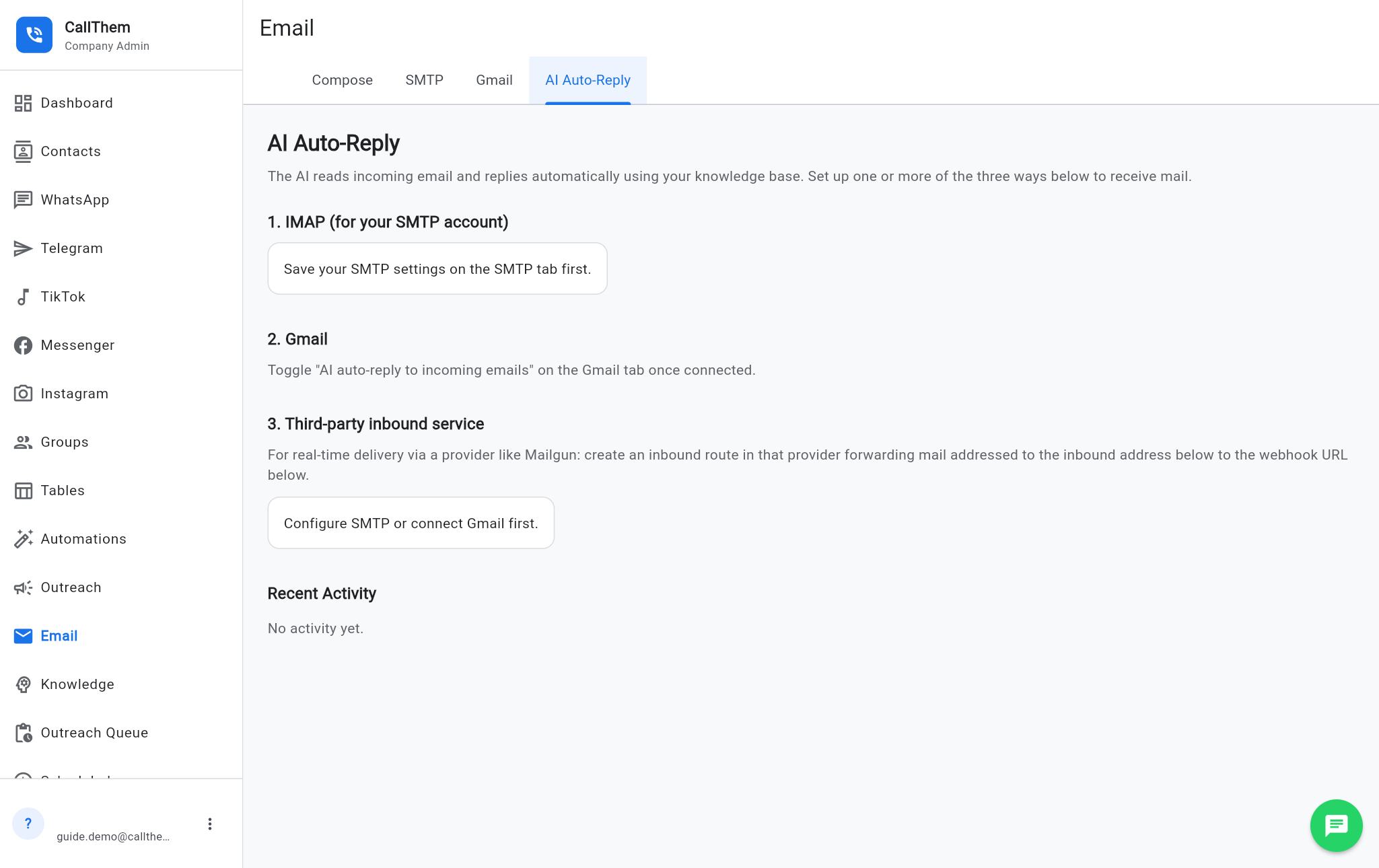
Picture: https://callthem24.com/guide/img/email-autoreply.png
16Telegram
- Tap Telegram in the menu.
- Tap Open @BotFather and, in Telegram, send /newbot. Choose a name and a username ending in "bot".
- BotFather gives you a bot token. Copy it, paste it in Bot token, and tap Connect.
- Customers who write to your bot are answered by the AI, and their chats appear in the Telegram inbox.
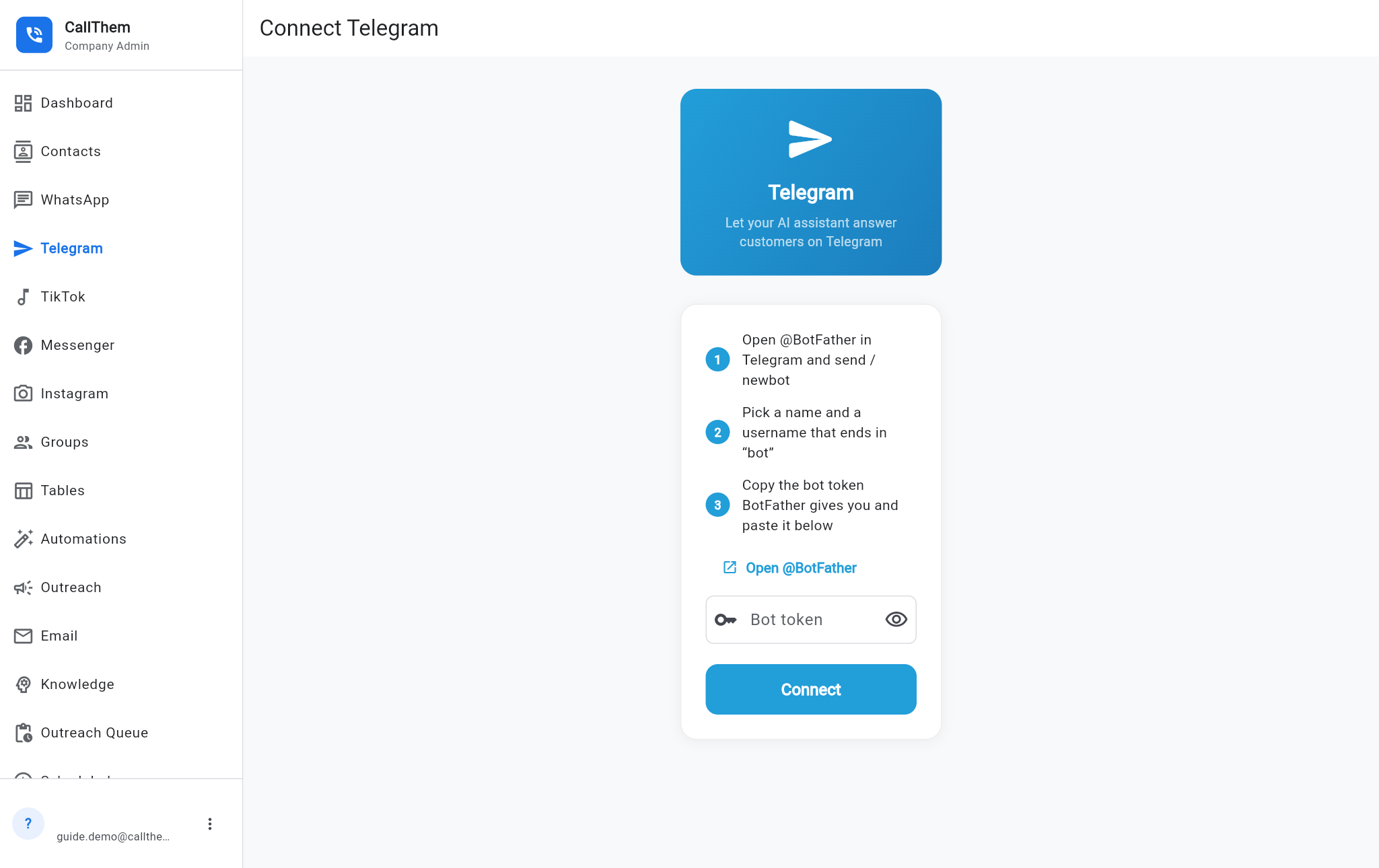
Picture: https://callthem24.com/guide/img/telegram.png
Good to know: Messenger, Instagram and TikTok appear in the menu but are not available yet — they will show "not available yet" until they are switched on.
17Plan, usage and payment
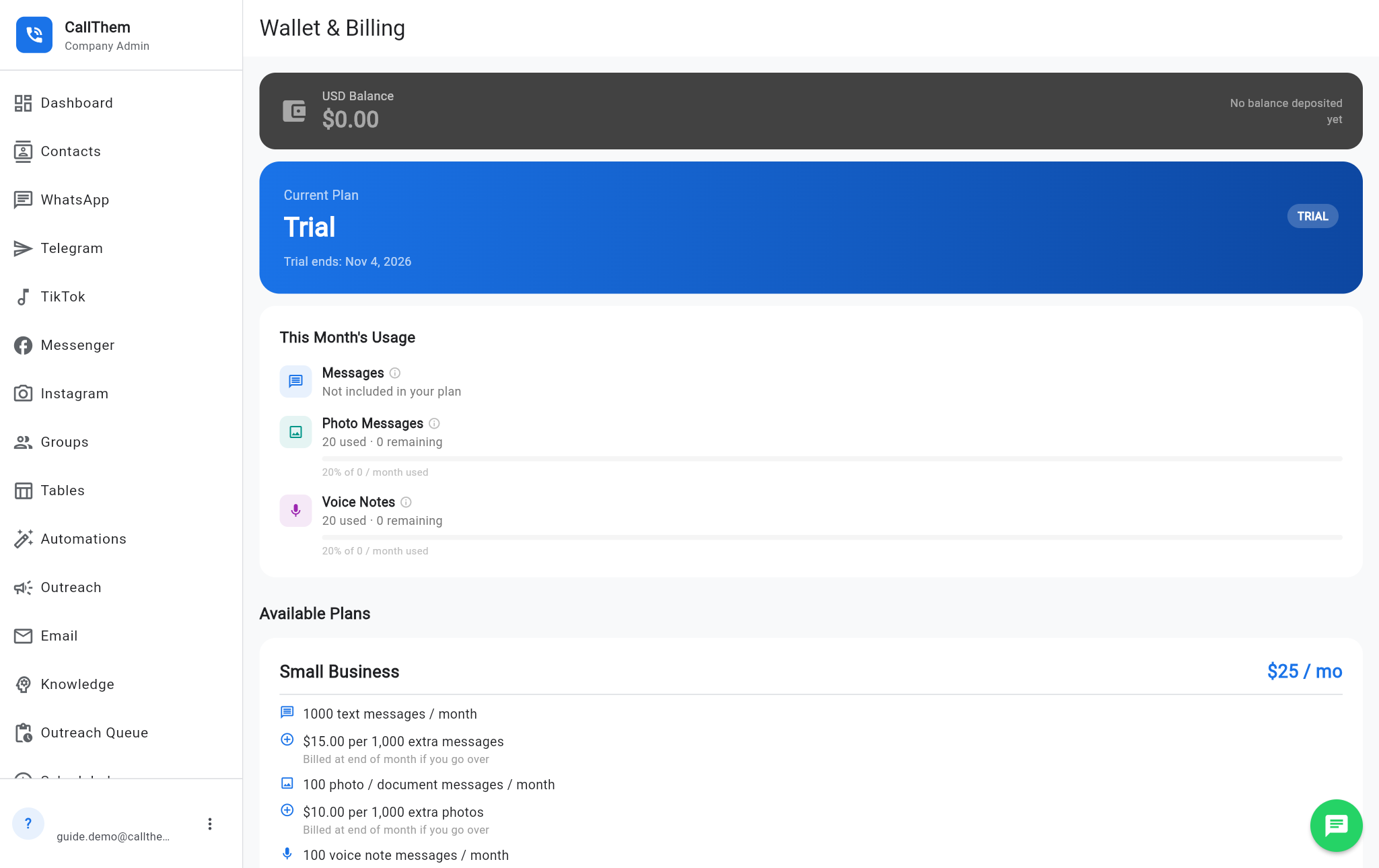
- Tap Wallet in the menu to see your current plan, when the trial ends, and how many messages, photos and voice notes you used this month.
- Under Available Plans, tap Request … to move to a paid plan; our team contacts you to complete it.
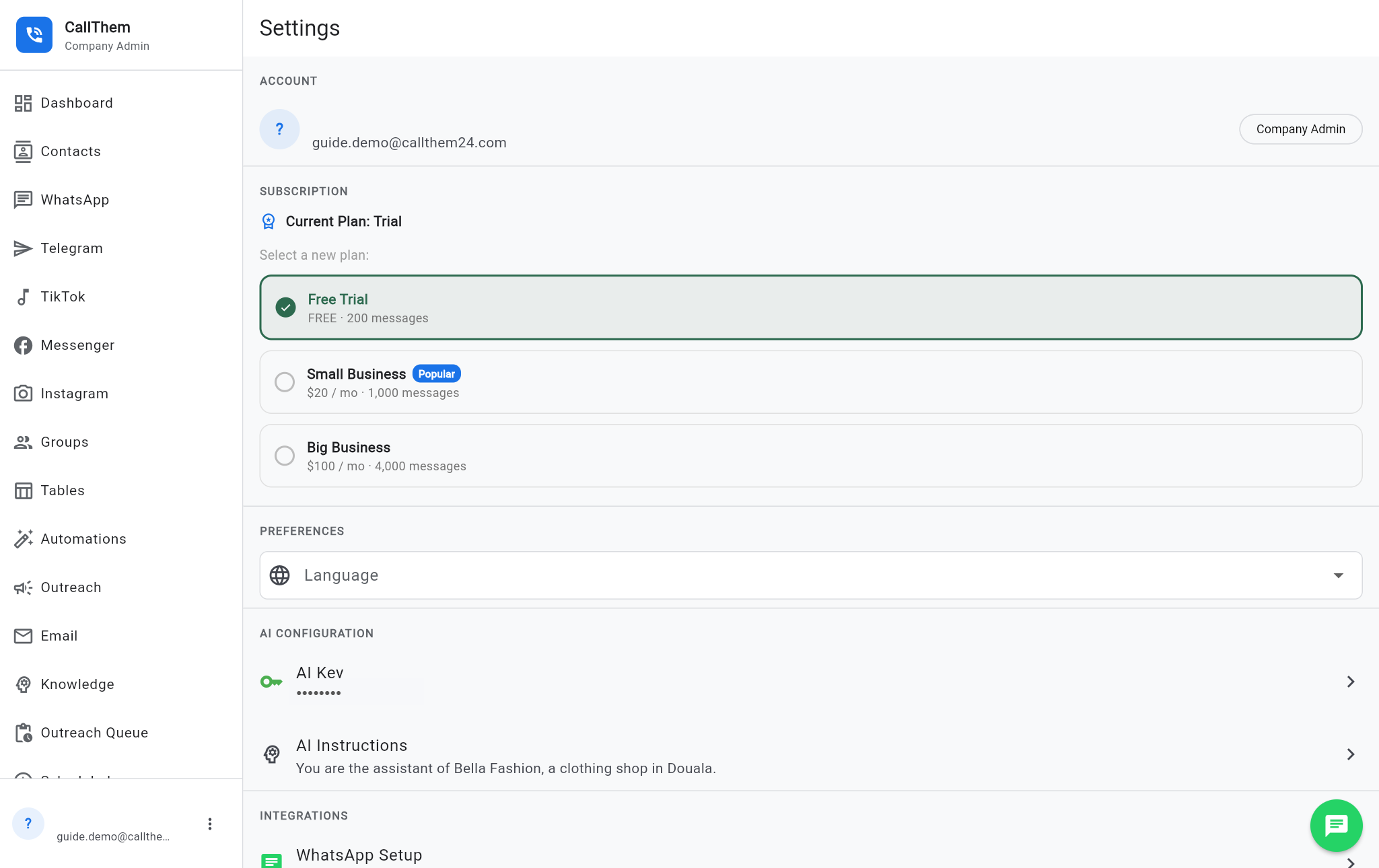
- You can also change plan in Settings → Subscription.
Picture: https://callthem24.com/guide/img/wallet.png
18Company profile, staff and settings
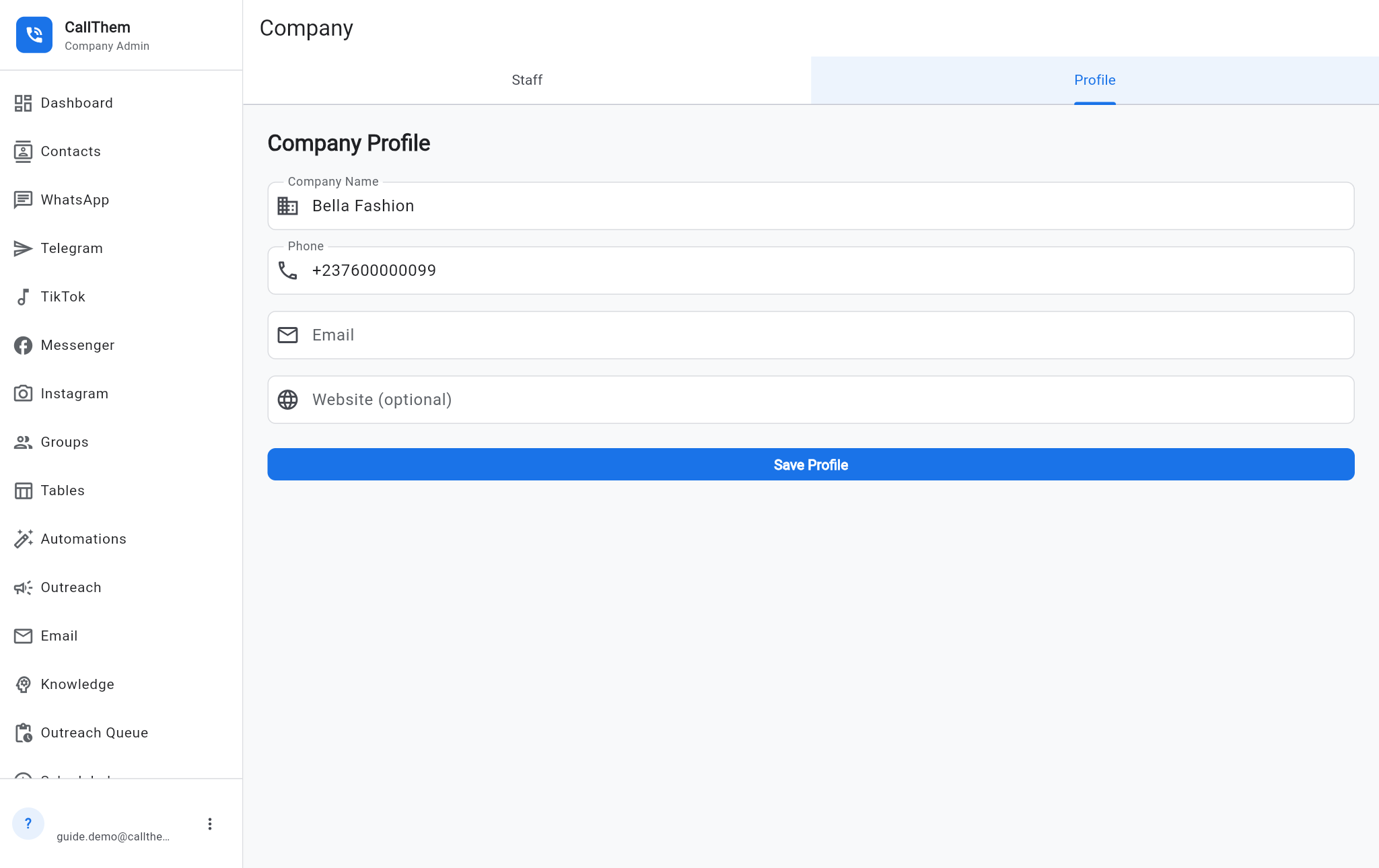
- Company → Profile: your company name, phone, email and website. Tap Save Profile after changes.
- Company → Staff: invite staff members so they can answer chats with their own login.
- Settings: your account, plan, Language (21 languages), AI key, AI instructions, WhatsApp and email setup, privacy policy.
Picture: https://callthem24.com/guide/img/company-profile.png
Picture: https://callthem24.com/guide/img/settings.png
Developer (API keys)
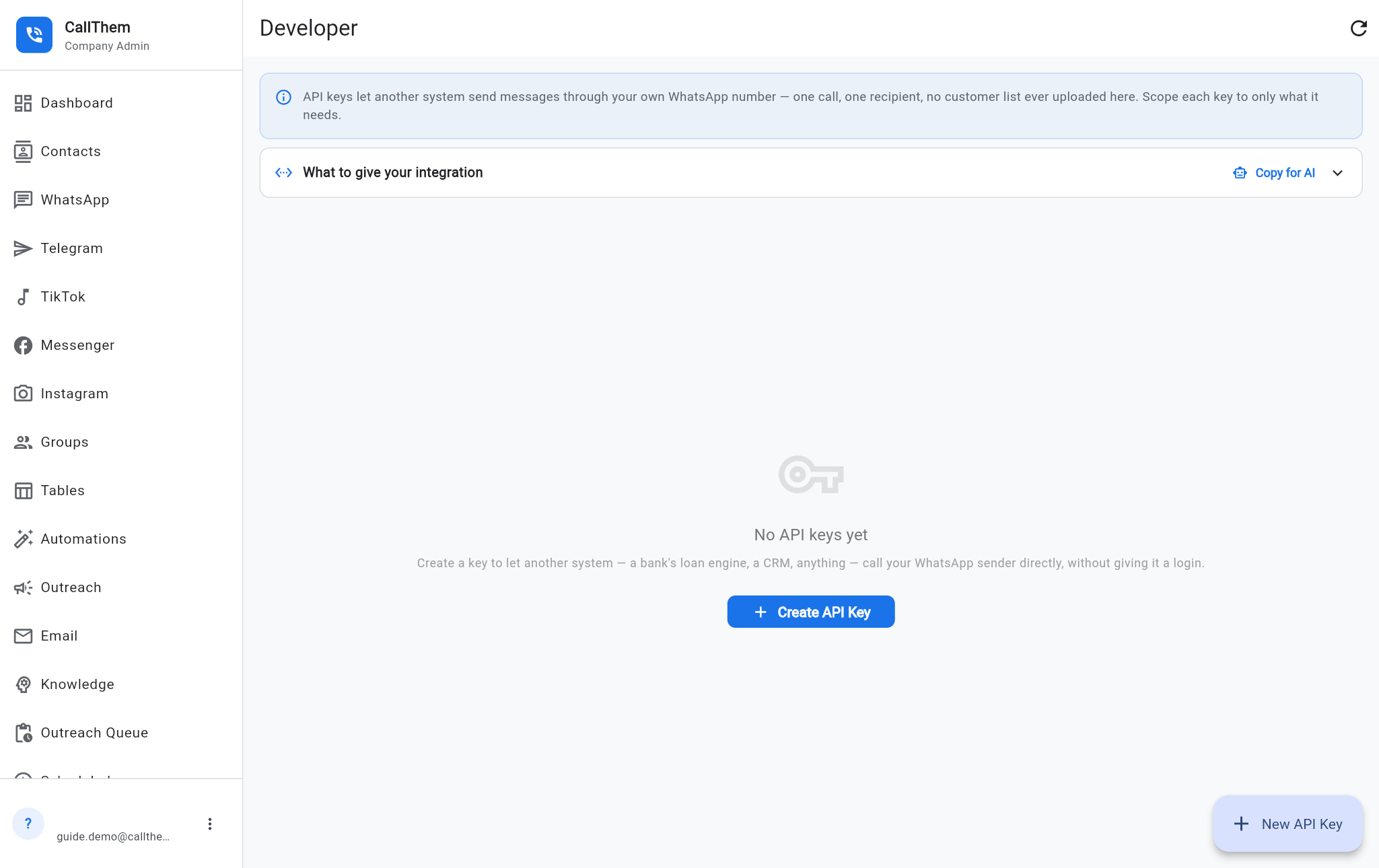
- Developer lets another system (for example your banking or shop software) send WhatsApp messages through your number with an API key.
- Tap Create API Key, choose what the key may do, and copy the key — it is shown only once.
Picture: https://callthem24.com/guide/img/developer.png
19Getting help and common questions
- Tap the green chat button (bottom right) or WhatsApp Support on the sign-in page to write to the CallThem team on WhatsApp — our assistant answers right away.
The AI did not answer a customer
- Check that WhatsApp shows Connected (Setup WhatsApp).
- Open the chat: if the robot switch is off, or you replied in the last 2 hours, the AI is waiting for you.
- Check your plan in Wallet: when the monthly messages are used up, sending stops.
A message was not delivered
- Open Message delivery and read the reason.
- "More than 24 hours" means the person has not written to you recently — use a template or wait for them to write.
- "Not on WhatsApp" means the number is wrong or has no WhatsApp — check the country code.
The AI gave a wrong answer
- Add the correct fact to Knowledge → Instructions or upload the right document.
- Test again in AI Chat. The AI never invents prices or products that are not in your knowledge — if it does not know, it says so.